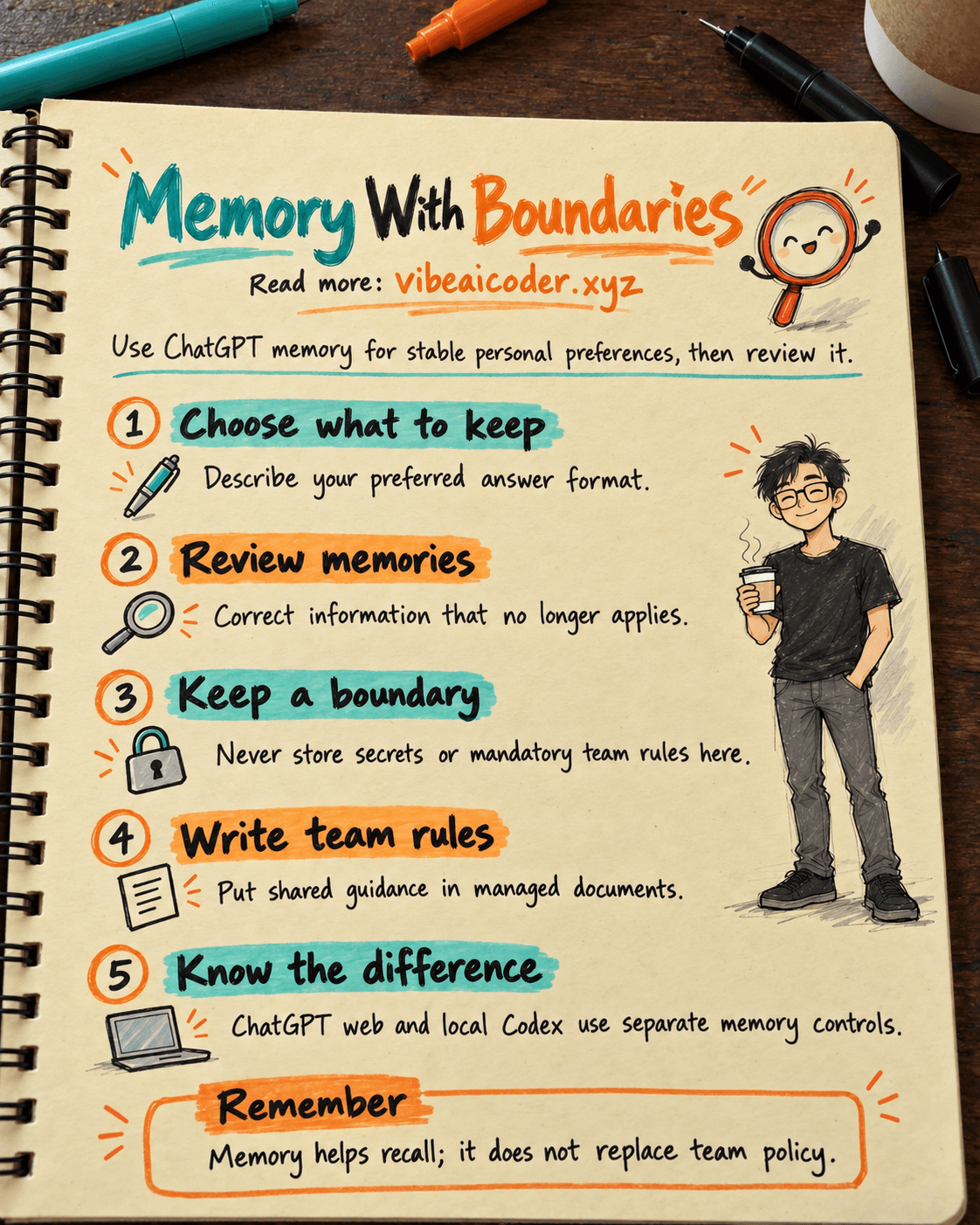
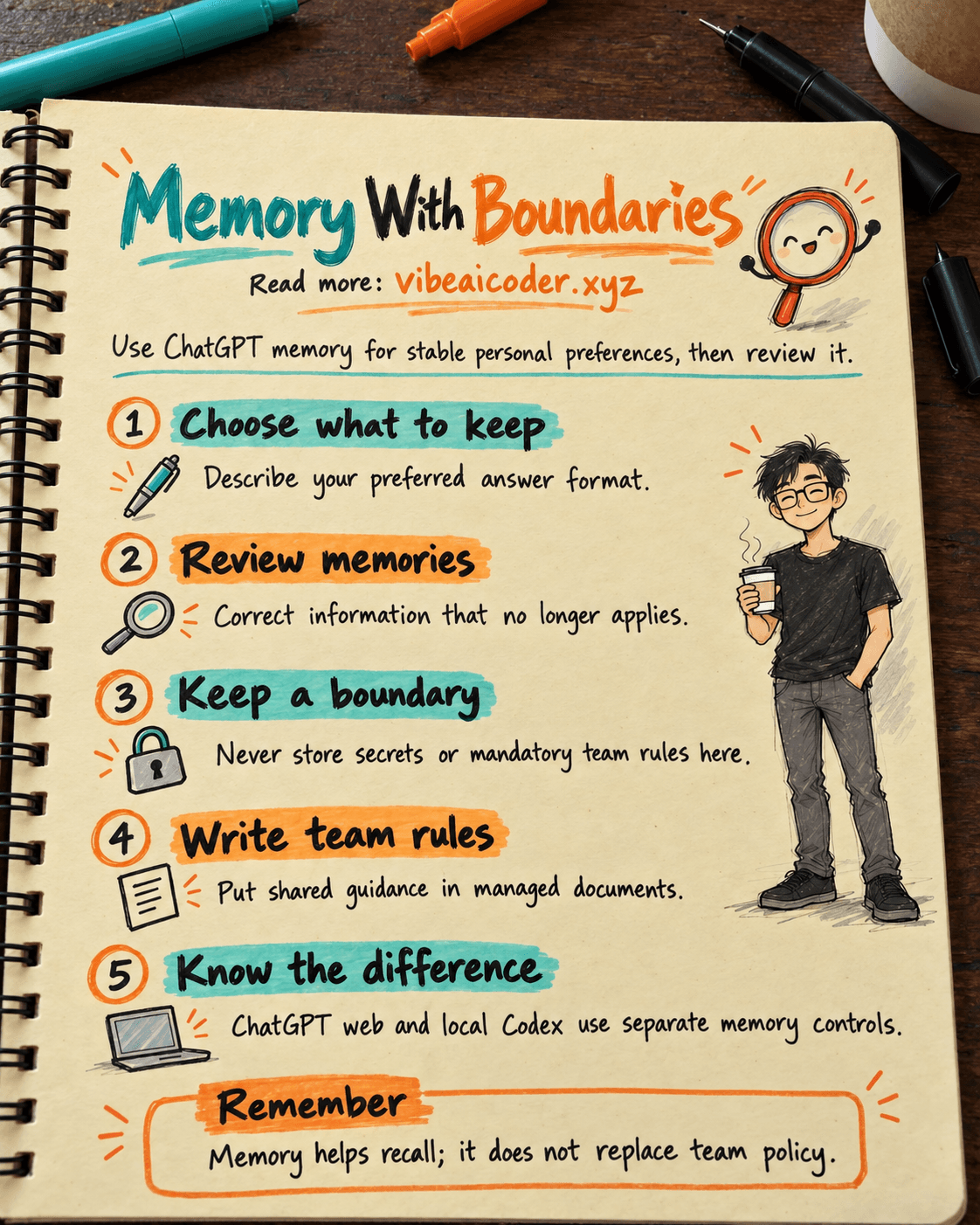
How to Set and Test ChatGPT Work Memory Preferences
You write a report for leadership every week. Each time you open ChatGPT, you repeat that you want the conclusions first, sourced figures, and a clear label for anything uncertain. This guide helps you set a controlled work preference in ChatGPT Work, test it, and change it when your needs change. You need access to ChatGPT in your workspace, a safe sample task, and about 15 minutes.
 Prepare
Open ChatGPT with your work account. Go to Settings > Personalization to see which memory options are available. ChatGPT Work follows your account and workspace settings, so controls and permissions may differ between organizations. If an option is missing, ask your administrator instead of assuming that it is enabled everywhere.
Choose a preference that is stable and personal. For example: "When summarizing a report, start with three main points and identify figures that need checking." Do not put secrets or customer details into something you ask AI to remember. When working from documents, see how to create and edit work files in ChatGPT while checking sources.
Keep three things separate: a personal preference for how to receive answers, a shared team rule, and a project fact that may change. Memory should not be the only place where a rule or fact lives.
 Step by step
1. Pick something worth remembering
Write down three instructions you often repeat. Keep only preferences that will still be useful weeks from now, such as putting conclusions before details. "Use the exchange rate in this morning's spreadsheet" belongs to one task. "A financial report must be approved" belongs in a shared process.
Try this prompt in a conversation without private data to refine the wording:
I often read operations reports. Help me turn this personal preference into one short sentence that can apply across many conversations: [my preference]. Do not add company rules or facts from a specific project. Point out anything ambiguous.
"Always be brief" is vague. "When summarizing an operations report, begin with three conclusions, then list the sources and anything unconfirmed" is easier to test. See how to write a prompt with a clear goal and limits if you need help.
2. Check memory settings for your work account
In ChatGPT, open Settings > Personalization and check the memory options offered to your account. According to ChatGPT Learn's Memories guide, ChatGPT on the web uses ChatGPT memory, while ChatGPT Work follows account and workspace settings. Do not infer from instructions about Codex's local memory that ChatGPT Work has an equivalent switch.
If your workspace does not allow memory, or you choose not to enable it, keep a reusable instruction that you can paste into tasks when needed.
3. State one bounded preference
When memory is available, tell ChatGPT what you want it to remember in one specific sentence. Then ask it to explain what it understood and check your account's memory management controls if the interface offers them. The natural-language request below is an example, not a promise that every account will save it immediately:
If memory is enabled for this account, remember this work preference: when I ask you to summarize an operations report, give me three conclusions first, then provide figures with their sources and mark anything unconfirmed. Apply this preference only to my report-summary requests. Tell me what you understood and whether I should check anything in the settings.
The request is scoped to reports. Avoid asking ChatGPT to "remember everything I send" because that could include facts needed for only one day.
4. Test with a real task using safe data
Start a new conversation with a fictional report. Do not repeat the preference. Check whether the conclusions appear first, the figures have a stated source, and unknowns are named. One successful test does not guarantee identical behavior every time.
Here is a fictional report to test the summary format: Week 1 had 120 requests, of which 96 were completed on time. Week 2 had 150 requests, of which 105 were completed on time. We do not have data on the causes of delays. Summarize this for a team lead using only the information in this paragraph.
The on-time rates are 80% and 70%. The response must not invent a reason for delays. Always check calculations against the source.
5. Put team rules where everyone can review them
A rule such as "a person must approve a customer report before it is sent" belongs in a shared document. ChatGPT Learn recommends putting required team instructions in AGENTS.md or a document kept with the project. A team without a code repository can use a controlled document with an owner and an update date.
For example: "Revenue figures shared outside the company must include the reporting period and source, and the team lead must approve them before publication." If the team wants a shared summary workflow, see how to build a document-summary plugin for the team.
6. Review, revise, or stop using a preference when work changes
Review preferences monthly or when your role changes. In Settings > Personalization, look for entries that have become outdated or should not be stored. Edit or delete them using the available controls, then test again.
When you move to a new project, state the new context and check current documents. Memory does not replace access permissions, evidence, or an approver.
 Example result
Imagine Lan is an operations manager. After choosing a useful preference and checking her settings, she puts the fictional report from step 4 into a new conversation. An answer suitable for testing, though not guaranteed, might be:
Three conclusions: Request volume rose from 120 to 150. On-time completions rose from 96 to 105, but the on-time rate fell from 80% to 70%. There is not enough information to explain the delays.
Source: The figures in the fictional report supplied by the user. Each on-time rate is the number completed on time divided by the total for that week.
To verify: The causes of delays, the definition of "on time," and whether both weeks cover comparable work.
Lan checks three things: conclusions first, sourced figures, and named gaps. If the result misses a criterion, she revises the preference or the current request. A real report still needs source checking and approval.
 Tips for better results
Keep preferences small and testable. If "always be very brief" conflicts with "explain every assumption," say which situation takes priority.
Separate remembering from knowing. A formatting preference does not supply the latest documents. For figures and policies, provide current sources and ask for citations. The guide to auditing a workflow using real records also separates rules from evidence.
Check with colleagues. Lan's preference does not become a shared team memory. Put templates and acceptance criteria in a team document if everyone needs the same report format.
State exceptions. When you need a detailed analysis despite usually preferring short summaries, say: "This time, examine each assumption in detail."
 Limits to know
Features and permissions can vary by workspace. The Memories guide says ChatGPT Work uses account and workspace settings. Memory in ChatGPT on the web differs from Codex's local memory. The Codex CLI /memories command is not a ChatGPT Work setup step.
Do not store secrets or unnecessary personal data in a preference. Enabling memory does not make answers a reliable source for figures or policies. Have an accountable person review work in areas that require legal, financial, or HR approval. When current evidence conflicts with an old preference, verify against the organization's sources and process.
 FAQ
FAQ
Do I need to enable memory to use ChatGPT Work? No. You can state the goal, context, and format in each request. Memory helps when a preference remains stable and the workspace allows it.
If I say "remember this," is it definitely saved? Do not assume so. Check the status in Settings > Personalization, inspect memory management if available, and test in another conversation. Account and workspace settings determine what is available.
Where should company-wide rules live? Keep them in a team document with an owner, access controls, and change history. AGENTS.md or a document kept with the project may be appropriate. Personal memory is not a policy publishing channel.
Is ChatGPT Work memory shared with Codex on my computer? No. ChatGPT Learn distinguishes ChatGPT web memory from Codex's local memory. ChatGPT Work follows account and workspace settings, not Codex's local memory store.
What should I do with old preferences when my job changes? Review each one, edit or delete anything that no longer fits using the available account controls, and test with safe data. State the current work scope in new requests.
Main source: Memories, ChatGPT Learn. Content checked on October 5, 2026. #ChatGPT #ChatGPTWork #AIMemory #AIAtWork
More articles
AI Training vs Inference: What Is the Difference?
Gemini 4 Argon Reads a 500-Page Chemistry Patent in One Afternoon

Claude Opus 5.5 Codes a Real Money Trading Game in One Day
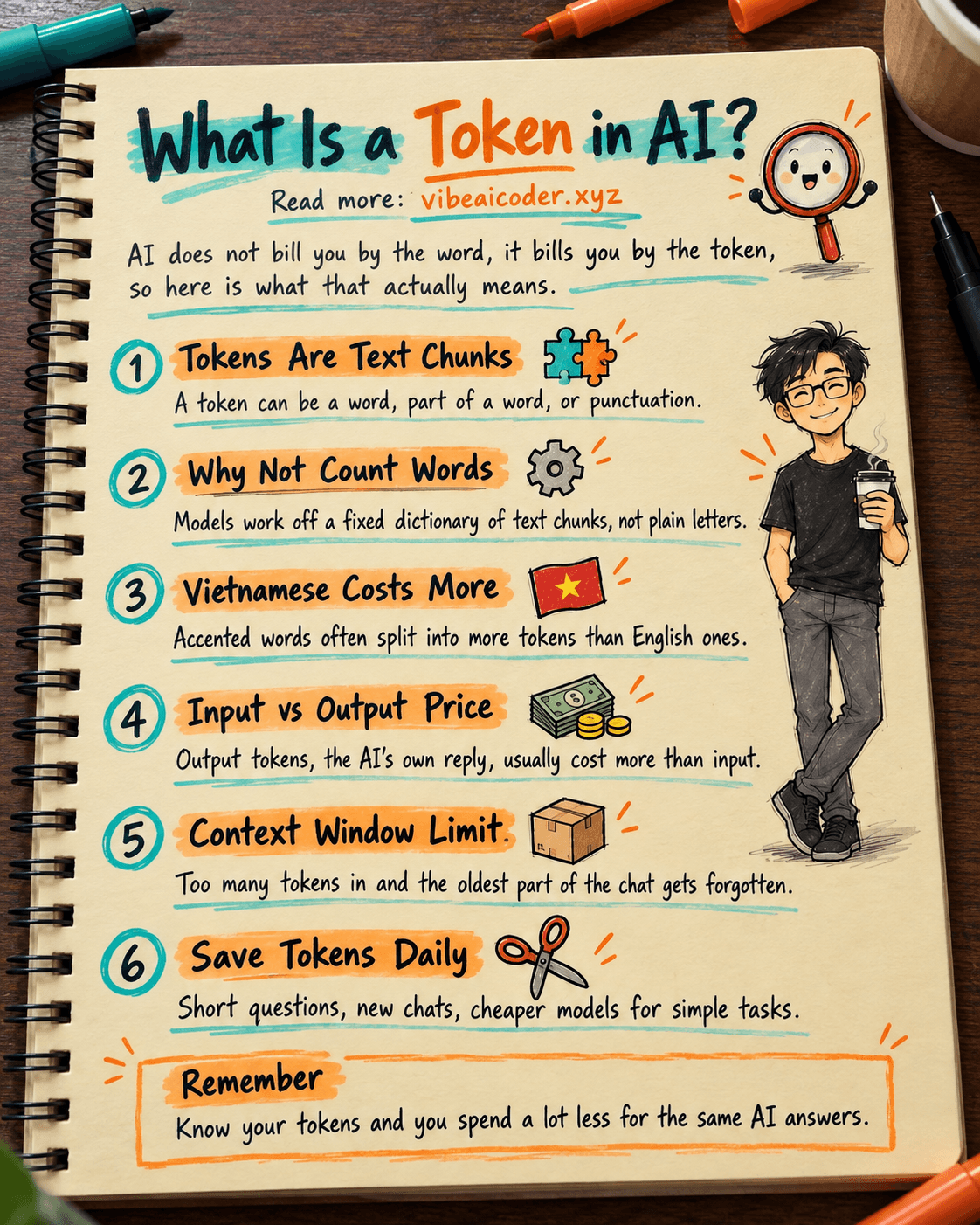
What Is a Token in AI? Why ChatGPT and Claude Charge by Tokens
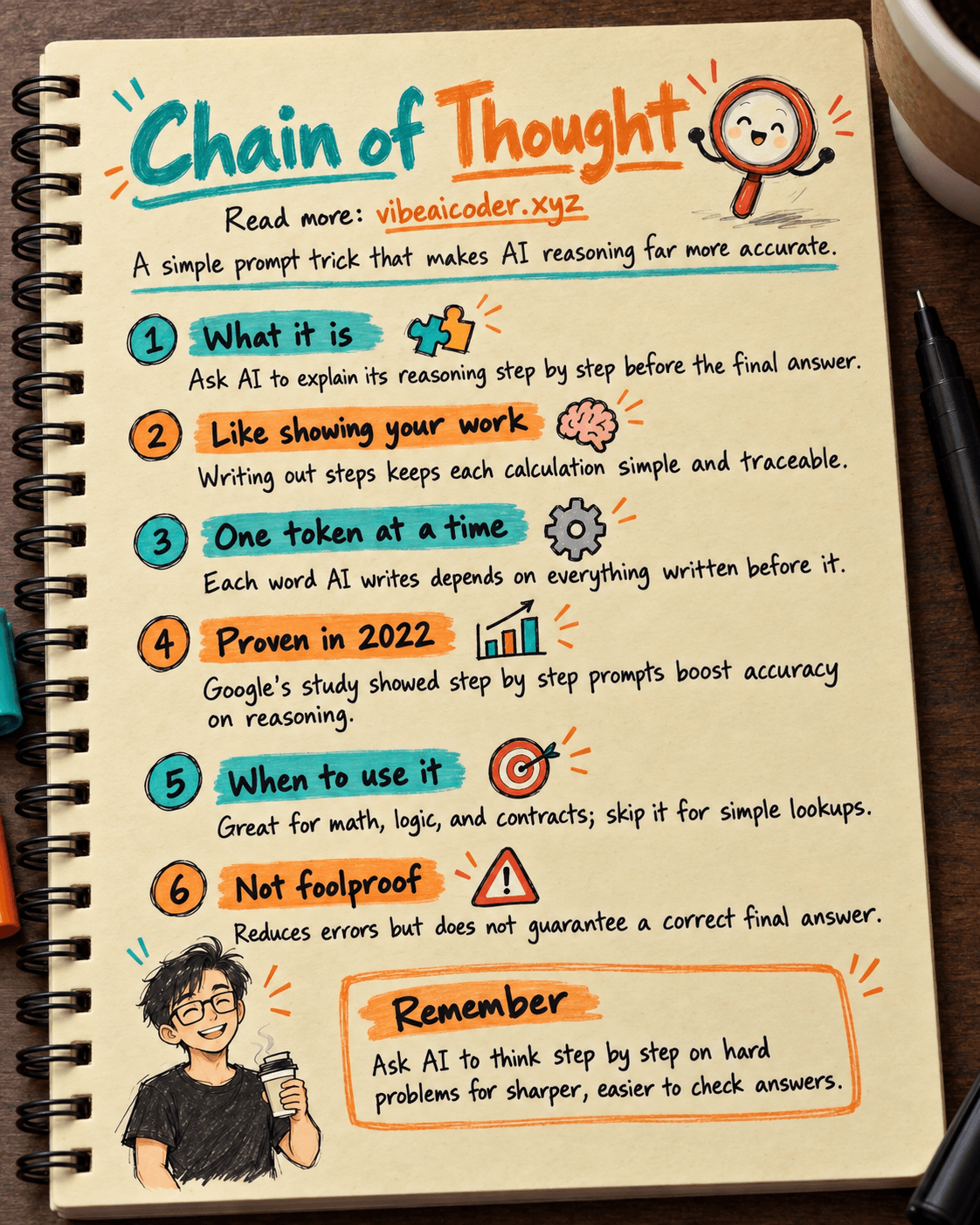
What Is Chain of Thought? Why Asking AI to Think Step by Step Works Better
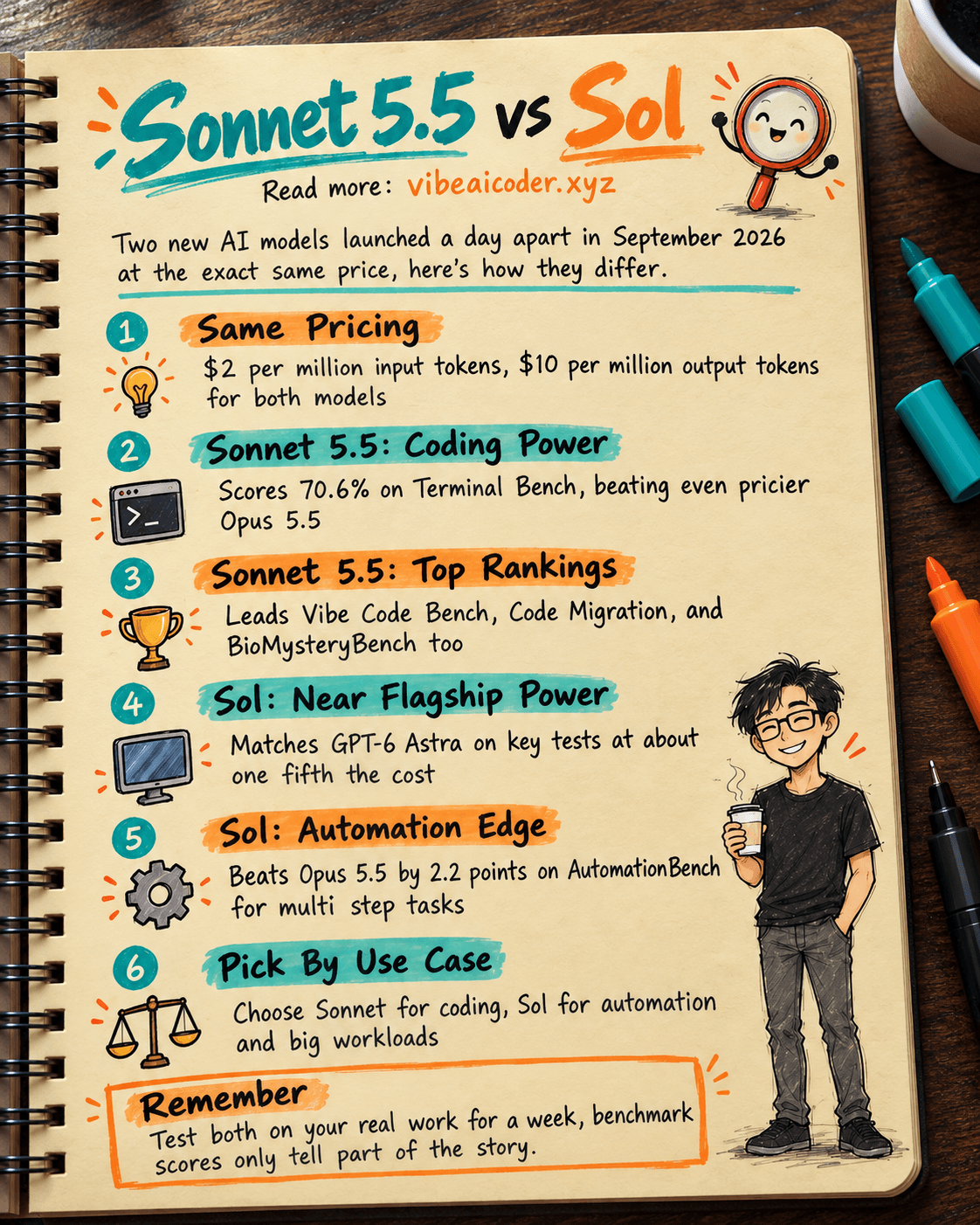
Claude Sonnet 5.5 vs GPT-6.1 Sol: Which AI Model Is Worth Using?