Use ChatGPT Work to Build a Shared Document-Summary Plugin
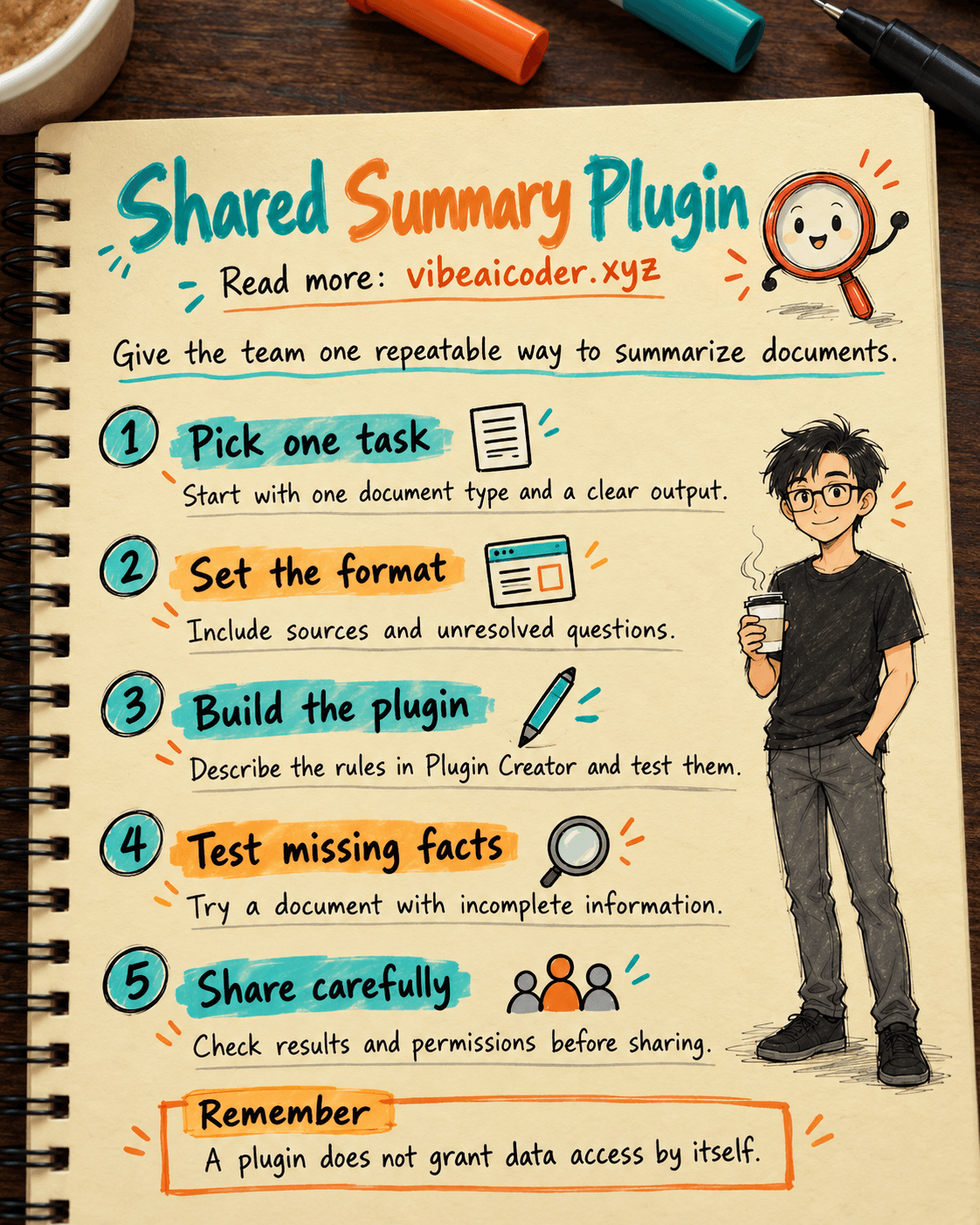
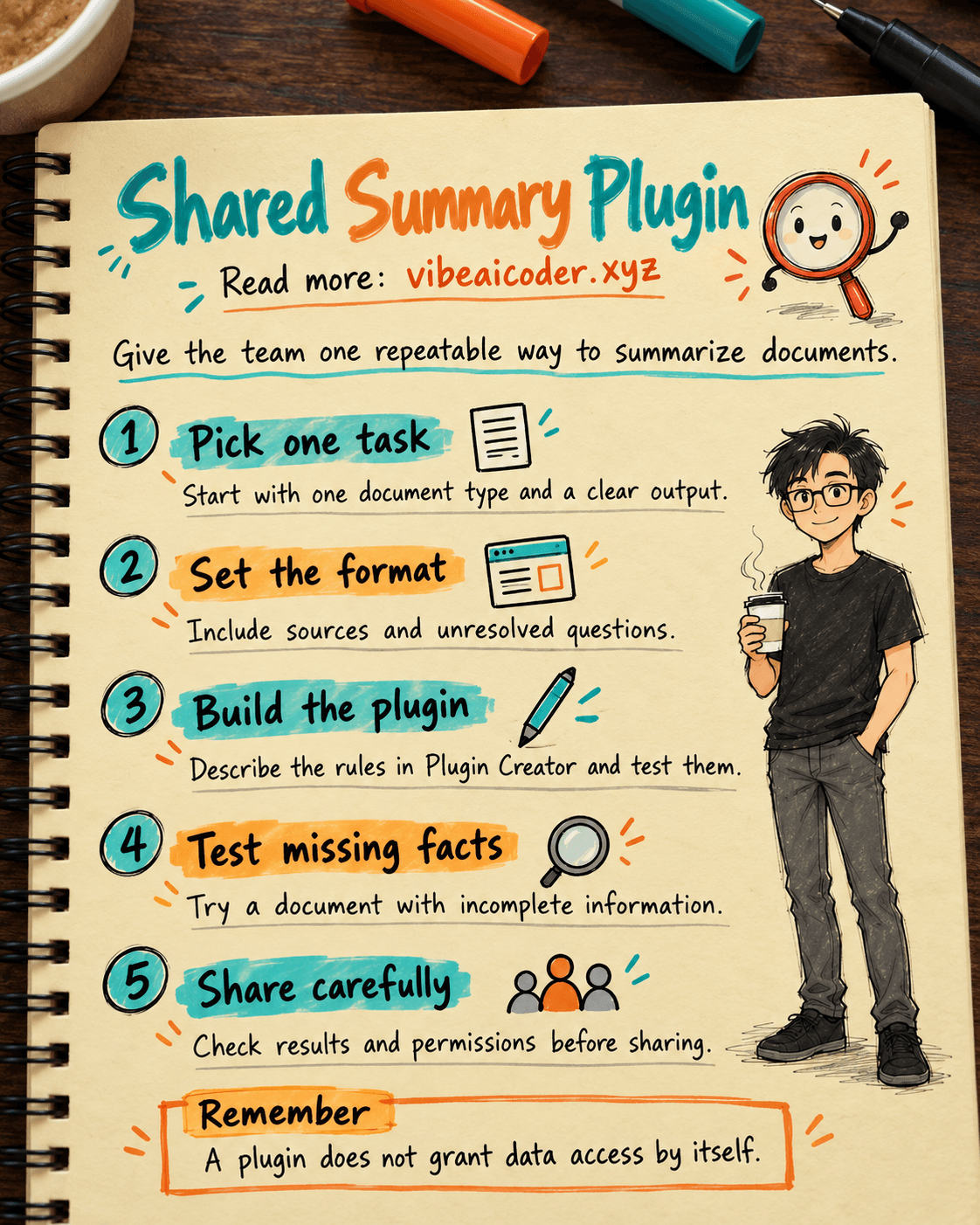
Every week, your team summarizes project documents. Yet every summary looks different: one person records only the conclusion, while another leaves out unresolved questions. With a shared plugin in ChatGPT Work, you can turn an agreed format into a repeatable workflow, test it on documents you know, and share it once the results are reliable. Prepare an output template and two documents you are allowed to use.
A plugin is a reusable set of instructions. This first version needs neither code nor a Drive connection. As OpenAI's Build plugins guide explains, a plugin may contain skills that guide work, apps that connect to services, or both. The example here works only with the document you provide. It does not search company files by itself.
 Prepare
Open ChatGPT on the web and select your company's workspace. OpenAI's instructions apply when that workspace has enabled plugin creation or editing. You need Use plugins permission and should see Plugin Creator after typing @. If it is missing, ask a workspace administrator to check availability and permissions. Do not assume every plan or account has the same interface.
Choose one document you know well, another that deliberately omits a date or owner, and a summary template your team has agreed to use. For example, the template might have four sections: Overview, Key points, Open questions, and Sources in the document. Use only files you are authorized to process, and remove unnecessary sensitive data.
The plugin produces a draft for review. It does not make a project owner's decision. Start with attached files if you do not need an app connection. The guide to working with files in ChatGPT and checking sources can help you prepare files that are easy to verify.
 Step by step
1. Define one recurring task
Keep the task narrow: receive a document, summarize it in the agreed format, flag unclear points, and wait for an owner to approve the result. The output structure should remain stable even when the input changes.
Set acceptance criteria before building. Every important point should be traceable to the document. The plugin must not invent a decision. If a date or owner is missing, it should say "not provided." A colleague should be able to read the summary in about two minutes. See how to write prompts with a clear goal and limits for more on specifying the output.
2. Ask Plugin Creator to build the workflow
In Chat or ChatGPT Work, start a new conversation, type @, and select Plugin Creator. Following OpenAI's guide, describe the purpose, inputs, output, and rules. Then refine the instructions in the conversation. Replace the square-bracket placeholders below with your team's details. Attach the prepared format template if you have one.
Create a plugin named [Team plugin name] to summarize one [document type] supplied by the user.

The reader is [role]. Produce four sections in this order: Overview (up to [number] sentences), Key points (up to [number] items), Open questions, and Sources in the document.

Use only the supplied document and attached template. For each key point, identify the relevant section or passage if possible. If evidence is missing, write "not provided" or "needs confirmation." Do not fill gaps with guesses.

Do not edit the original document or send the summary elsewhere. Before finishing, check dates, owners, and every number against the source. If the document is ambiguous, ask a question for the owner to answer. These are reusable rules for many documents. Do not hard-code facts from the test example.
3. Add examples and review the configuration
Attach your summary template and a safe example. Answer Plugin Creator's questions, then review the name, description, instructions, and reference material. The name and description should tell colleagues what input to provide and what the result cannot guarantee.
Check that a detail from your example has not become a general rule. "Project A is due on the 15th" must not appear in a summary of Project B. According to OpenAI, a new workspace plugin starts private, so you can test it before sharing it.
4. Test a familiar document and an incomplete one
Start a new conversation, select the plugin with @, attach the familiar document, and request a summary. Compare each key point with the original. Pay special attention to names, numbers, dates, and statements that sound like finalized decisions. If you cannot find support in the document, change the rule or remove the statement.
Next, test the document that omits a date or owner. The plugin should expose the missing information, not guess to complete the template. Use this request in both tests, changing only the attachment. If your team has an approval process, name the reviewer in the draft rather than allowing the AI to claim approval.
Use [Team plugin name] to summarize the attached document for [reader role].

Before answering, check all numbers, dates, and owners against the document. Put missing or conflicting information under Open questions. Do not use information outside the document. This is a draft for [reviewer role] to check.
Compare both results with the criteria from step one. If sources are missing, add a rule to identify the relevant section. If a proposal is presented as a decision, require the plugin to distinguish approved, proposed, and unconfirmed. Test both documents again after each change.
5. Decide whether an app is needed, then share
If team members attach their own documents, the first version does not need an app. Add a connection only when the workflow must retrieve files from a service the workspace permits. Check what the app can read or do, and test with a file you already have permission to view. A connection does not grant extra rights in the source system. Colleagues still need the relevant access and settings. See how to grant a plugin only the permissions it needs if your team uses connected apps.
Once the output meets your criteria, use the sharing settings to select the right people or group. OpenAI says Share plugins permission is required to share a plugin, while Publish plugins to workspace permission is required to add it to the workspace catalog. Recipients must install the plugin unless an administrator has installed it for them. Send the sample request and name a person responsible for maintenance.
 Example result
Suppose a test document says an operations team handled 18 of 20 requests this week. Two are waiting for a reply from legal, but the document gives no new deadline. A suitable summary might look like this:
Overview: The team handled 18 of 20 requests this week. Two are waiting for a legal response.
Key points: The figure 18/20 comes from the "Weekly results" section. The two open requests are described under "Blockers."
Open questions: Who will follow up on the two requests? When is legal expected to reply? The document does not provide these details.
Sources in the document: "Weekly results" and "Blockers."
This is an illustrative example, not output from a plugin that has been run. Check that your plugin preserves the figures, does not invent a deadline, and points to its sources. When summarizing multiple files, ask it to identify file names, dates, and contradictions. The guide to drafting a PRD from internal sources uses the same boundary between evidence and assumptions.
 Tips for better results
Test difficult but safe cases. Alongside a complete document, try one with conflicting dates, an unexplained abbreviation, or a conclusion that is only a proposal. A useful plugin makes questions visible instead of making every document look complete.
Keep the template small. Four predictable sections are easier to compare and review than a long report with optional sections that change on every run. Add a field only when the team knows who will read it and what decision it supports.
Give examples of acceptable uncertainty. Show the exact phrase to use when an owner or date is missing. Reviewers can then scan for open questions rather than interpreting polished prose as certainty.
 Limits to know
A plugin cannot turn a document with no date, author, or decision into a reliable source. AI can sound confident while copying a number incorrectly. The responsible person must check information that affects customers, legal matters, money, or plans.
Plugin creation and app access depend on the workspace, permissions, and actual connections. This guide does not promise that Plugin Creator appears in every account. If a colleague can see the plugin but cannot run it, check installation, Use plugins permission, and access to any source app separately. Do not upload internal data for a quick test unless its use is authorized.
 FAQ
FAQ
Do I need to code to create a document-summary plugin? No, not for the Plugin Creator workflow OpenAI describes. Explain the task, output template, and rules in a conversation, then test and refine them. Deeper custom integrations are a separate project.
Must I connect Google Drive or another app? No. Start with pasted text or an attachment you are authorized to use. Add an app only when the workflow really needs to find or read data from another service.
Will a new plugin immediately appear for the whole company? No. According to OpenAI's guide, a new workspace plugin starts private. You can test and revise it, then share it with the right people or group if you have permission. Sharing and installation are separate steps.
What should I check if a colleague cannot use a shared plugin? Check Use plugins permission, installation status, and access to the source app if the plugin uses one. Seeing the plugin's name does not prove that every connection is ready.
How do we know it is ready for the team? Test at least one complete and one incomplete document. Check figures, source references, structure, and open questions. Share only after the content owner accepts the result and knows how to revise the rules when the template changes.
Main source: OpenAI Learn, Build plugins. The creation, testing, revision, and sharing workflow comes from this guide. The operations document is an illustrative scenario.
More articles
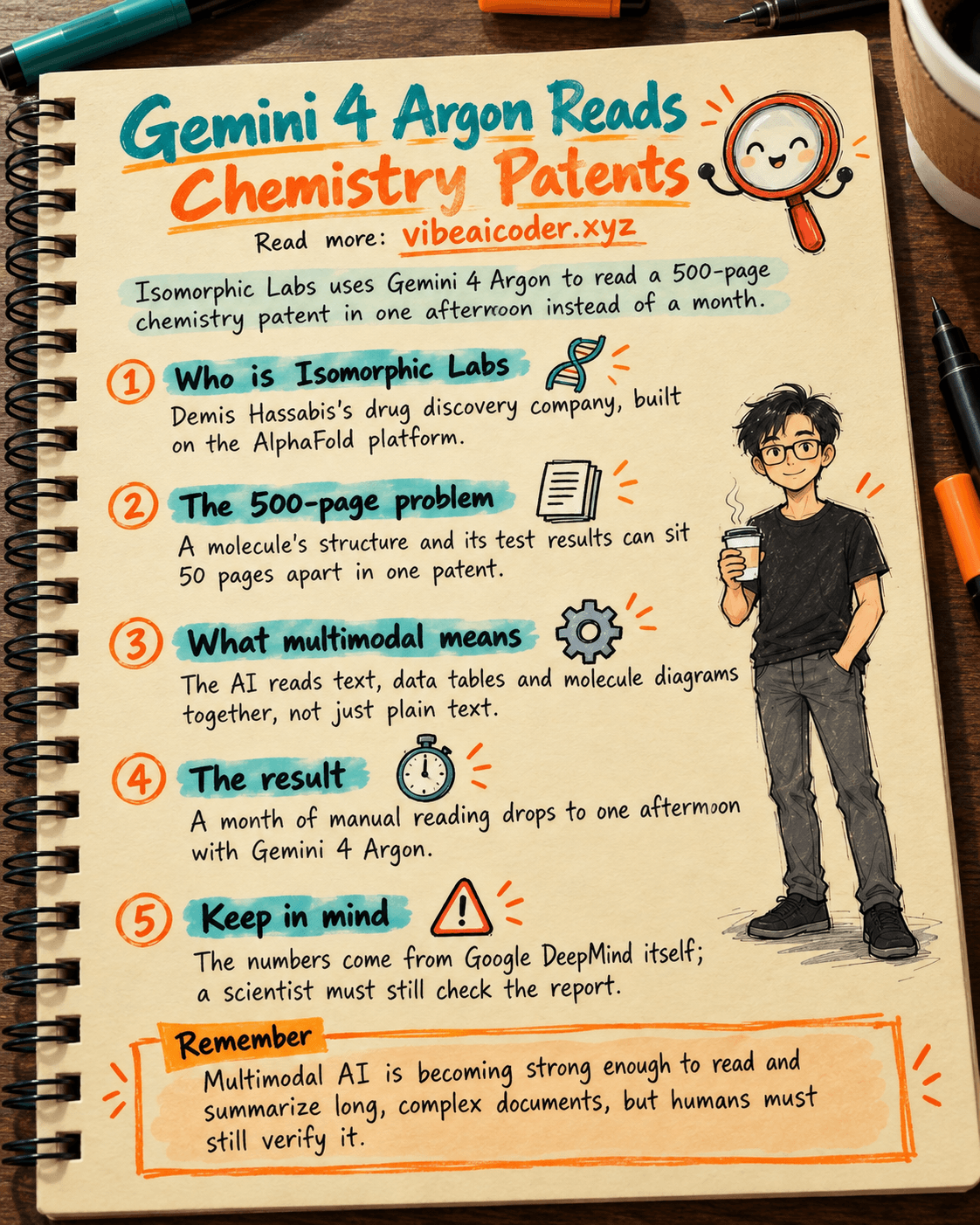
Gemini 4 Argon Reads a 500-Page Chemistry Patent in One Afternoon
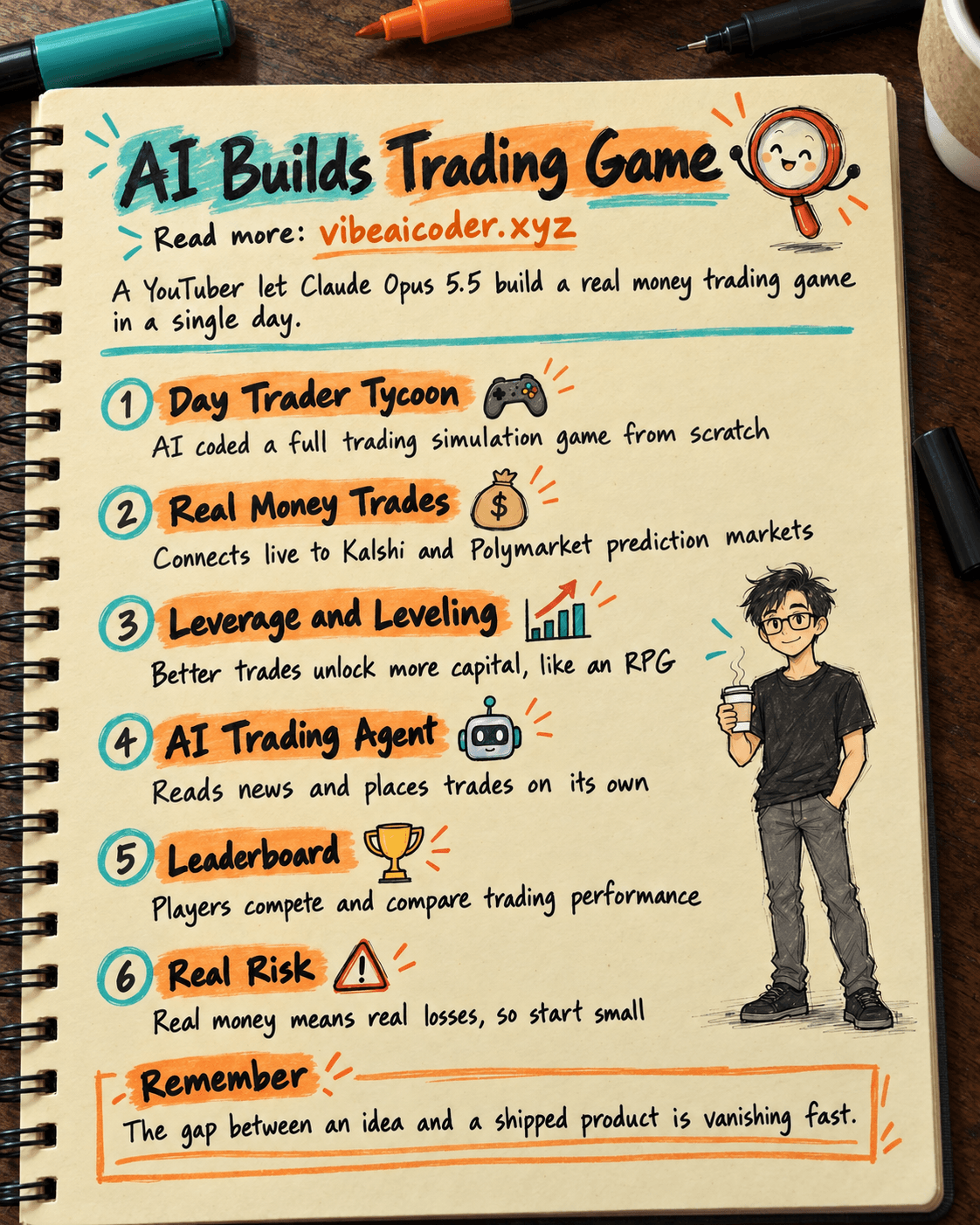
Claude Opus 5.5 Codes a Real Money Trading Game in One Day
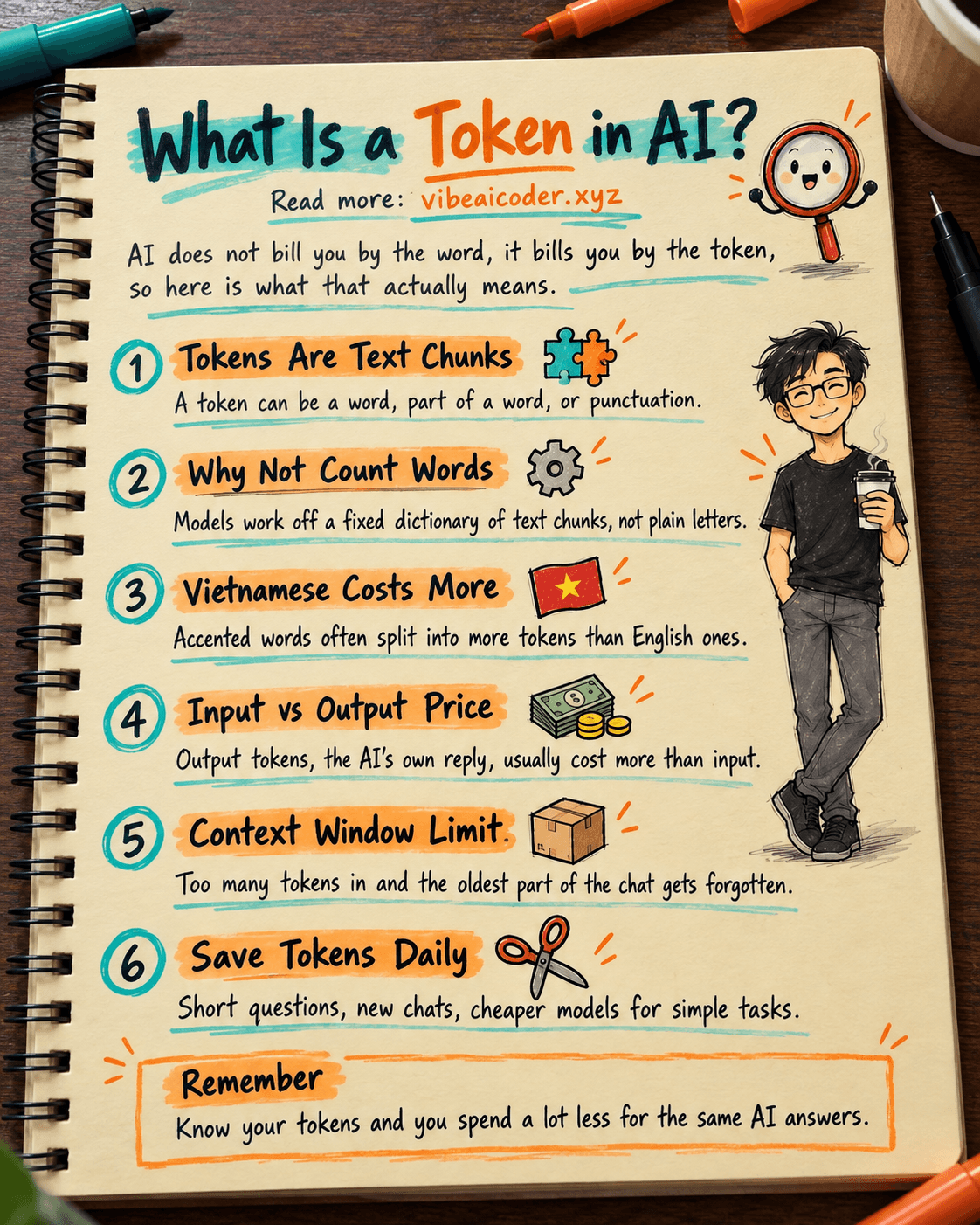
What Is a Token in AI? Why ChatGPT and Claude Charge by Tokens
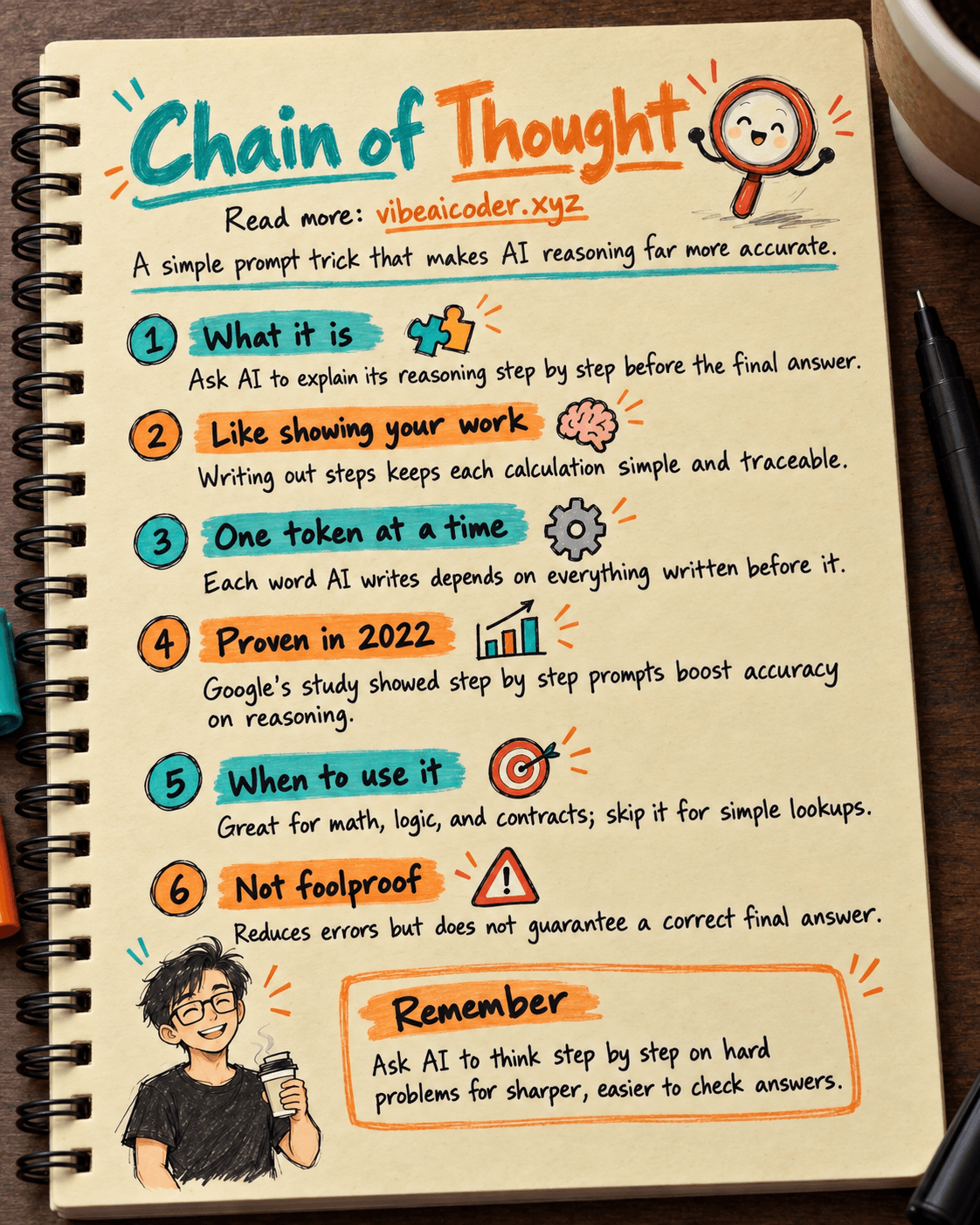
What Is Chain of Thought? Why Asking AI to Think Step by Step Works Better
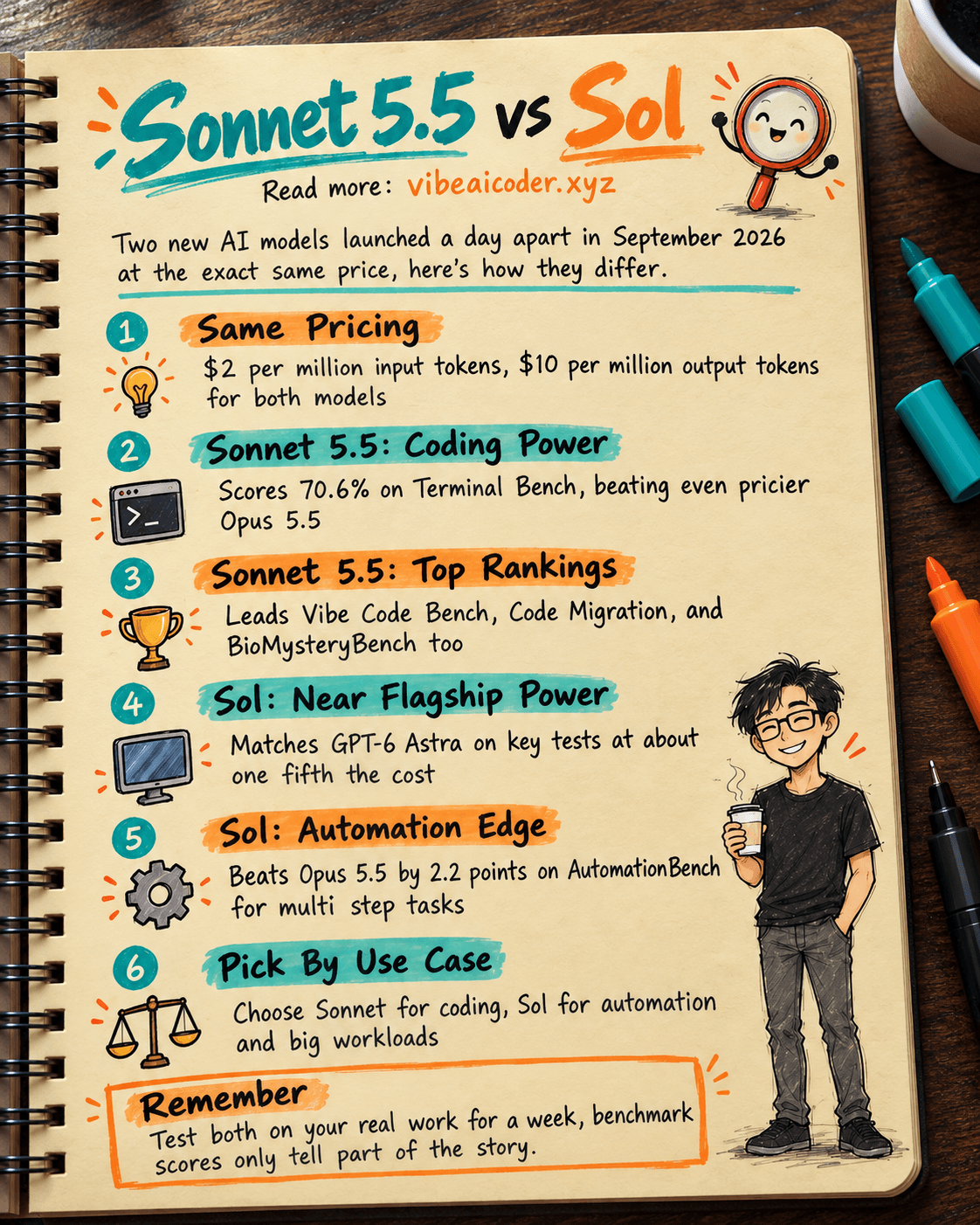
Claude Sonnet 5.5 vs GPT-6.1 Sol: Which AI Model Is Worth Using?
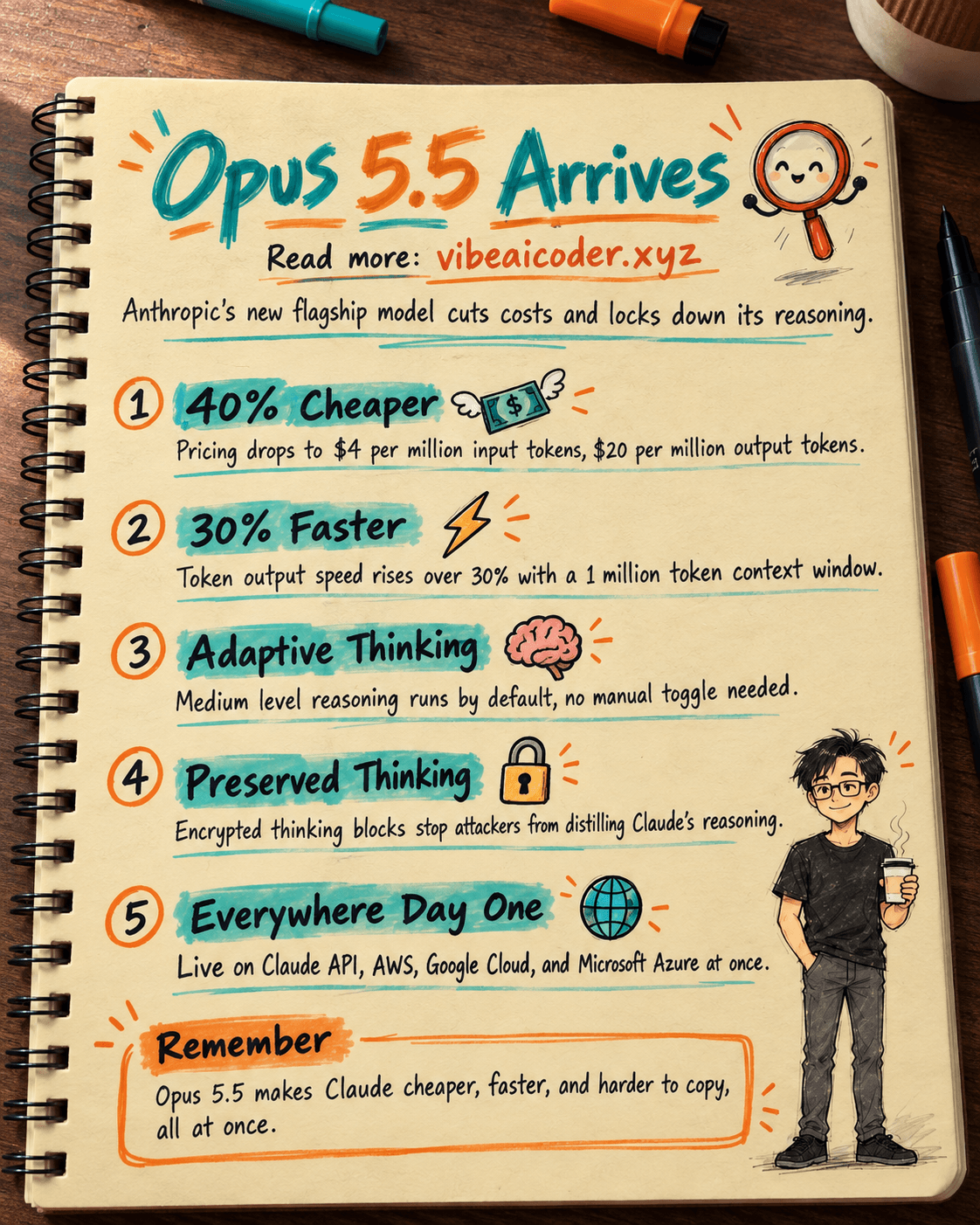
 Claude Opus 5.5 Launches: 30% Faster, 40% Cheaper, Blocks AI Brain Copying