Use Gemini in Gmail to Clear Backlog Emails in 10 Minutes
Use Gemini in Gmail to Clear Backlog Emails in 10 Minutes
You open Gmail and see 80 unread messages and no idea where to start. This guide shows you how to use Gemini, the AI assistant already built into Gmail, to summarize long threads, get suggested replies, and draft emails in seconds. All you need is a Gmail account and about 10 minutes, no extra software required.
 What you need
- A Gmail account open in a desktop browser or the Gmail mobile app (Android first, iOS rolling out later).
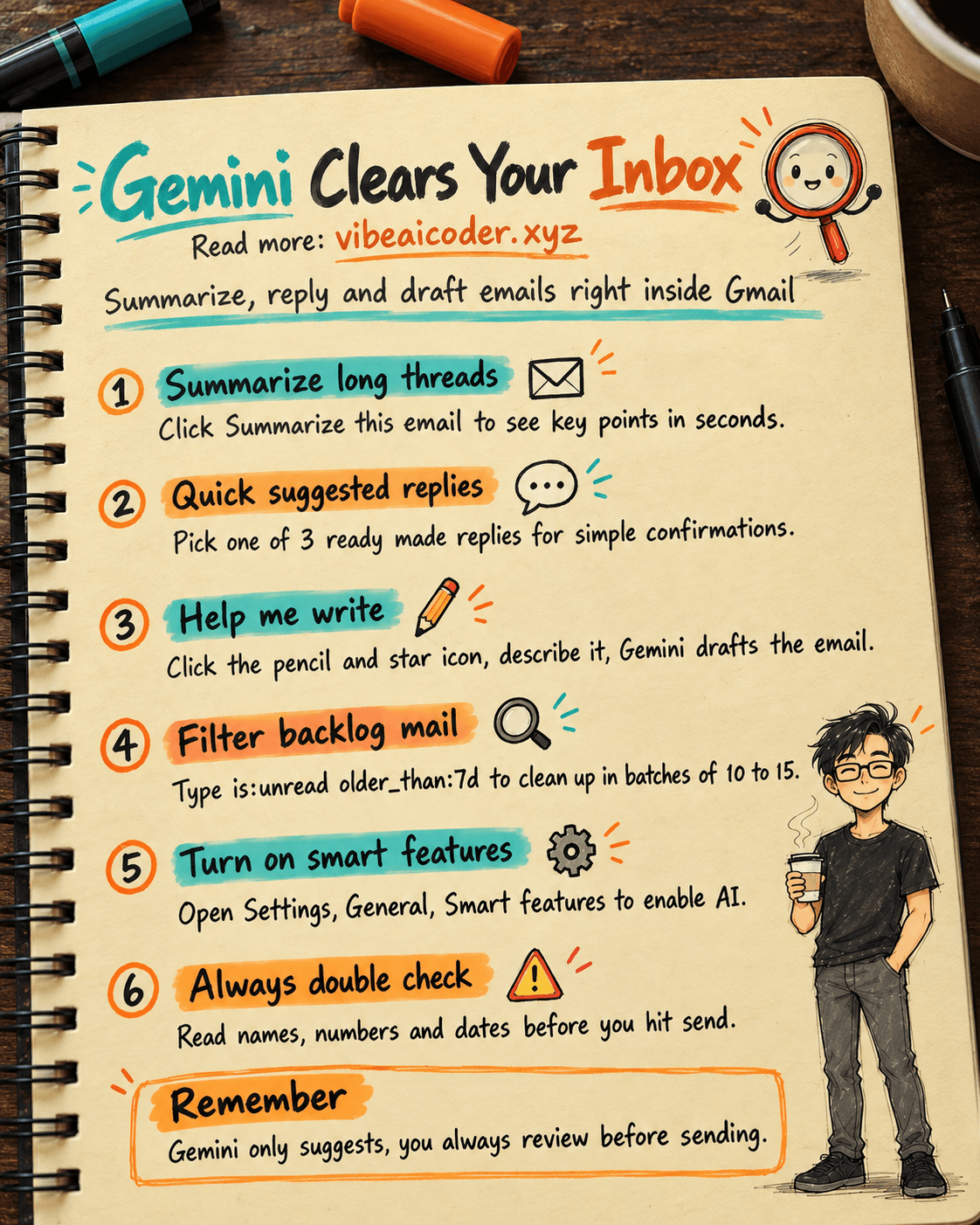
- Check whether the AI feature is on: go to Settings > See all settings > General, find "Smart features and personalization" and turn it on if it is off. This is the switch that lets Gmail read message content to summarize threads and suggest replies.
- Some features (thread summaries, suggested replies, Help me write) are currently free on personal accounts, rolling out first in the US with the English interface. If you do not see the buttons yet, try switching your Gmail language to English (United States) in Settings to check.
- If your company uses Google Workspace, ask your admin whether your plan has Gemini for Gmail enabled, since some advanced features are only on paid tiers.
 Step by step
Step 1: Summarize a long thread instead of reading every message
Open a thread with many back-and-forth replies (a team discussing a plan, for example). At the top of the thread, look for the "Summarize this email" button. Click it and Gemini reads the whole thread and returns the key points line by line, plus action buttons like "Add to Calendar" or "Reply with confirmation." You do not need to write any prompt for this step, just click the button.
Step 2: Use suggested replies for simple emails
For short emails that only need a quick confirmation (agreeing to a meeting, confirming a file was received), scroll to the bottom of the email to find "Suggested Replies." Gmail offers three fully written reply options tailored to the conversation, each with a short label showing its tone (for example "Agree," "Ask for more time," "Politely decline"). Click the one that fits, Gmail fills it into the compose box, then you review and send.
Step 3: Draft or rewrite an email with Help me write
When you need to write an email from scratch, click the pencil-and-star icon (Help me write) in the compose box. Type a short description, for example:
Write an email telling [customer name] that order [order number] will be delayed by 2 days because of [reason], apologetic but professional tone, offer a small discount on their next order.
Gemini writes a full draft. If it is not quite right, use the built-in buttons: Formalize (more formal), Elaborate (longer and more detailed), Shorten (more concise), or Polish (refine the wording) to adjust it without starting over.
Step 4: Clear old backlog emails in batches
Filter your inbox using search, for example type is:unread older_than:7d to show only unread emails older than 7 days. Open each one and repeat steps 1 and 2: summarize quickly, pick a suggested reply, or click "Archive" if no reply is needed. Work through batches of 10 to 15 emails and you can clear around 80 backlog emails in about 10 minutes instead of reading each one by hand.
 Sample result
A 12-reply thread about a product launch schedule gets summarized into 4 bullet points: who owns which part, the final date, what is still pending approval, and an "Add to Calendar" button for the launch date. You read it in 20 seconds instead of scrolling through 12 emails.
 Tips for better results
- When describing the email you want, state who the recipient is, the purpose, and the tone you want (formal, casual, apologetic). The more specific your description, the closer the draft gets to what you meant, with less editing needed.
- Always review the draft or suggested reply before sending, especially names, amounts, and dates. AI can misread a long thread.
- Use the summary feature for group threads or long work discussions, where it saves the most time. For short emails, suggested replies are already fast enough.
 Limits to know
- The AI features in Gmail require "Smart features and personalization" to be on, meaning Gmail reads your message content to process it. If your work involves confidential information or sensitive customer data, check with IT or legal before turning it on.
- Some advanced features, like natural-language inbox search (Ask Gemini), advanced Proofread, or "Gmail Live" (talking to your inbox by voice), are only available on paid Google AI Pro/Ultra plans or Google Workspace, and may not be on your free account.
- Non-English interfaces and regions outside the US may not show all these buttons yet, since Google is rolling this out gradually by language and region through 2026.
- Gemini can miss points or suggest a reply that does not fit the context in complex threads with mixed topics. Always check the original email before acting on anything important.
 FAQ
FAQ
Does using Gemini in Gmail cost money? The basic features (thread summaries, suggested replies, Help me write) are currently free on personal accounts in the US with the English interface. Some more advanced features require a Google AI Pro/Ultra plan or Google Workspace.
Why don't I see the "Summarize this email" or "Help me write" buttons? It could be that "Smart features and personalization" is off, your interface is not set to English (US), or your region does not have the feature yet.
Can Gemini read my private emails? Yes, to summarize or suggest replies, Gemini needs to read the message content for that session. If you are concerned about confidential data, turn the feature off or check with your company admin.
Are Gemini's suggested replies always right? Not always, especially for emails with subtle tone. Always review before clicking send.
Does this work for non-English emails? Gemini can still process content in other languages, but the feature buttons may show up more reliably when your Gmail interface is set to English, since other languages are being added gradually.
If you want to automate other repetitive tasks beyond email, read use ChatGPT Tasks to automate daily repetitive work without code. If you need to write a full email yourself instead of just editing a suggestion, see use ChatGPT or Claude to write a professional work email in 2 minutes. Once your inbox is clear, the next task is usually a report, so check out use AI to turn messy notes into a weekly report for your boss in 10 minutes. To understand why describing your request clearly makes AI answer better, read the foundation guide what is a prompt.
More articles
AI Training vs Inference: What Is the Difference?
Gemini 4 Argon Reads a 500-Page Chemistry Patent in One Afternoon

Claude Opus 5.5 Codes a Real Money Trading Game in One Day
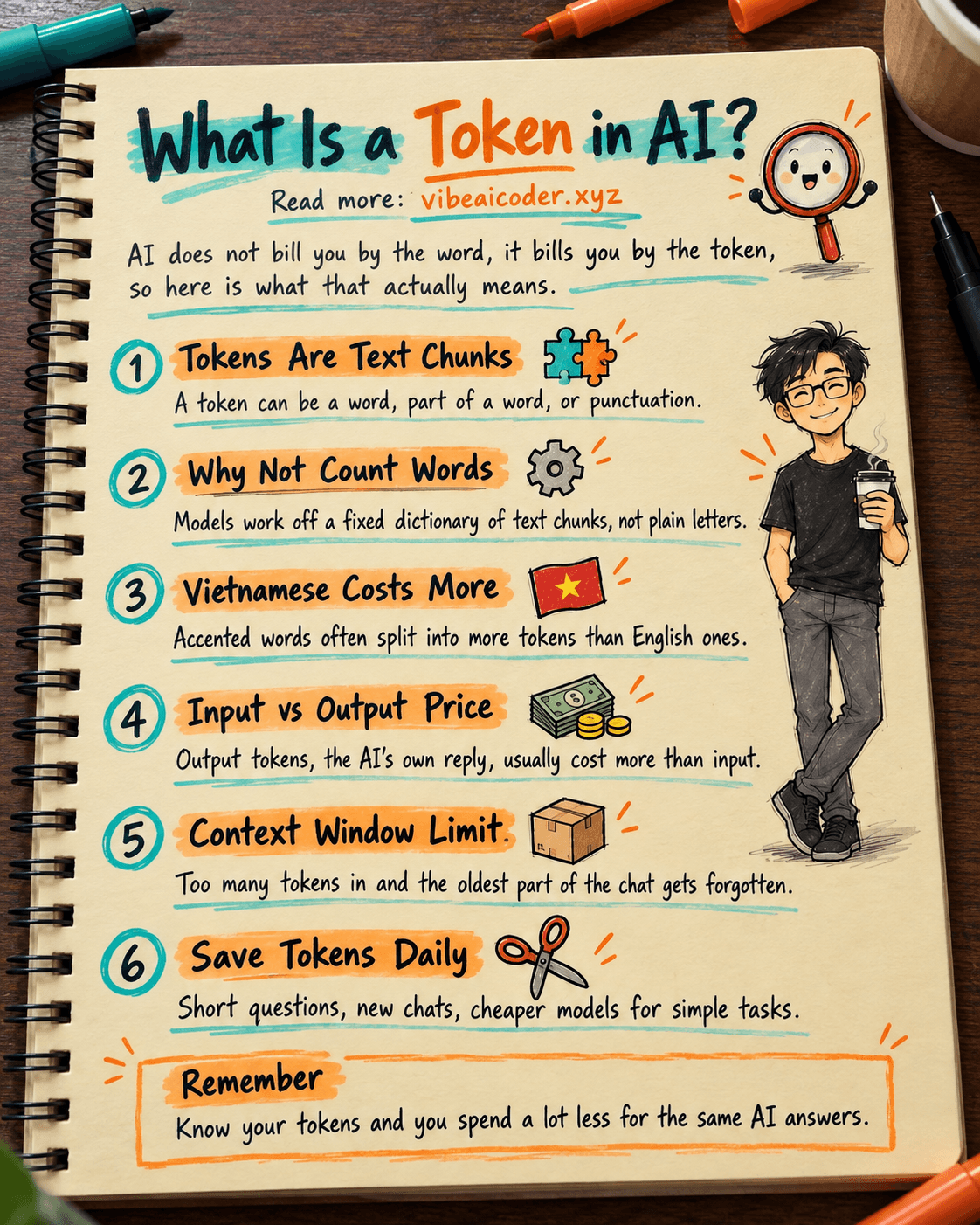
What Is a Token in AI? Why ChatGPT and Claude Charge by Tokens
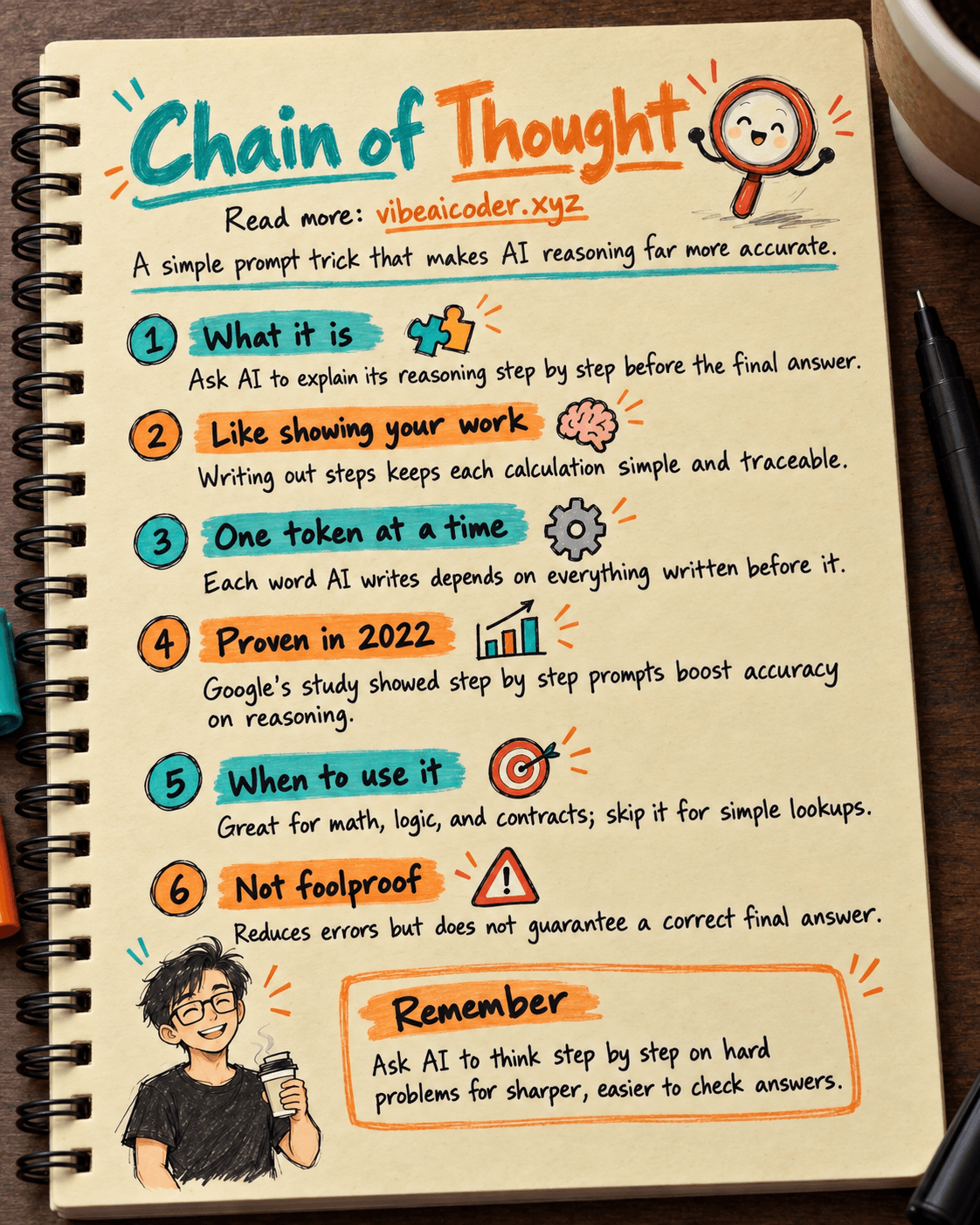
What Is Chain of Thought? Why Asking AI to Think Step by Step Works Better
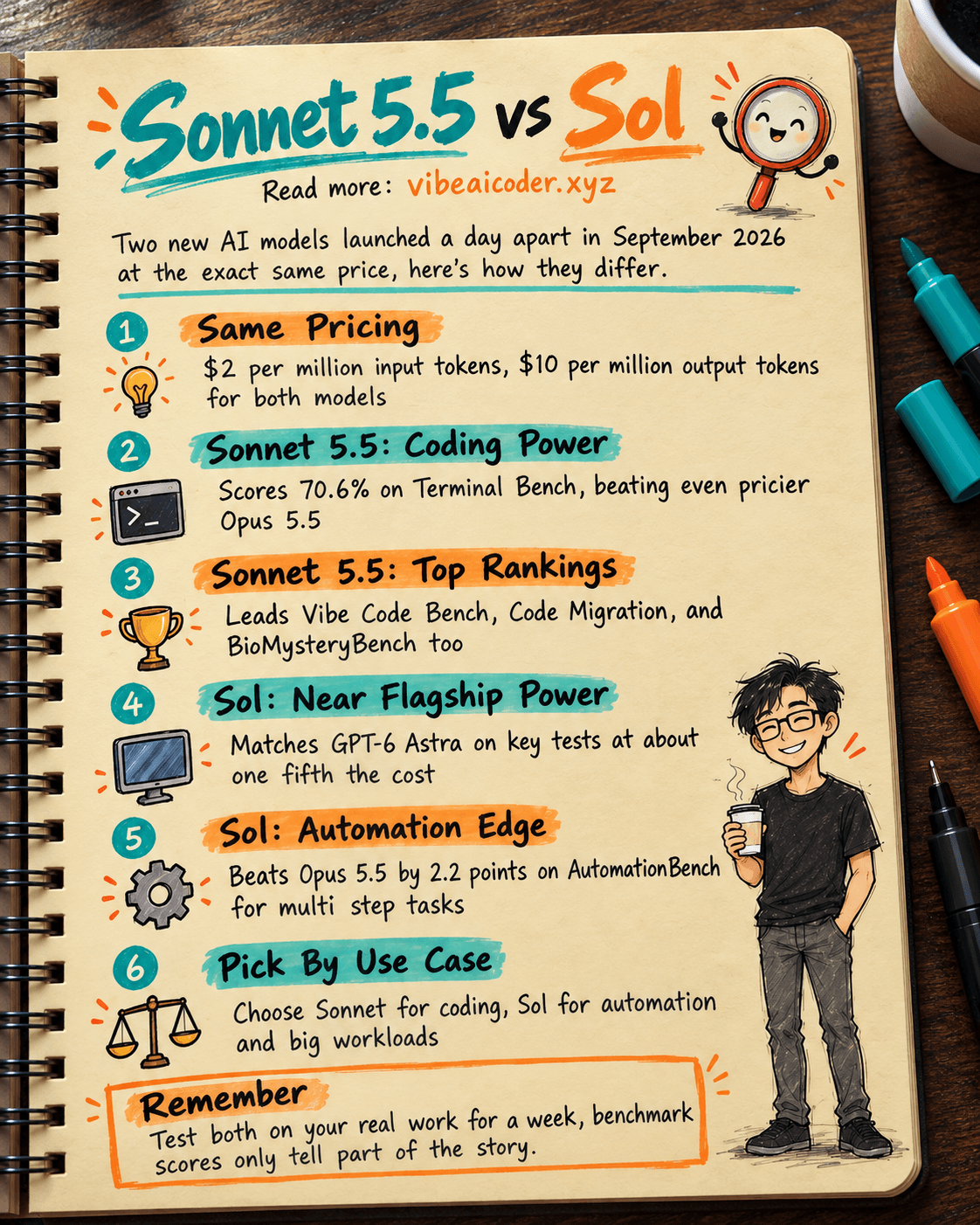
Claude Sonnet 5.5 vs GPT-6.1 Sol: Which AI Model Is Worth Using?