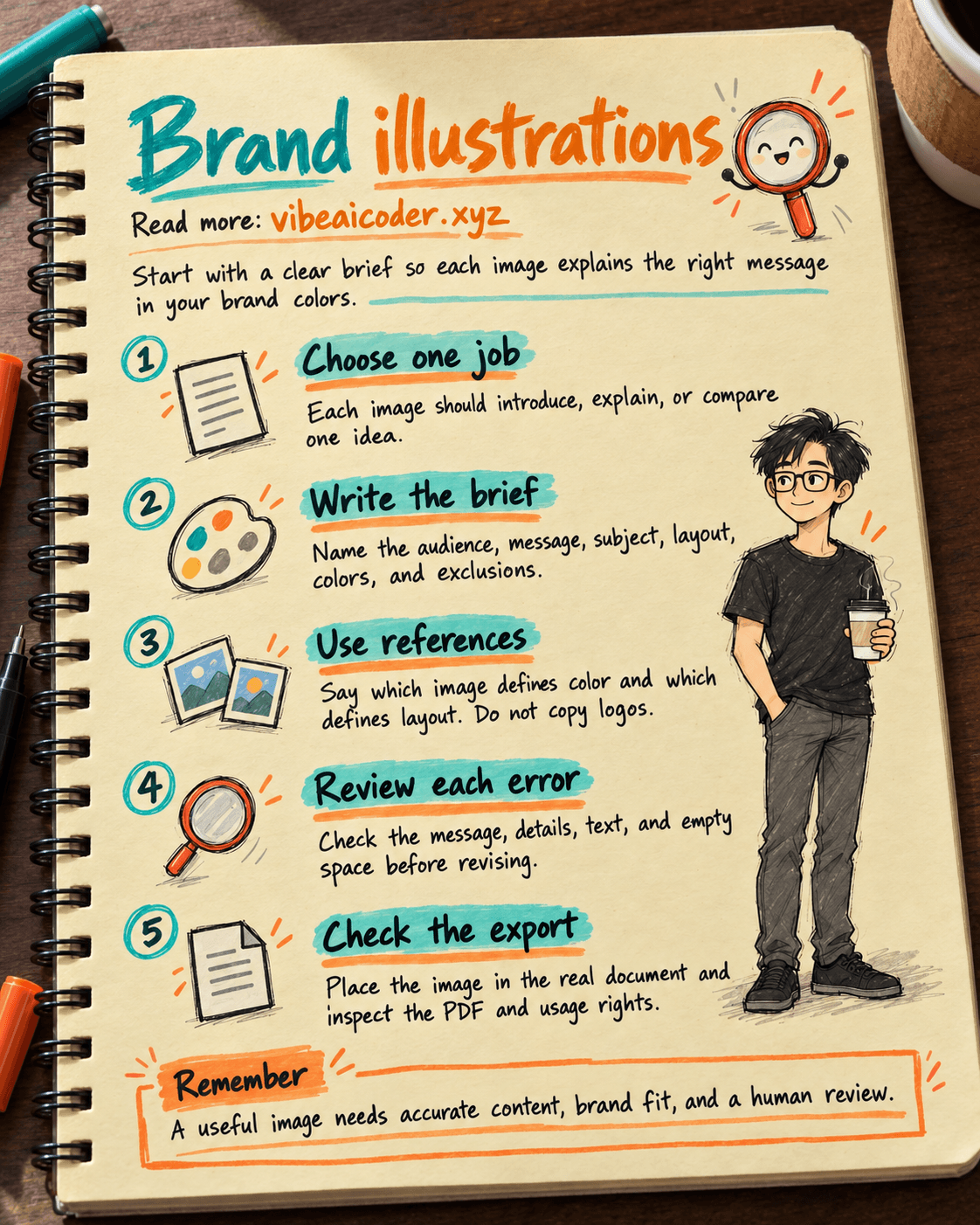
Create Brand Illustrations for Work Documents with ChatGPT
Your employee guide is ready, but its opening page is a wall of text. Use ChatGPT to draft an illustration from your brand brief, then review and correct each problem before placing it in the document. This process works for a cover image, a training page, or a simple explanatory graphic. You do not need professional design skills.
The goal is an image file with a clear subject, consistent colors, and enough empty space to add a heading in your layout tool. Allow about 20 to 30 minutes for the first version and review. The actual time depends on revisions and the image generation access available in your account.
 What you need
You need access to ChatGPT with image generation, a sample document that needs an illustration, and a short brand brief. Access and generation limits vary by plan and workspace settings. Check your own account instead of assuming every team member can use the feature.
Your brief should cover five things: audience, message, primary colors, style, and exclusions. For example, new employees need to understand how to hand over work; use navy and orange; show an everyday scene with few details; exclude logos, words inside the image, and real employee faces. If your company has a visual identity guide, you can attach a reference image you have permission to use. Upload internal material only if company policy allows it.
If the image's purpose is unclear, finish this sentence: “After seeing this image, the reader should understand...” In this example, the answer is that a handover needs an owner, tasks, and deadlines.
You can read how to write prompts with a clear goal and constraints before starting. This article focuses on document illustrations and takes you from the brief to the exported file.
 Step by step
Step 1: Decide what the image should do
Choose one of three roles: a cover image that draws attention, an image that explains one step, or an image that contrasts two approaches. Give each image one job. A cover often needs room for a heading. An explanatory image needs recognizable objects and a clear path for the eye. Do not cram a five step process into a small illustration on an A4 page.
Specify the aspect ratio for its destination, such as landscape for a page header or square for a summary card. After downloading, check sharpness and how the composition works in the document.
Step 2: Give ChatGPT a brief you can verify
In a ChatGPT conversation, ask for an image and paste this brief. Replace the square brackets with real information. If you provide reference images, say whether each one defines colors, composition, or a character. Do not leave ChatGPT to guess.
Create an illustration for [document type] for [audience].
The single message is: [what readers should understand after seeing the image].
Subject: [specific person or object] performing [specific action].
Setting: [location]. Composition: [aspect ratio], with empty space at [position] where I will add a heading later.
Style: [short description], primary colors [color 1] and [color 2], lighting [description].
Do not include logos, text, other brand marks, or unrelated details.
According to OpenAI's image generation guide, a useful prompt states the purpose, subject, setting, composition, style, and exclusions. It also recommends visible details, such as light entering from a window on the left, instead of vague words like “beautiful” or “professional.”
For the handover training guide, a filled in example could show an employee placing three task cards on a desk. The cards represent the owner, open work, and deadline; the upper right stays empty for the heading. Add text labels later in the layout tool.
Step 3: Use reference images for a specific purpose
If you have a permitted reference image, attach it and name the element it should guide. Ask for its colors or composition in a new scene. Do not copy someone else's artwork or logo, or use a real person's likeness without the right to do so.
Image 1 shows the colors and texture of our current document.
Image 2 shows how to leave empty space in the upper right.
Create a new scene about [topic]. Use the colors from image 1 and the empty space from image 2.
Do not copy the people, logos, or words in either reference image.
OpenAI recommends identifying images in order and explaining their relationship. This helps prevent ChatGPT from making a person in a reference image the main character when you only wanted its colors. If you only need ChatGPT to analyze an existing image, provide it as input and ask about its composition rather than requesting a new image. The image inputs guide distinguishes these tasks.
Step 4: Review against criteria and change one thing at a time
Do not rely on an overall impression. Check five points: is the message clear; are the subject and action correct; do the colors match the brief; is there enough space for text; and is anything inaccurate or prohibited? Describe each problem in one concrete sentence.
When asking for a revision, state what should change and what must stay. For example:
In the image you just created, move the three task cards from the lower corner to the center of the desk.
Keep the person, camera angle, lighting, color palette, and empty space in the upper right unchanged.
Do not add text or new objects.
OpenAI advises changing one element at a time to keep the composition close to the version you selected. If your interface has an image viewer and commenting controls, mark the specific image or area to change. Viewing and commenting features may vary by product surface and plan, so use the controls you actually have.
For images with text, read every word and punctuation mark. If the text is required, put the exact wording in quotation marks and specify its size and position, with no additional words. For many small labels or numbers, finish the text in a design tool.
Step 5: Check it in the document at its real size
Download the image, place it in the document, and review the exported PDF. Check whether the main subject is cropped, whether the actual heading has enough contrast, and whether small details remain legible in print.
Give the file a clear name, such as onboarding-handover-illustration-v1.png, and save the brief. Ask someone who knows the process to confirm that the image does not misrepresent the work. You can collect files and documents in ChatGPT Projects if team policy permits it.
 Example result
An HR team needs an opening image for a “Handover before leave” guide. The brief calls for three elements: the person receiving the work, open tasks, and deadlines. The first image shows a desk with so many papers that the three ideas disappear. The team asks ChatGPT to reduce the papers to three colored cards, keep the person and camera angle, and leave the upper right half clear for a heading. The second version communicates the idea better. An editor adds labels for the three elements in Slides, exports a PDF, and asks the team leader to check the meaning.
A useful result does not mean the first AI image is final. It is an image that the team can review, revise, and use in a real document. For a closer look at editing part of an image from a sketch, see the guide to editing an image from a sketch.
 Tips for a better result
Keep a shared brief template with a color palette, line style, space for text, and prohibited elements. Change only the topic, audience, and placement for each new image. For training images, check that the process is accurate first, that the image is easy to read second, and that it is eye catching third.
When you have several versions, name each file by purpose and revision number so an unapproved draft is not sent to a customer by mistake.
 Limitations
Generated images can contain incorrect words, fingers, or business details, and can resemble something you did not intend to use. Do not include a safety, medical, or legal diagram or business figures merely because the image looks convincing. The content owner must compare it with the original process and data.
Company policy may restrict uploading images, customer data, or employee photos to an AI service. Get permission to use a person's likeness before requesting an image of that person. Avoid imitating another brand's identity. OpenAI says you can ask for an original treatment and should use images under your organization's policies.
 FAQ
FAQ
Do I need a paid plan to generate images? Access and limits on ChatGPT web depend on the plan and workspace settings. Check your own account.
Should I put words in the image or add them later? You can try a short heading or label in the generated image and proofread every character. Add longer text or text that must be exact in a layout tool.
Can I use a brand image as a reference? Yes, if you have the right to use it and company policy allows uploading it. Say whether it is a reference for color, composition, or texture.
How do I keep a character consistent across images? Use a permitted reference image and describe the features that should remain. Review each image because one prompt cannot guarantee perfect consistency.
Does an attractive image still need human review? Yes. A reviewer checks the meaning, usage rights, text, composition in the final document, and fit with the brand.
More articles
AI Training vs Inference: What Is the Difference?
Gemini 4 Argon Reads a 500-Page Chemistry Patent in One Afternoon
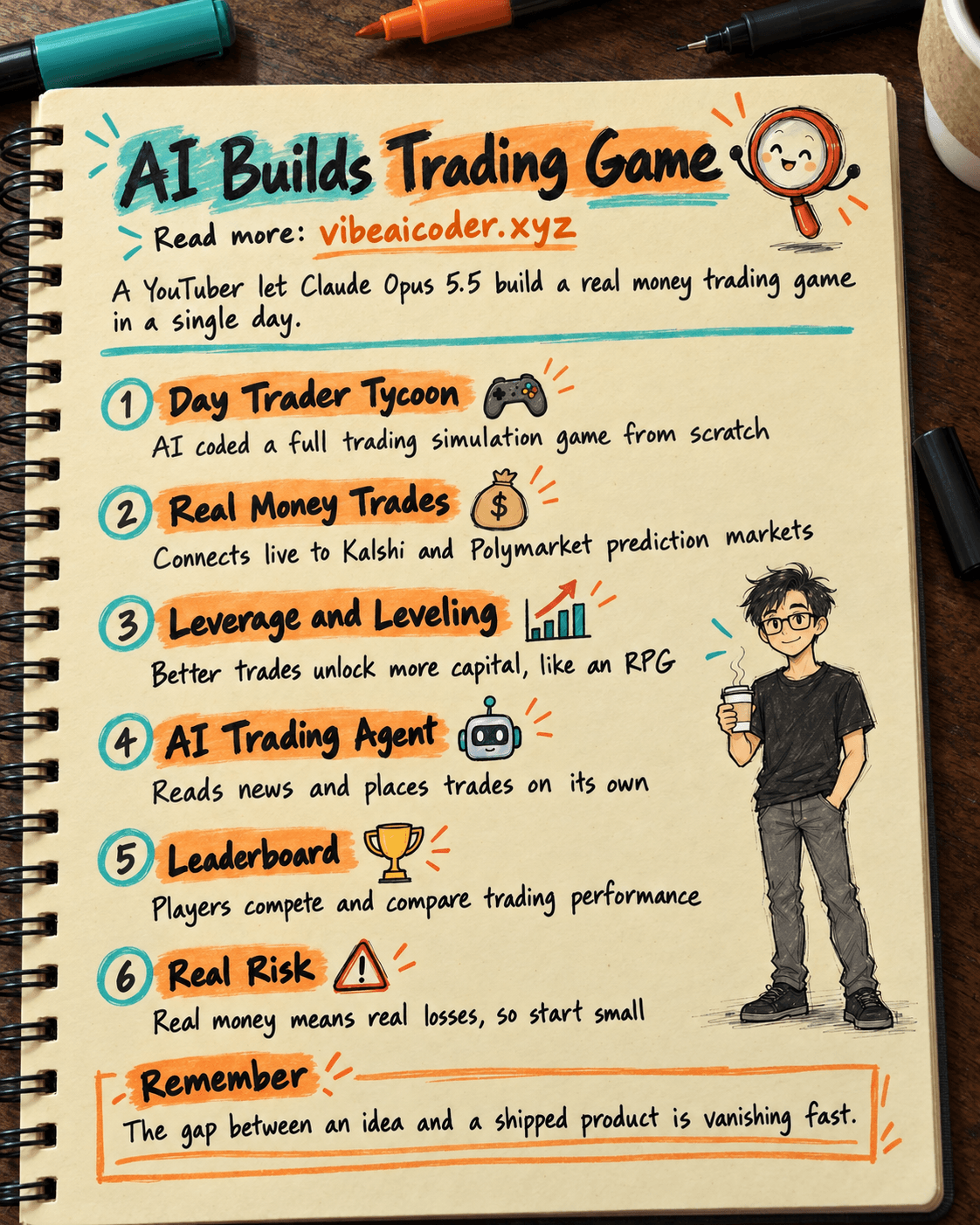
Claude Opus 5.5 Codes a Real Money Trading Game in One Day
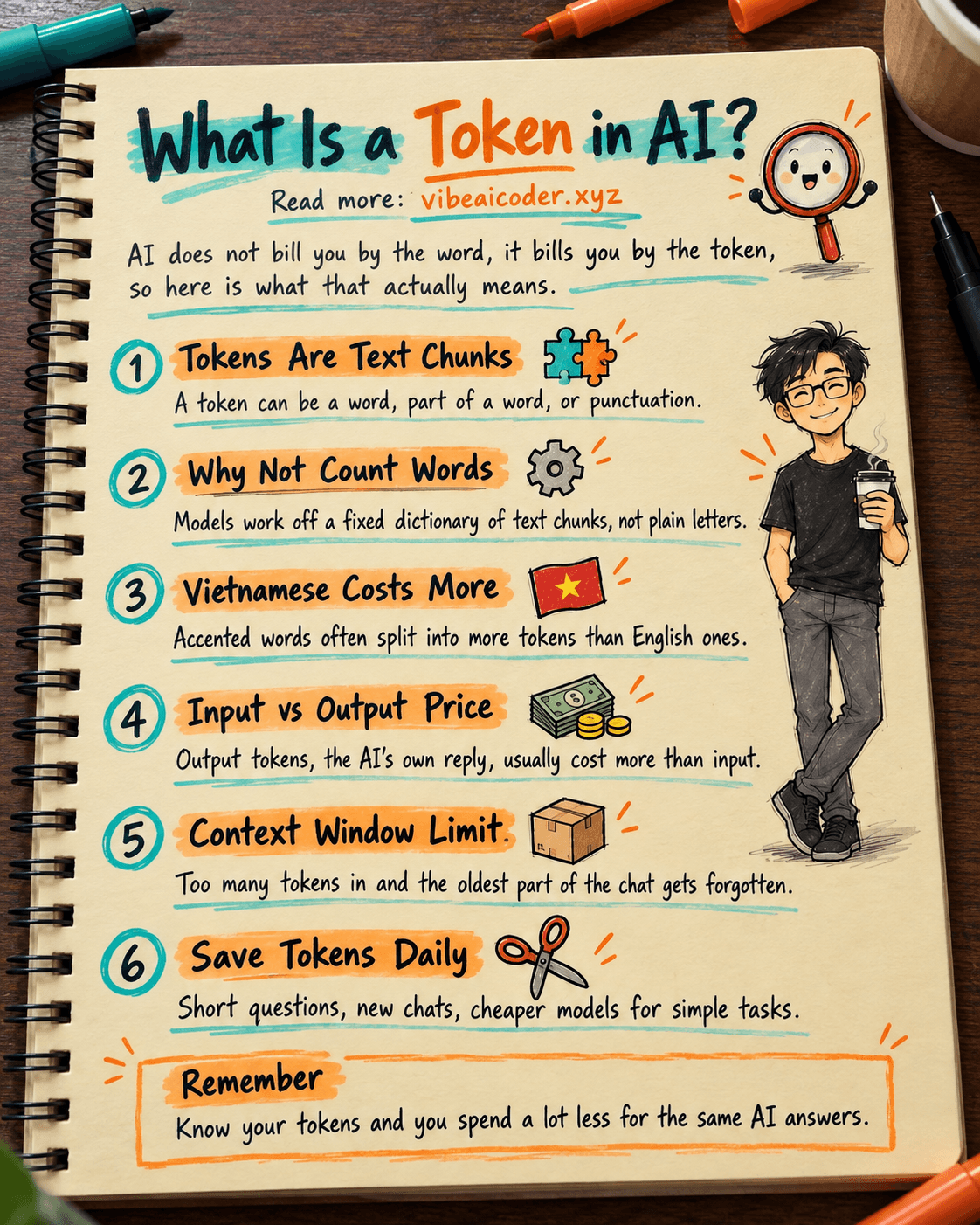
What Is a Token in AI? Why ChatGPT and Claude Charge by Tokens
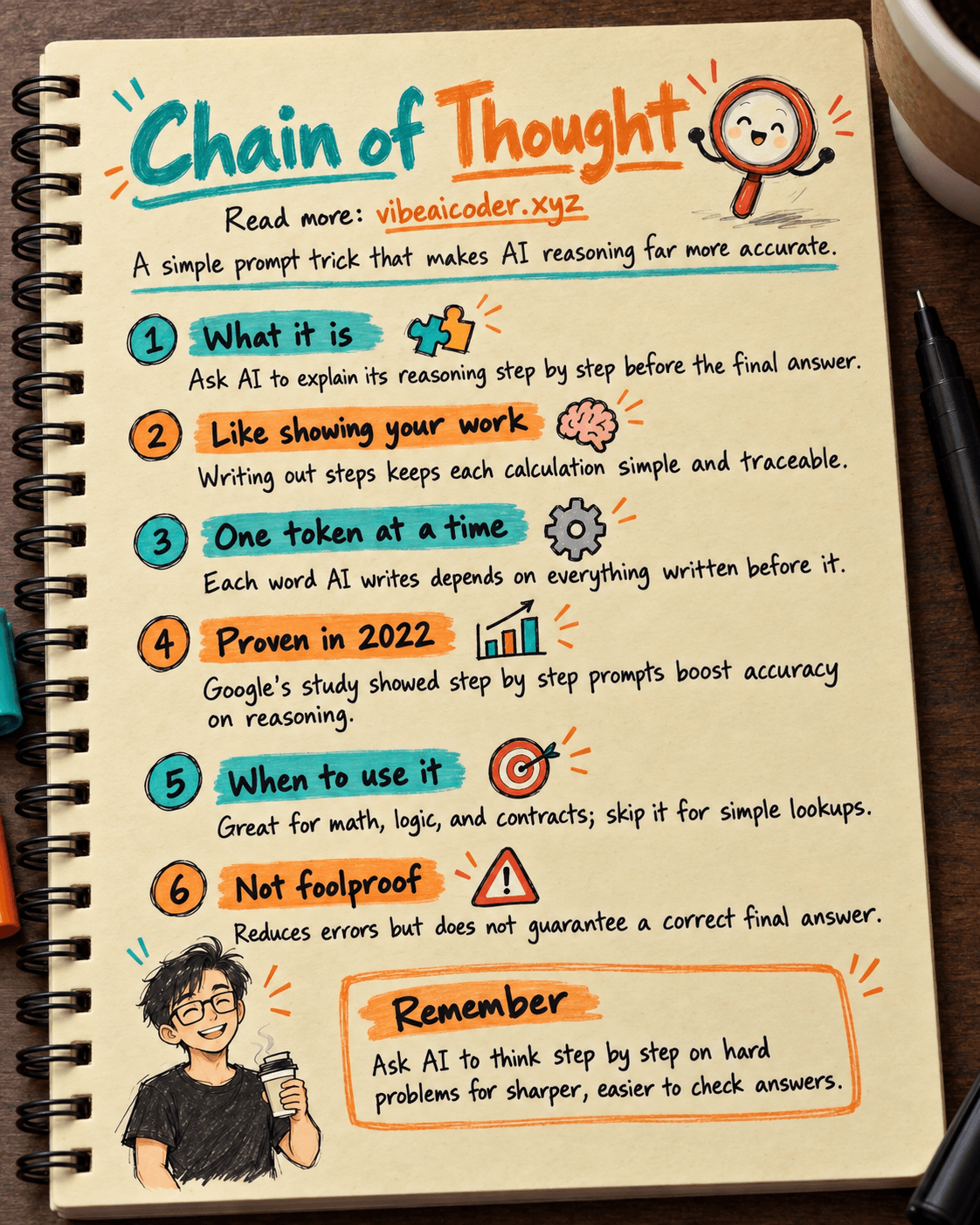
What Is Chain of Thought? Why Asking AI to Think Step by Step Works Better
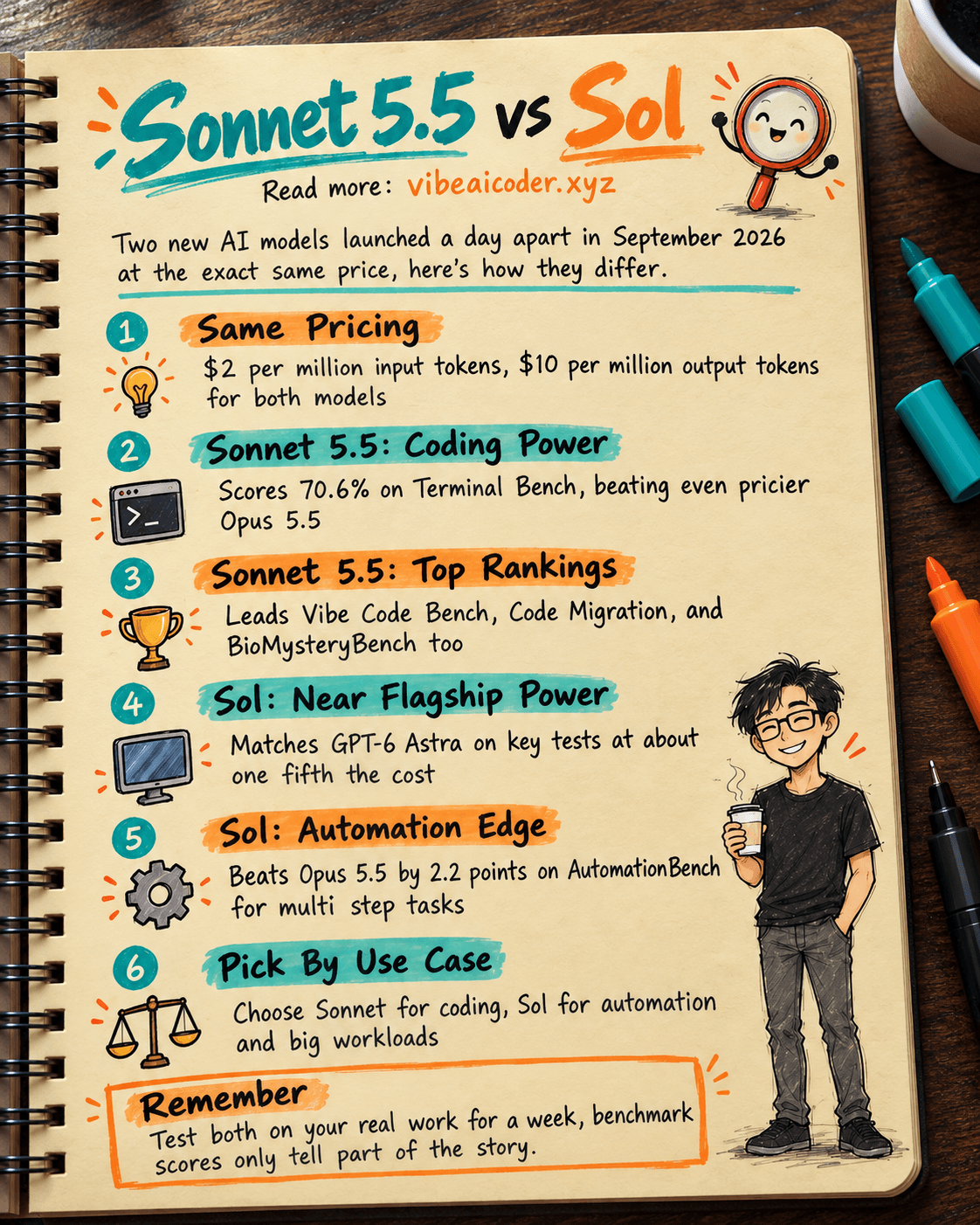
Claude Sonnet 5.5 vs GPT-6.1 Sol: Which AI Model Is Worth Using?