Use ChatGPT Images 2.5 to Create and Edit Pictures
Have a poster idea but struggle to describe its layout? ChatGPT Images 2.5 lets you sketch a rough plan on your phone, generate an image, then edit selected parts in a conversation. OpenAI launched the update on September 8, 2026. Here are three practical ways to use it without design experience.
 Before you start
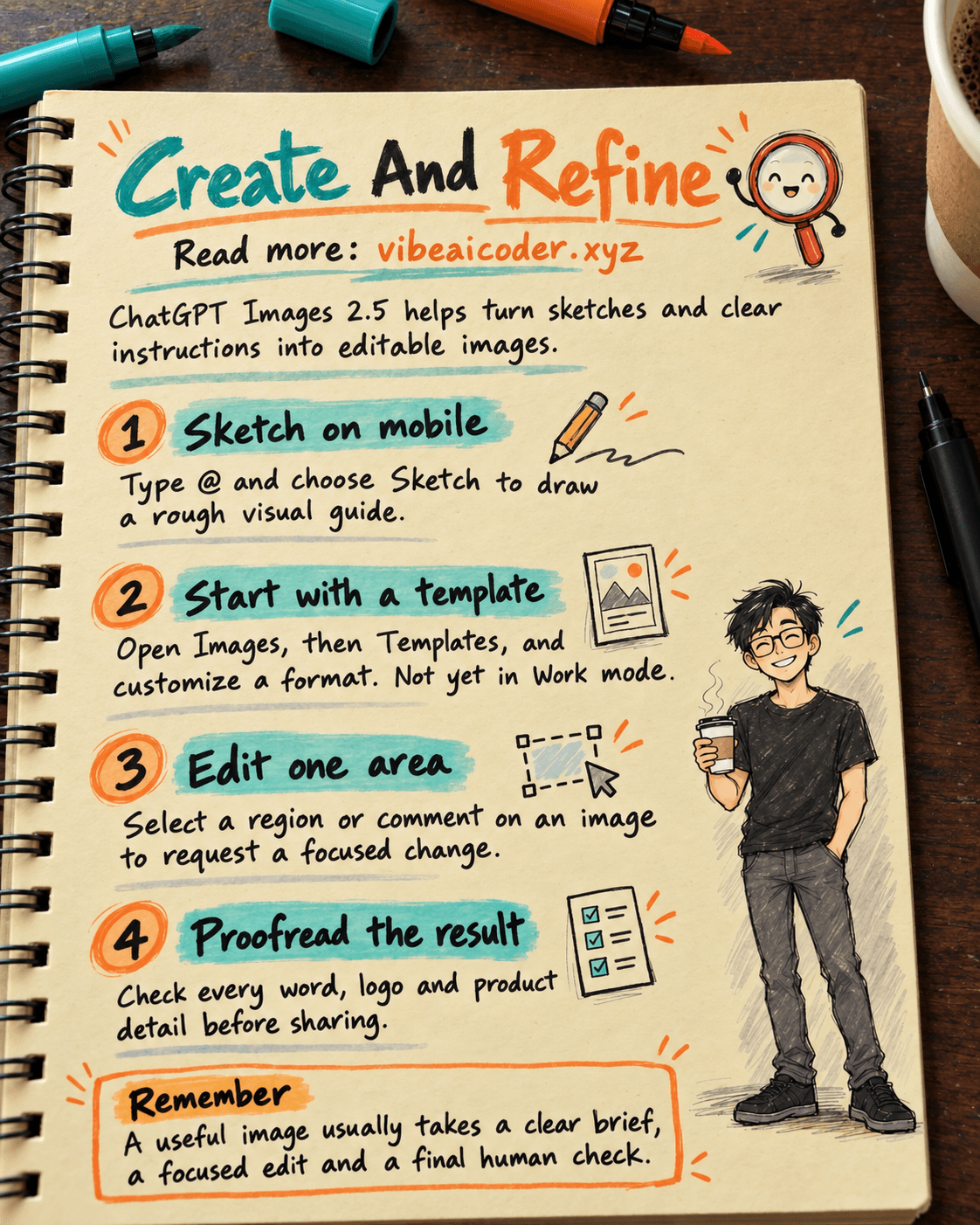
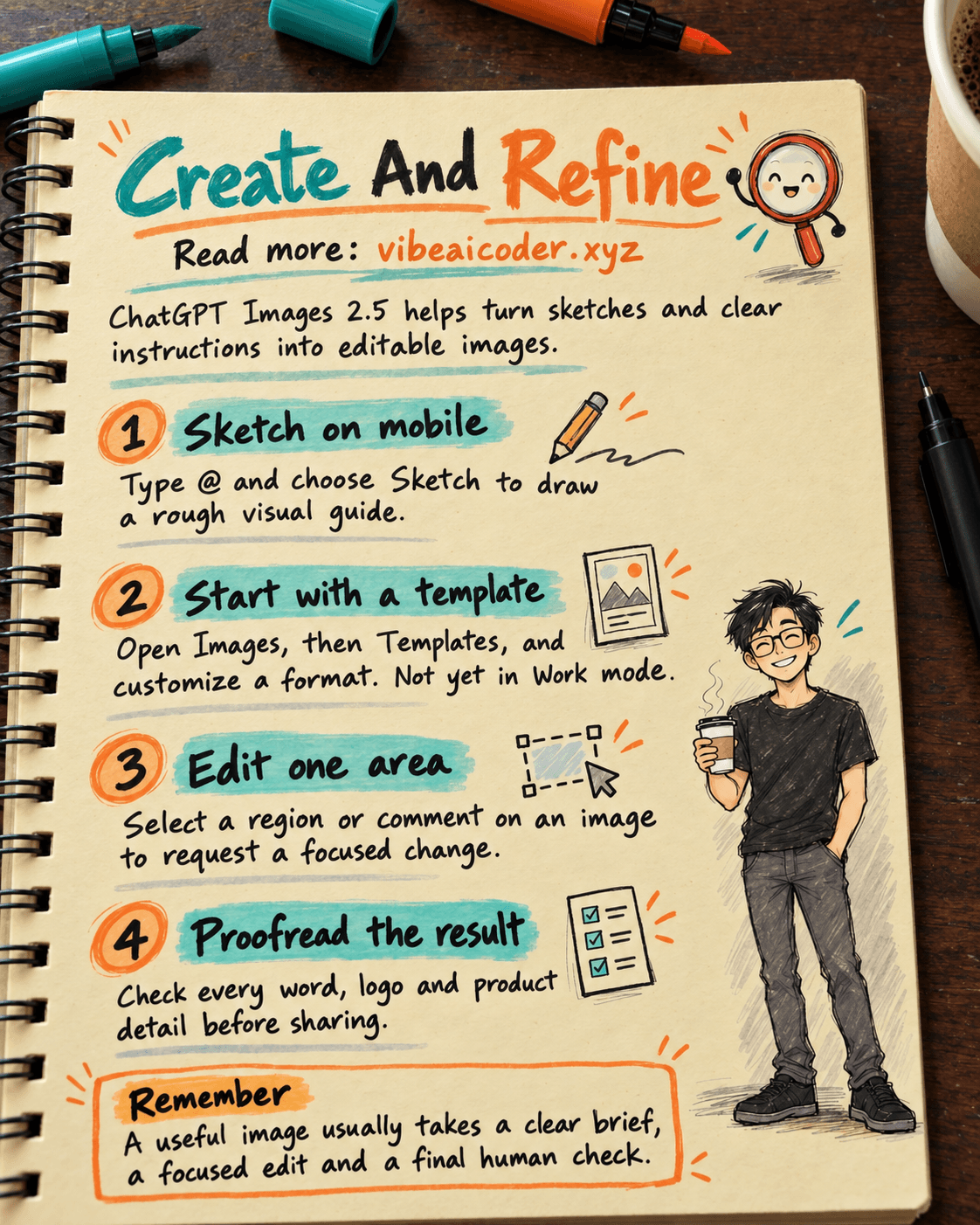
Open ChatGPT on the web or its iOS or Android app. Image generation is available on all tiers, although usage limits still depend on your plan. To use Sketch, open the mobile app. To start from a design template, open Images → Templates. OpenAI says Templates are not yet available in Work mode.
Prepare the text you want in the image, its intended size and a reference photo if a real person or product must remain recognizable. For marketing images, use a source image you have permission to use and proofread all text before publishing.
 Method 1: Draw the layout on your phone
In the ChatGPT mobile message box, type @ and select Sketch. Draw a rough layout, confirm it, and add written instructions. Your drawing only needs to show placement, such as a headline at the top, a product in the center and contact details below.
Turn this sketch into a vertical poster for [product].
Keep the headline at the top, the product in the center, and contact details below.
Style: [desired colors and mood].
Include this exact text: [short text].
If any wording is unclear, ask me before generating the image.
Sketch is useful when you know where elements should go but a text prompt keeps producing the wrong layout. If Sketch is missing, update your app and check again as availability rolls out.
Method 2: Start from a template
In ChatGPT, open Images → Templates and choose a format such as a poster. Add your own text, colors and subject. A template gives you a starting point, but you still need a clear brief. “Make it look nice” is unlikely to produce an image tailored to your purpose.
For a class announcement, try:
Use this poster template for [class name].
Audience: [people who will see it].
Required details: [date], [time], [location].
Leave space at the bottom so I can add a QR code later.
Use no more than two accent colors and keep the text readable on a phone.
If ChatGPT asks about style or references, answer before generation. You can keep editing after the template produces its first result.
Method 3: Change one detail
Select a generated image or upload an existing one. In the image editor, use Select to highlight an area, then describe the change. On mobile, open a generated image full-screen to edit it or add comments. OpenAI says Images 2.5 better preserves subjects and layouts through multiple edits, but selections are not always exact.
Change only the background behind the product to pale cream.
Keep the product shape, label, camera angle and existing text unchanged.
Do not add any new objects.
Compare each version with the previous one. If a label changes or the product shape drifts, return to the source photo and specify what must stay. You can also choose an aspect ratio in the editor or name one in your prompt.
 Example result and sharing
Suppose you need a poster for a baking class. Sketch three blocks, upload a real cake photo, choose warm orange and supply the class date. The first image may have the right layout but one incorrect character. Select the date line, request a focused fix, and inspect the final poster at phone size. Expect an editing process, not a perfect first try.
Generated images are saved under Images. On mobile, you can share a prompt template so someone else can use the idea with their own details. Check whether the prompt contains names, personal photos or private information before sharing it.
 Make the result useful
Specify the purpose, audience, layout, required words and elements that must not change. For a series of brand images, add a reference and explain the colors and style in simple language. Keep text in the image short and read every word afterward. An AI image can look polished while containing a wrong number or misspelled name.
See our prompt-writing guide for clearer instructions, our AI introduction for the basics, and our vibe coding guide if you want to build a small interface with AI.
 Limits to remember
OpenAI says generation latency is reduced by up to 50% compared with Images 2.0. That is not a promise that every image will take half as long. Human review still matters for text, logos, faces and product claims. Templates are unavailable in Work mode, and Images with thinking has separate plan restrictions. Do not present an edited image as evidence of a real event.
Official sources
More articles
AI Training vs Inference: What Is the Difference?
Gemini 4 Argon Reads a 500-Page Chemistry Patent in One Afternoon
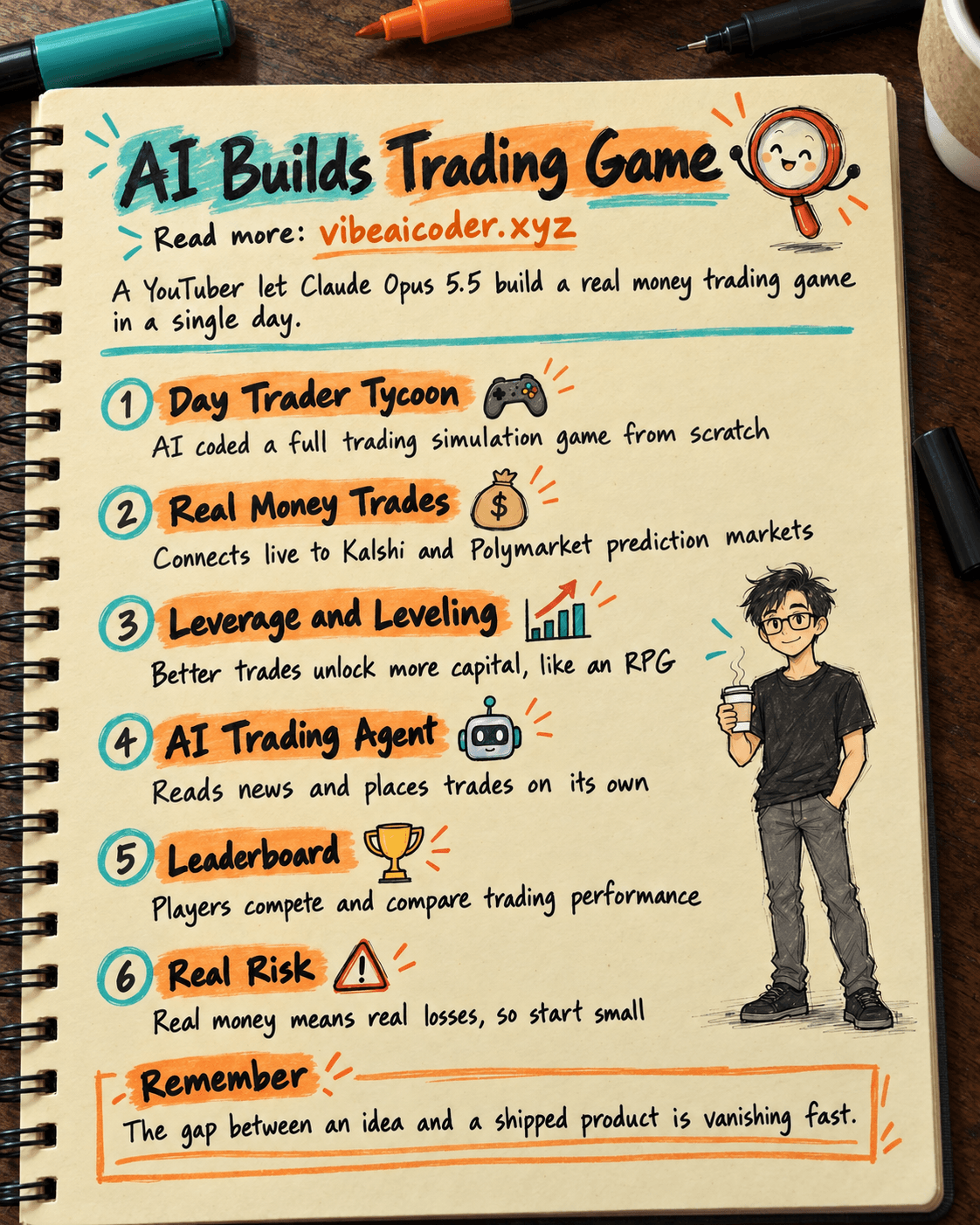
Claude Opus 5.5 Codes a Real Money Trading Game in One Day
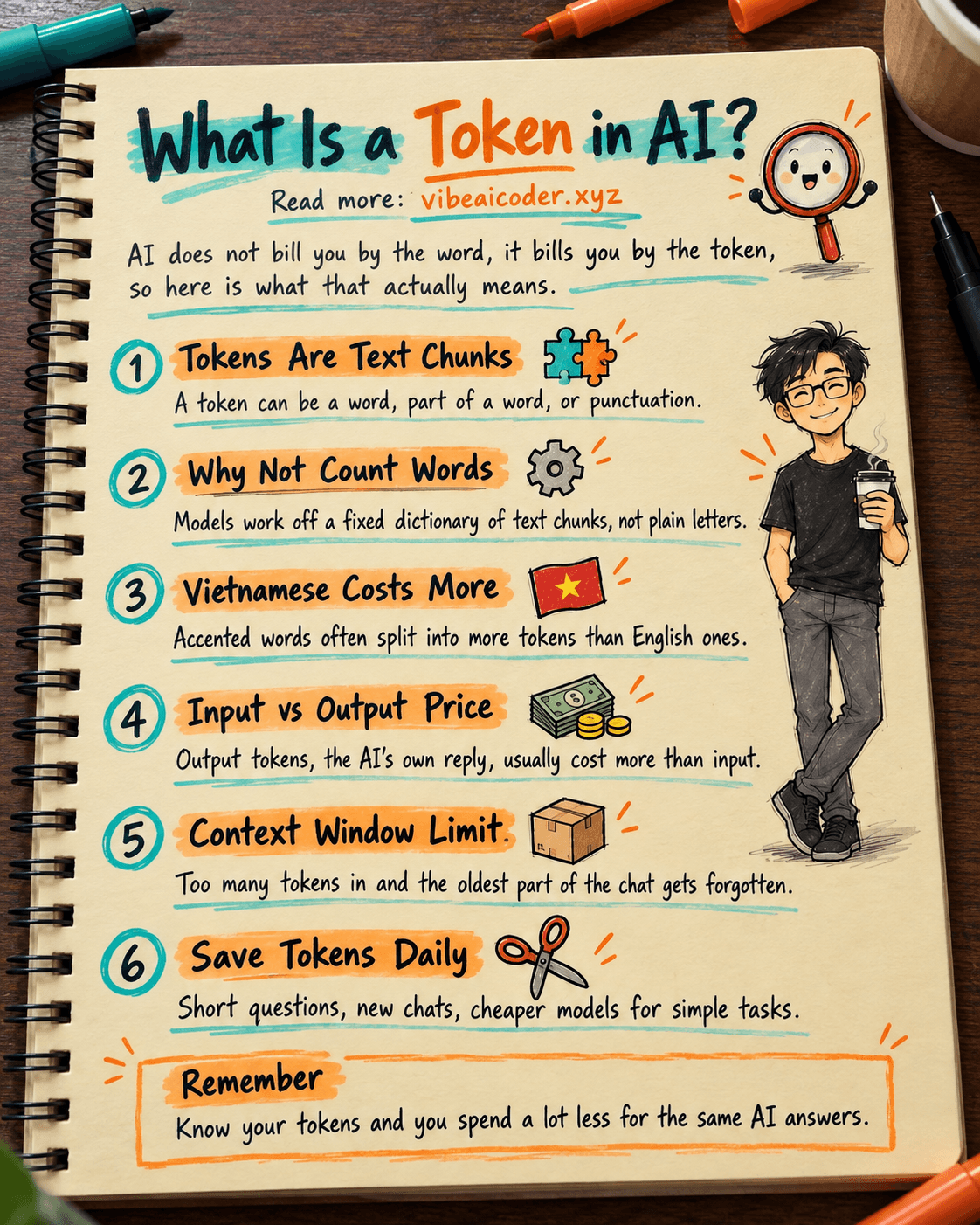
What Is a Token in AI? Why ChatGPT and Claude Charge by Tokens
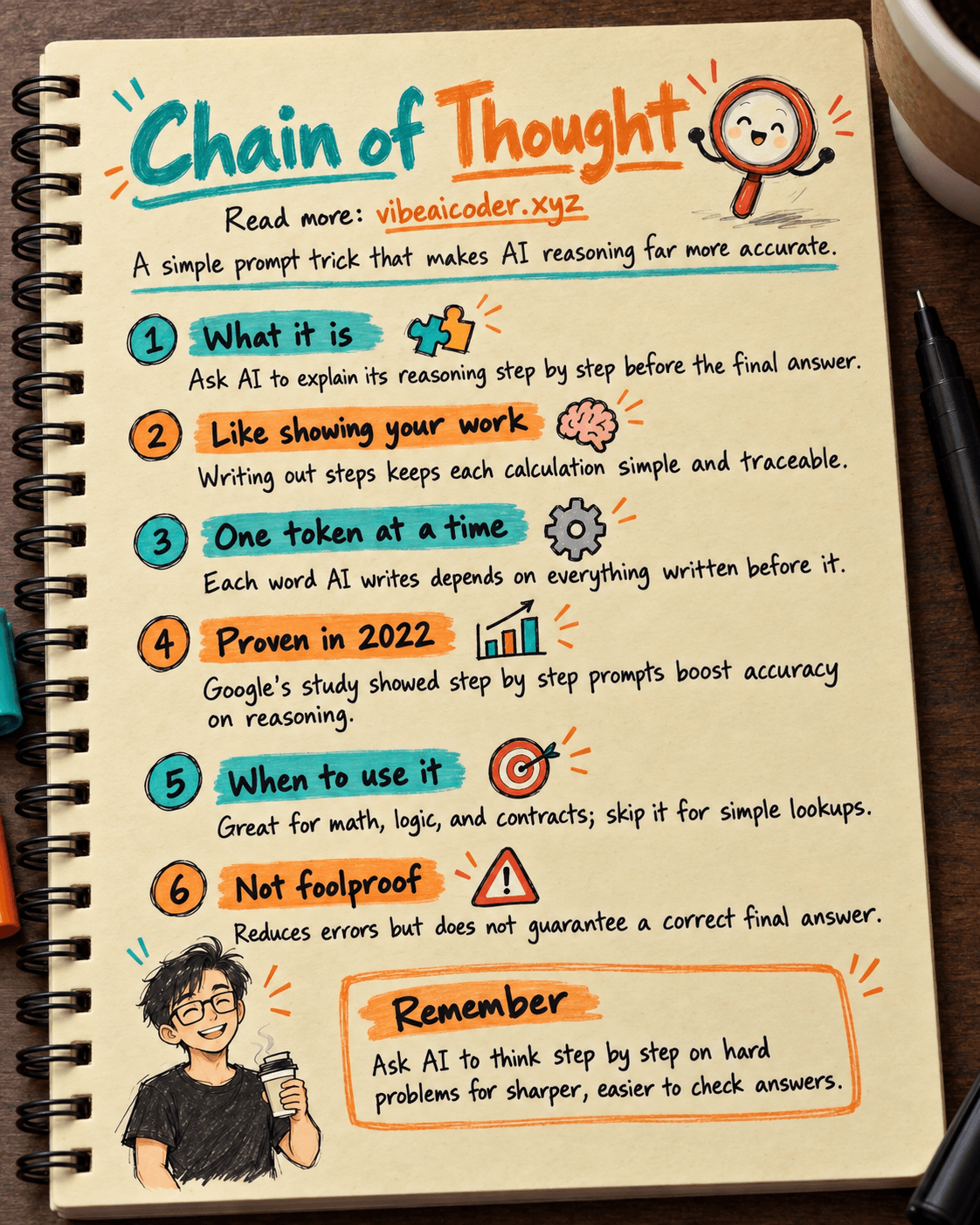
What Is Chain of Thought? Why Asking AI to Think Step by Step Works Better
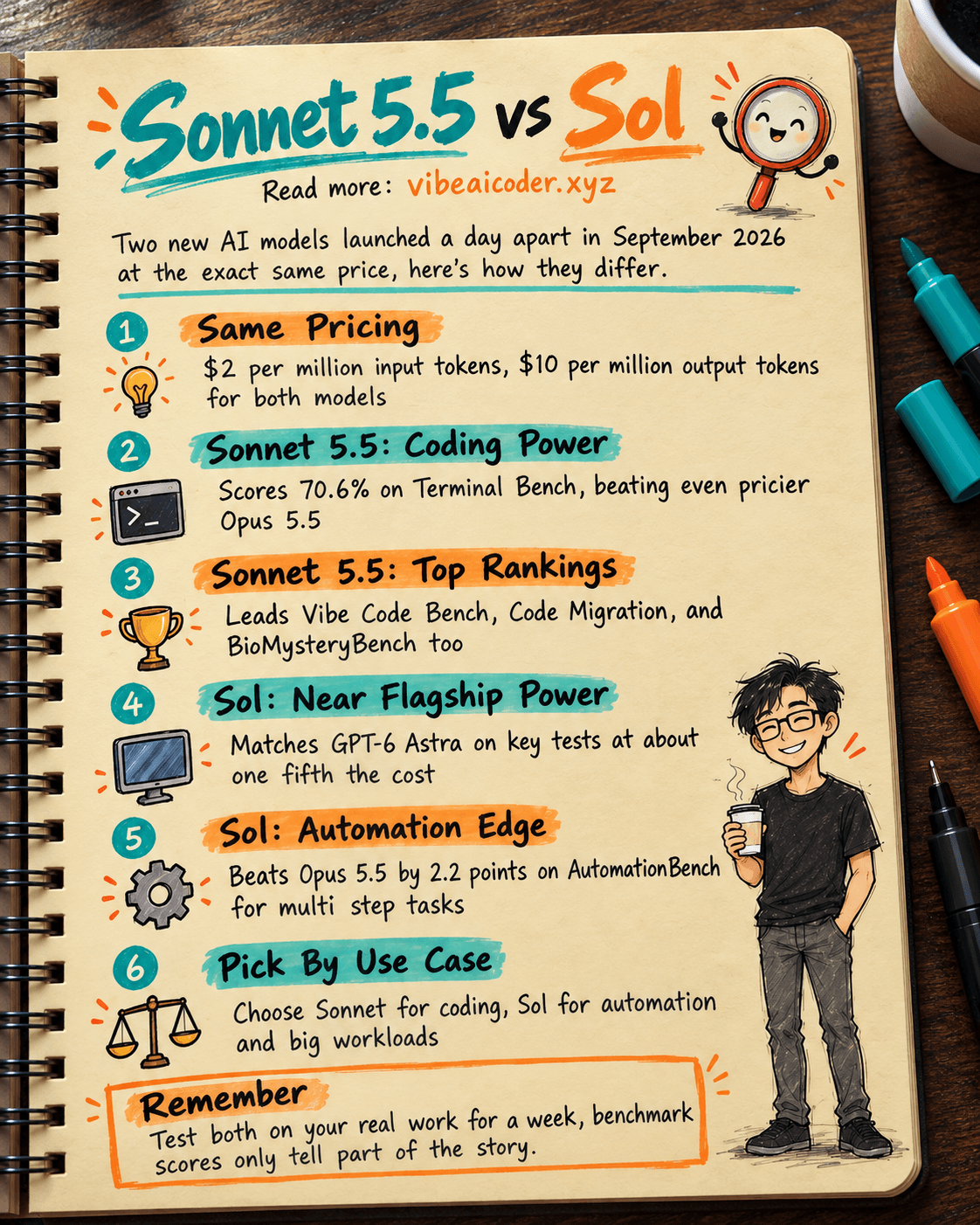
Claude Sonnet 5.5 vs GPT-6.1 Sol: Which AI Model Is Worth Using?