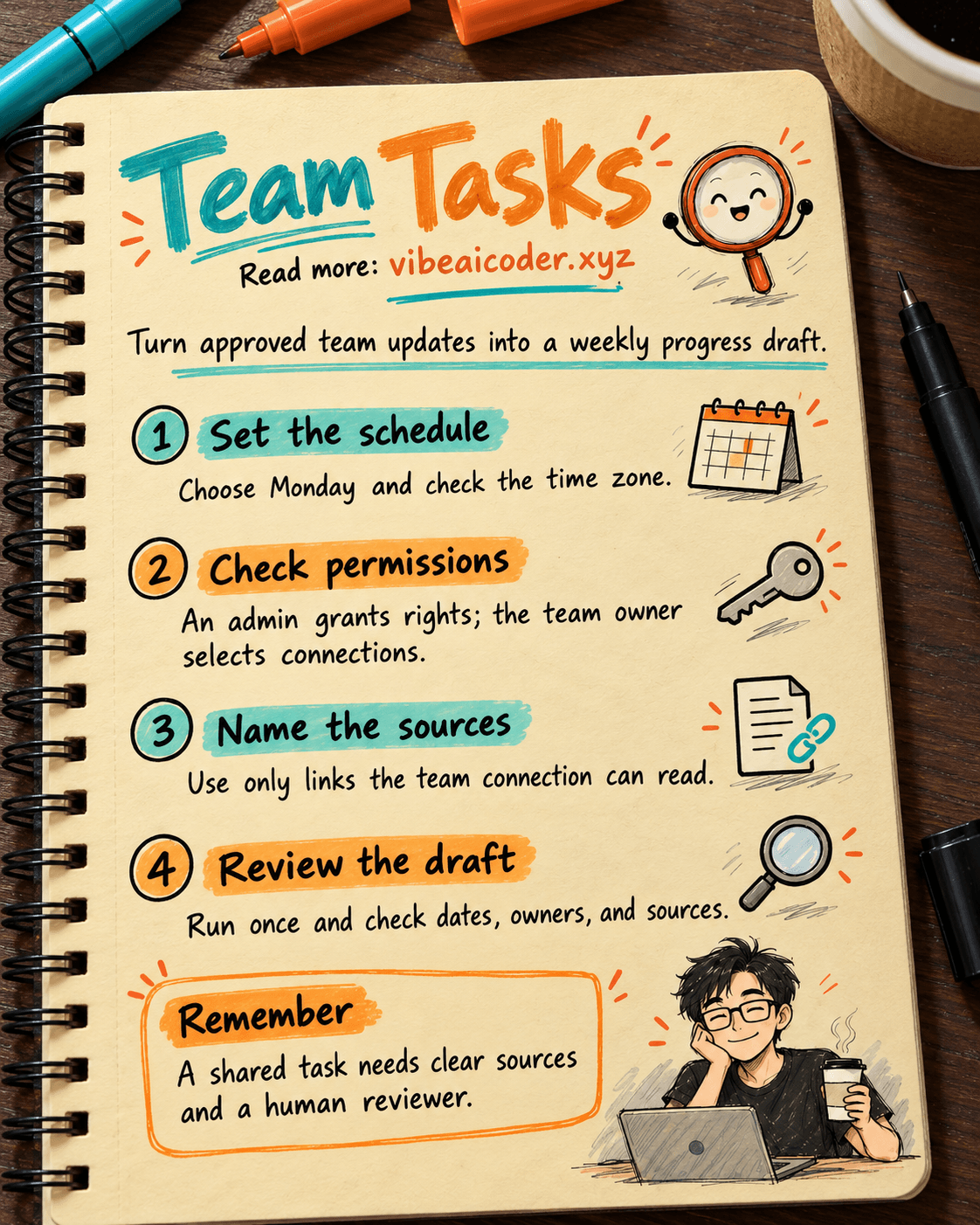
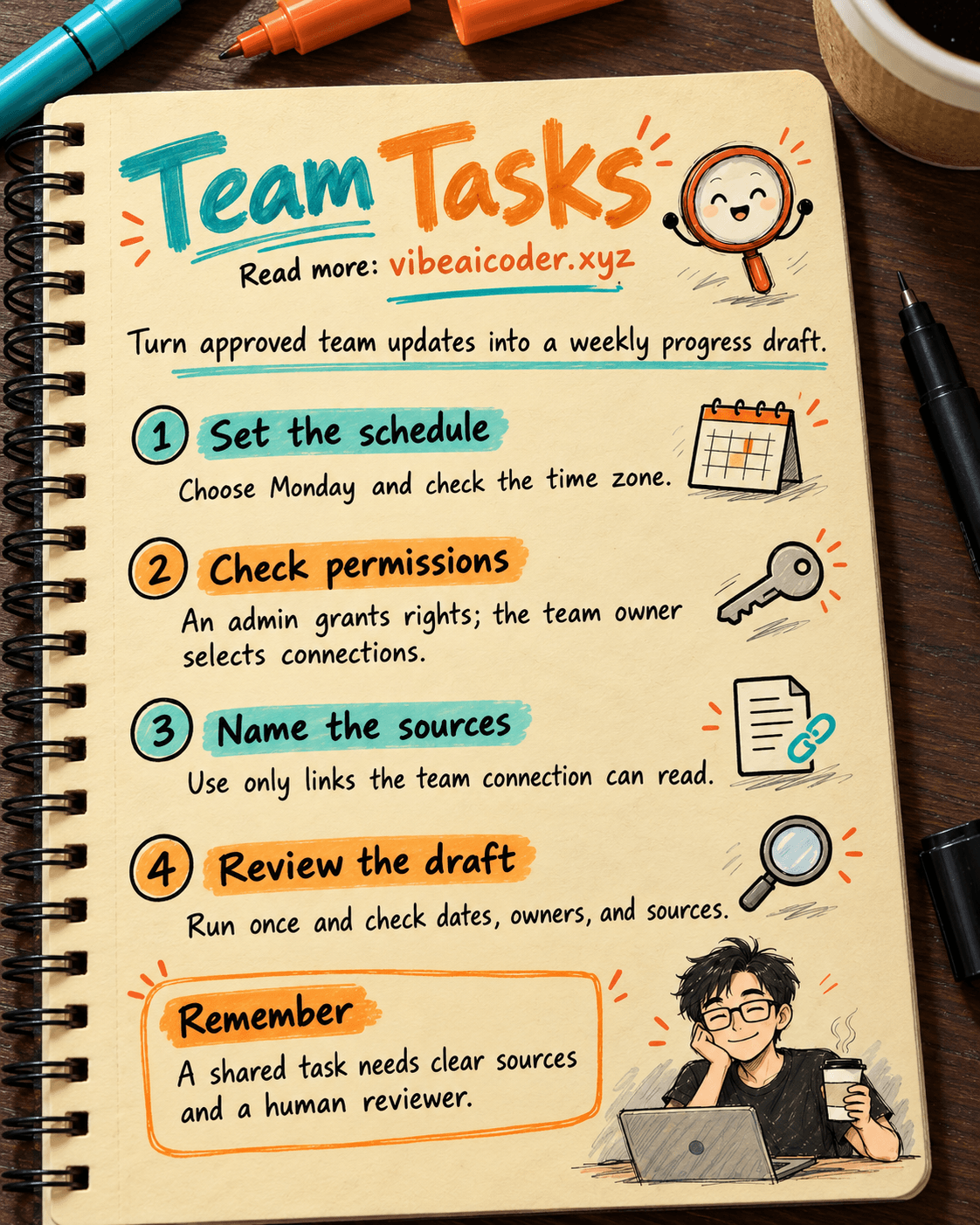
Use ChatGPT Enterprise Team Tasks for Weekly Cross-Team Progress
You need one project update on Monday morning, but the facts sit with several departments. A Team Task in ChatGPT Enterprise can turn approved sources into a shared draft with blockers and questions to resolve. Allow about an hour to set it up and test it. You need the right workspace permissions, sample updates, and a person who will review the report.
 Prepare
Tool: ChatGPT Enterprise and Team Tasks. A Team Task can run on a schedule or a supported event. This guide uses a weekly schedule. The options you see depend on your workspace settings.
People: a workspace admin, a team owner, representatives from the departments involved, and a report reviewer. Give each person a clear responsibility.
Data: prepare three permitted updates. Each should include a date, status, owner, and source link. If no suitable connection is available yet, use test data to design the report. Do not assume the task can read every company system.
Output: a short report covering completed work, changed dates, blockers, and decisions awaiting review. If the team lacks a common format, create a shared decision log with ChatGPT Space. Point the task to it only when the team has access.
 Step by step
1. Define the team and the report
Write one sentence: "Every Monday morning, collect updates for [project name] from [approved sources] for [reviewer]." A ChatGPT Team does not sync its membership from a workspace group, Slack channel, or Microsoft Teams group. Maintain its member list separately.
For the first run, choose one project and one week. Name the reviewer and the people responsible for follow-up work. A Team Task creates a shared result. It does not replace your work assignment system.
2. Ask the admin for the right permissions
According to OpenAI's Team Task guide, creating a Team requires Create teams permission. Creating or editing a Team Task requires Create and manage team tasks. A workspace admin manages approved connections. A team owner can select connections they are allowed to use but does not automatically become a workspace admin.
For a report, start with the narrowest useful read access. A company connection may expose more information than an individual member can see through their personal account. Review both connection scope and Team membership.
3. Create the Team and check who can see past work
Open Settings > Teams > Create team in the intended workspace. Name it "[project name] progress." Before selecting Invite, remember that new members can see earlier runs and generated files. Access cannot be restricted separately for an individual task or run.
Invite only the people who need the report. A same-workspace join link may let someone join without separate owner approval, so consider that before sharing it.
4. Attach sources the task can actually use
The admin creates an approved workspace connection as described by OpenAI and makes it available to the Team. The team owner selects it. Check which external account it uses, what it can read or write, and which documents it can reach.
Test it with a known document and compare the returned content. If the task will send or write anything, test only at an approved destination and inspect the result. For a first pilot, let the reviewer examine the draft before distributing it.
5. Set the schedule and write instructions you can check
Open Scheduled > + New Task, turn on Team, select the Team, and choose Schedule. Set Monday morning in the correct time zone, early enough to review the draft before the meeting.
Paste the following into Instructions and replace the bracketed fields. List only sources the Team's connection can read. Team Tasks do not inherit the creator's personal memories, custom instructions, or chat history. Put important rules in the task or an accessible shared source.
Goal: Draft the weekly progress report for [project name].
Period: [start date] to [end date] in [time zone].
Approved sources: [source link 1], [source link 2], [source link 3].
Reporting rules: [shared rules link, if available].

Return five sections:
1. Completed work, with department, date, and source link.
2. Changed milestones, with old date, new date, and confirming source.
3. Blockers, owner if named in a source, and next action.
4. Decisions the reviewer must make by [review deadline].
5. Missing or conflicting information across sources.

Use only approved sources. If an owner or deadline is absent, write
"not confirmed." Do not invent figures. Do not send or edit data in external
apps. Put "DRAFT FOR REVIEW" at the top. Use about [word count] words.
Finish with the source links you used.
A useful report has source links, marks gaps, and identifies decisions. The request "summarize this" is too vague. See our guide to effective prompts if you need to adapt the template.
6. Run once and fix observed errors
Review Plugins and Advanced settings, including the model available to the Team. It may differ from your personal model options. Select Create, then Run now. Open Previous runs and compare the result with the source updates. Look for missing citations, incorrect dates, and invented owners.
If the task reads the wrong document, check the selected connection and source links. If the report is long but does not help anyone decide, revise the output criteria and run it again. When piloting ChatGPT Enterprise with one group, measure review time and errors, not just the number of runs.
 Sample result
Suppose the product team finished a sign-up screen on October 8, sales moved a launch presentation from October 15 to October 17, and customer support is waiting for an FAQ. A useful draft might say:
DRAFT FOR REVIEW | [project name] progress
Done: Sign-up screen completed October 8. Source: [product update link].
Date changed: Launch presentation moved from October 15 to October 17. Source: [sales update link].
Blocked: FAQ not finished. Owner: not confirmed. Source: [support update link].
Decision needed: Keep the new launch date if the FAQ is still incomplete by [review deadline]?
This is an illustration, not an actual ChatGPT run. The reviewer must open the sources, confirm the dates, and assign someone to resolve the blocker. Distribute the report through an approved channel after review. An automatically generated draft is not an official announcement.
 Tips for a better result
- Start with the reader's questions. An executive needs the decision; a team lead needs the blocker and owner.
- Keep update fields consistent. Ask departments to record dates, status, owner, and source link in the same format. A task cannot recover facts never recorded.
- Assign a reviewer and deadline. Decide who checks Previous runs and responds when a run fails.
- Choose the right kind of task. Personal ChatGPT Tasks suit individual reminders. Team Tasks suit shared outputs and governed sources.
- Recheck connections. When staff or account permissions change, test source access and Team ownership again. An existing schedule does not prove the data is still complete.
 Limits to know
Read access may be wider than expected. A Team Task uses the Team's service account and configured app connections. The external account may see resources a member cannot see personally. New members may see earlier runs and files. Check both membership and connection scope before using sensitive data.
A scheduled run can still be wrong. Missing dates or owners produce an incomplete report. AI may misread a discussion that never reached a decision. Keep a person responsible for verifying sources.
Pausing does not necessarily stop an active run. OpenAI says pausing prevents future scheduled and event-triggered runs. Do not rely on pausing or deleting a task to interrupt one already running. If you discover an access problem, address it at the connection and alert the admin.
Costs and access depend on the workspace. Team Tasks use workspace credits, and Team spending limits are separate from individual limits. Check permissions, budget, and actual runs before expanding the schedule. This guide does not assume a fixed free allowance.
 Frequently asked questions
Does a ChatGPT Team automatically import members from Slack or a workspace group? No. Add and remove Team members in ChatGPT separately.
Does the schedule disappear as soon as its creator leaves? Team-owned tasks are designed to persist, but required connections can lose access. Transfer ownership and test connections before offboarding.
Does the task use its creator's account to read documents? It uses the Team service account and configured connections. Each connection's external account and permissions may differ from the creator's personal access.
Can a Team Task post the report to Slack? Yes, if its tool and connection allow that action. Test in an approved channel, verify the sender and content, and check action approval requirements before unattended use.
How can admins check what a Team Task did? Review Team Activity and individual runs where authorized. For an audit, check supported Compliance API records and their available fields. Do not assume every action appears the same way.
Official OpenAI Learn sources: Set up and manage teams and Team Tasks and Workspace connections, accessed October 5, 2026.
More articles
AI Training vs Inference: What Is the Difference?
Gemini 4 Argon Reads a 500-Page Chemistry Patent in One Afternoon
Claude Opus 5.5 Codes a Real Money Trading Game in One Day
What Is a Token in AI? Why ChatGPT and Claude Charge by Tokens
What Is Chain of Thought? Why Asking AI to Think Step by Step Works Better
Claude Sonnet 5.5 vs GPT-6.1 Sol: Which AI Model Is Worth Using?