Use a Dot for a Daily Calendar Briefing: Apps, Schedules, and Permissions
Want a useful calendar briefing each morning without opening several apps? If your account has access to Dots, you can ask one to check your calendar on a recurring schedule, identify what needs preparation, and report back to you. Set aside about ten minutes for setup and compare the first result with your actual calendar.
A dot is an always-on agent in ChatGPT. You give it a goal and a schedule. Your connected account, app permissions, and workspace policies still limit what it can read or do. If the concept is new, start with our guide to AI agents.
 What you need
You need a ChatGPT account with Dots access and a supported calendar app containing a few events for a test. According to OpenAI's Dots setup guide, as of October 4, 2026, Dots are rolling out to Pro users in supported markets outside the European Economic Area, Switzerland, and the UK. Business Premium users can access them in supported ChatGPT regions. Enterprise, Edu, and Healthcare workspaces need an administrator to enable the beta. Access can take several days to appear even on an eligible account.
Create your dot on desktop web or in the ChatGPT desktop app. You cannot currently create one on mobile web. If Dots are missing, check your plan, region, and workspace settings.
Choose one real calendar to start. In ChatGPT, go to Settings > Plugins and look for a calendar app available to your account. You can also open your dot's profile and look under Customize > Plugins. A company administrator may need to enable the app. Confirm the connected account before authorizing it.
Decide on a delivery time, a single calendar source, and a narrow action boundary. For this first task, let the dot read and summarize. Do not ask it to edit events, invite people, or send messages.
Calendars can contain private details. Start with a less sensitive calendar if possible. OpenAI's connected apps guide explains that an app's existing account access and permissions determine what a dot can use. Changing an approval setting does not grant new access at the calendar provider.
 Set it up step by step
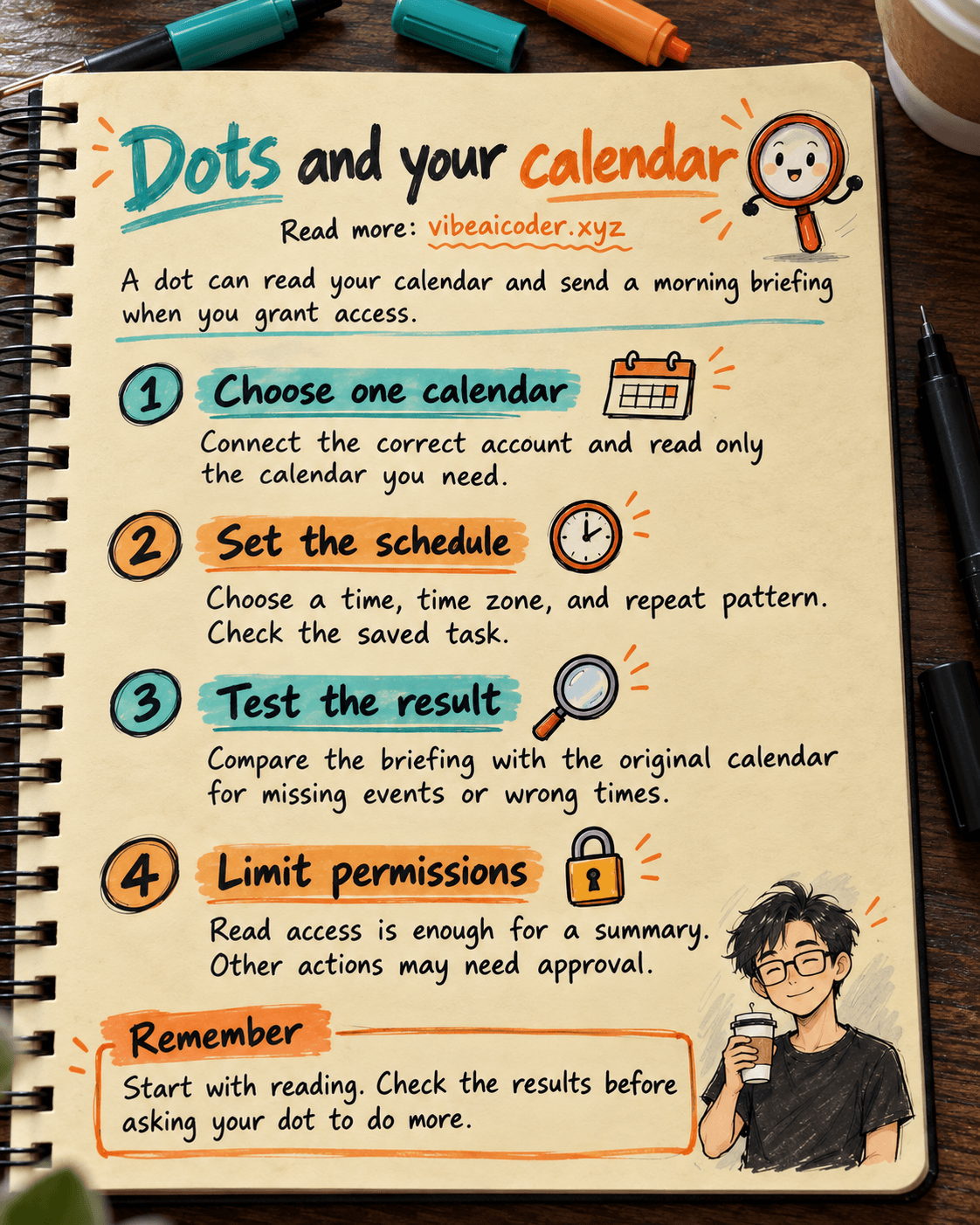
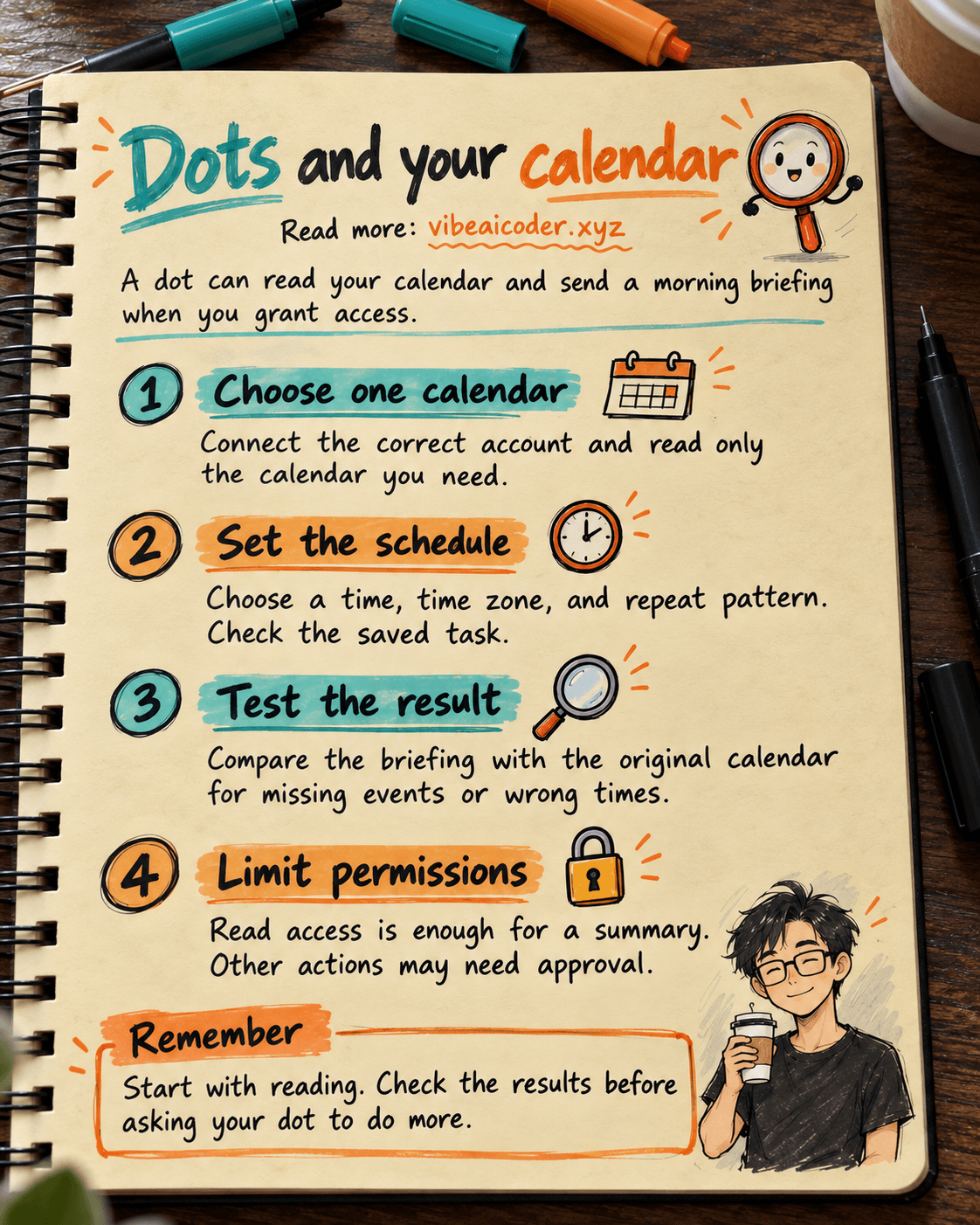
1. Create your dot and state the job
Follow the Dot onboarding flow on desktop. Give it a recognizable name, such as “Morning calendar”. Then use a precise request:
Every workday at [07:30] in the [Asia/Ho_Chi_Minh] time zone, review today's events in [calendar name]. Summarize each start time and event title, the gaps between meetings, and up to three things I should prepare. If an event has no description, say that information is missing. Send the summary only to me in this conversation. Do not edit my calendar, send messages, invite anyone, or join meetings.
This is an example request, not a promise that every interface offers every option. Your dot may ask for a calendar connection or more details. If you need help making the instruction specific, see our practical prompting guide.
2. Connect the correct app and account
In Plugins, select a supported calendar app and check the account shown by its provider. If you use several Google or Microsoft accounts, verify the email address before approving access.
Read the provider's permission screen. The dot can only use actions supported by the app, the source account, and your workspace. See OpenAI's app account setup guide.
Ask the dot to read today's calendar once. Check a real event. If it cannot see the event, examine the selected account, app permissions, and calendar selection before setting a recurring run.
3. Schedule the run and inspect the saved task
Tell your dot to run the briefing at 07:30 each workday. OpenAI says you can ask a dot for recurring checks. Scheduled results appear in the conversation. In the dot's profile, open Recent activity, or use ChatGPT's Scheduled section to see active, paused, and completed tasks. Open the task to adjust its repeat schedule, time, or completion notifications.
Check the saved time, time zone, and frequency. If you requested workdays but the task says every day, correct it. A conversational “done” is not enough evidence: confirm that the task appears in Scheduled.
4. Compare a trial summary with the source
Ask for a briefing immediately using the same calendar scope. Open the calendar itself and compare: Did the dot miss an all-day event? Did it misread the time zone? Did it include another calendar? Did it turn an unconfirmed note into a fact?
If something is wrong, tighten your instruction. For example: “Only read [calendar name], ignore canceled events, keep [time zone], and label any inference.” Run the trial again.
5. Keep action permissions narrow
For a personal briefing, read access is usually enough. Depending on your account, app settings may show Always ask, Allow read actions, Allow low-risk actions, or Allow all actions. The last option can let supported actions run without a new confirmation and is available only in eligible settings. These ChatGPT approval settings are separate from the access granted at the calendar provider.
If you later want the dot to create an event, specify the calendar, duration, invitees, and when it must ask you. Sending invitations or editing data may require your approval or be blocked by workspace policy. Do not assume that authorizing a calendar connection means every calendar action will run automatically.
 Example result
Imagine a team meeting at 09:00 and a client call at 14:00. A useful briefing might say:
Monday: Team meeting at 09:00 and client call at 14:00. You have a preparation window between 11:00 and 13:30. The client call has no description, so I cannot tell which document is needed. Suggested preparation: review the team notes, write three client questions, and check the meeting link.
The “I cannot tell” matters. The dot should not invent an agenda when the calendar contains only a title.
 Tips for a better briefing
Keep it short. Five clear lines each morning are easier to use than a long analysis. Ask the dot to separate “prepare”, “attend”, and “missing information”.
Define exceptions. Say whether private events, leave, or canceled meetings should appear. Name the exact calendar.
Check the first few runs. Compare the first three reports with the source calendar. Fix a wrong time zone or calendar selection rather than merely rewriting the summary.
Separate reading from acting. A morning read-only briefing is a good first job. If you need automated edits or messages later, create a separate task with explicit approval boundaries.
 Limits and privacy
Dots were not available to every ChatGPT account on October 4, 2026. Availability of Dots and connected apps varies by plan, region, surface, and workspace. Check current OpenAI documentation and your administrator rather than treating this guide as a guarantee of access.
A summary can omit an event or get a time wrong. Check the original calendar before canceling a meeting or reporting a time to someone else. Avoid testing with another person's sensitive health or financial information unless your organization permits it.
Disconnecting an app stops new access, but OpenAI's Dot privacy FAQ says it does not automatically remove information a dot already retained in its context. Review the data controls and reset process if that matters for your use.
 FAQ
FAQ
What if I cannot find Dots? Check your plan, region, desktop interface, and workspace permissions. Rollout is gradual.
Must I let the dot edit my calendar? No. Reading the right calendar is enough for a summary.
Will it send the briefing to other people? The example asks it to reply only to you. Sending to someone else is a separate action with its own permissions and possible approval.
Can I change or stop the schedule? Yes. Open Recent activity in the dot profile or Scheduled in ChatGPT.
Why can it not see a meeting? Check the connected account, app permissions, calendar selection, and administrator restrictions. Test one known event before relying on the daily schedule.
More articles
AI Training vs Inference: What Is the Difference?
Gemini 4 Argon Reads a 500-Page Chemistry Patent in One Afternoon
Claude Opus 5.5 Codes a Real Money Trading Game in One Day
What Is a Token in AI? Why ChatGPT and Claude Charge by Tokens
What Is Chain of Thought? Why Asking AI to Think Step by Step Works Better
Claude Sonnet 5.5 vs GPT-6.1 Sol: Which AI Model Is Worth Using?