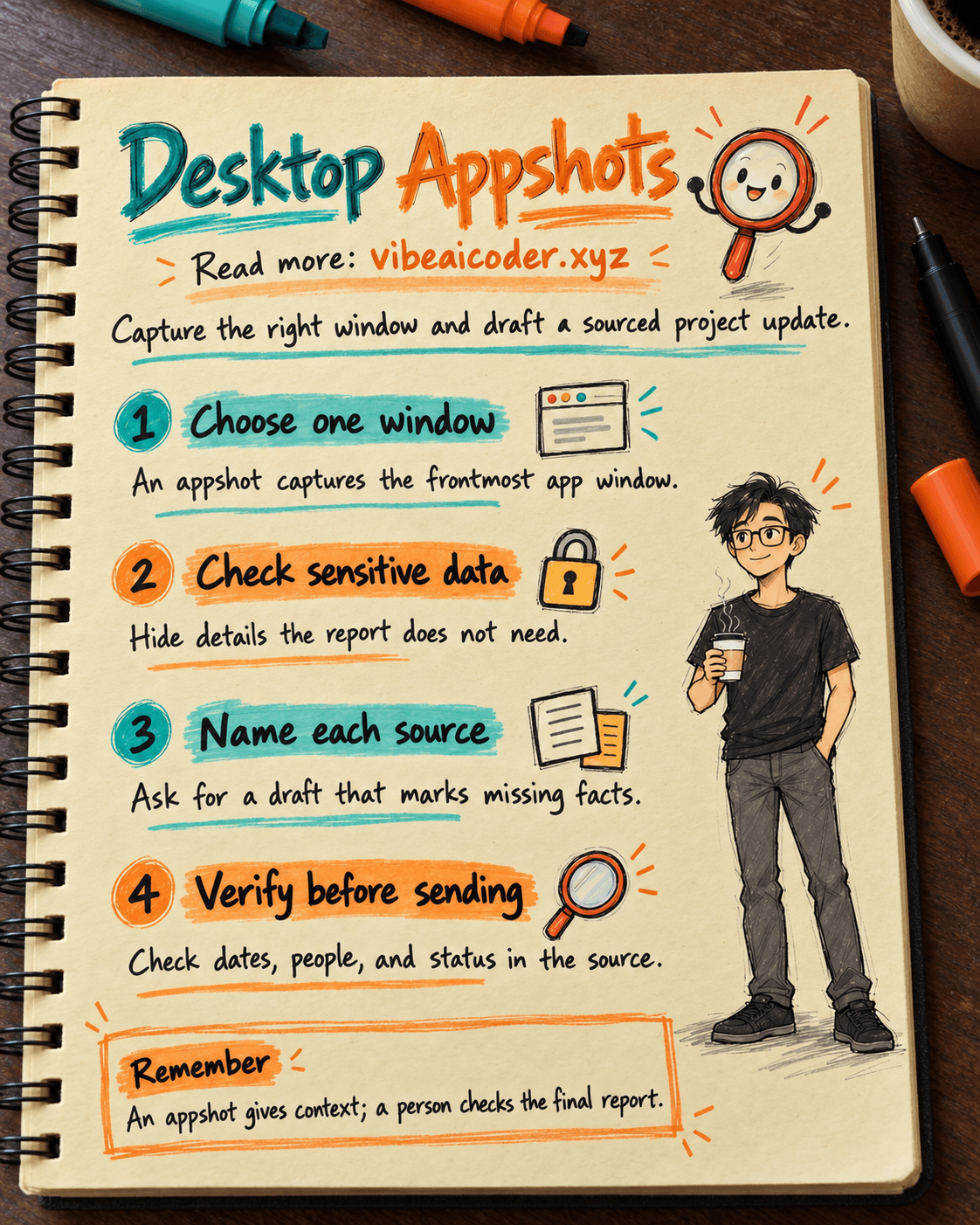
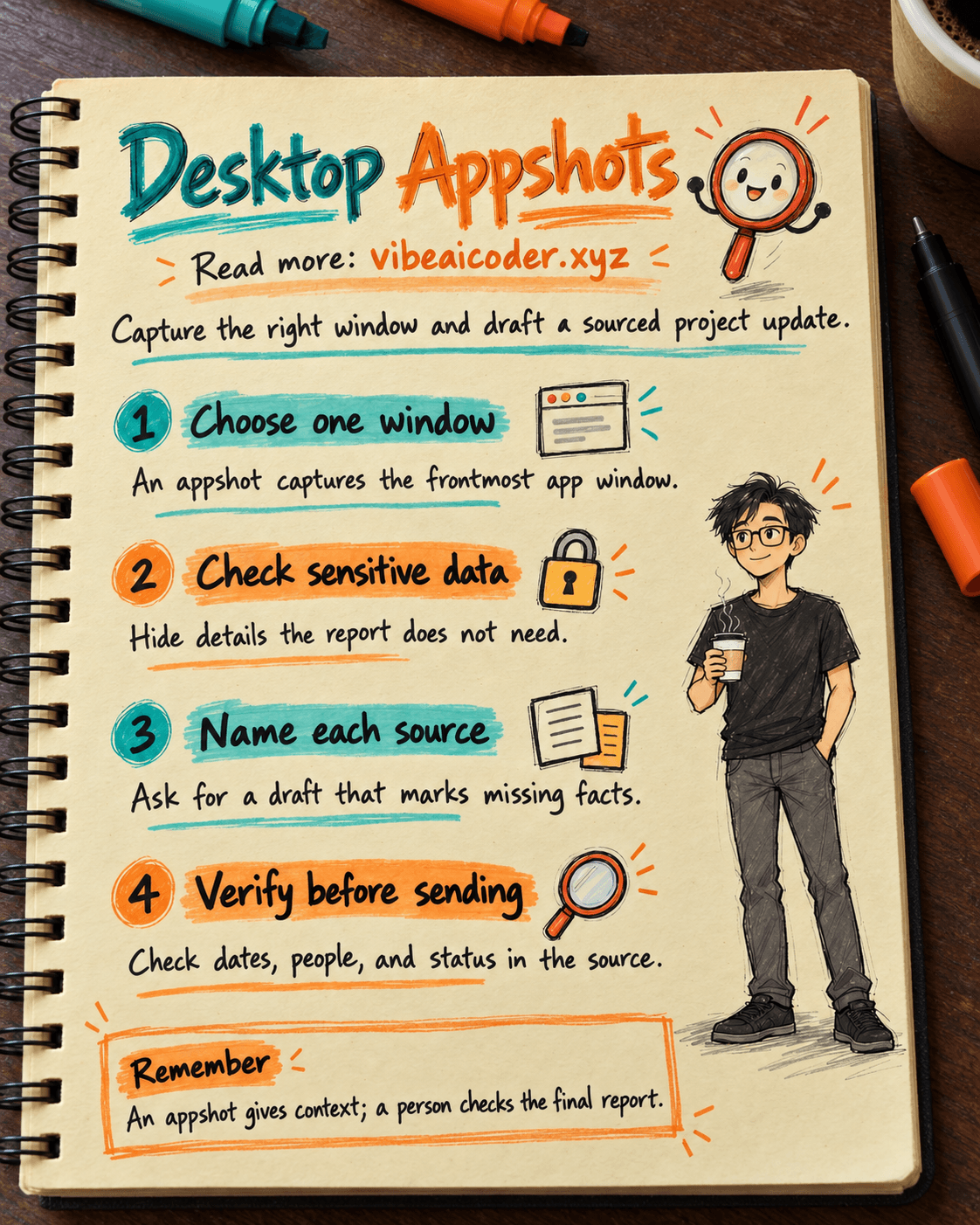
Use ChatGPT Desktop Appshots to Draft a Sourced Project Update
You need to send a project update before Monday's meeting. The calendar, a client email, and your progress notes are in three different windows. ChatGPT Desktop and Appshots can bring the context you are looking at into a chat, help you draft the update, and let you check each fact before sending it. Set aside about 30 minutes. You need the macOS app, the correct workspace, sources you may share, and a reviewer.
 Prepare
Tools: ChatGPT Desktop and Appshots. This walkthrough uses macOS. Appshots are also available on Windows, with a different shortcut and permission setup. You do not need Computer Use to draft from an appshot.
Sources: a calendar window, a relevant email, and progress notes. Hide personal or confidential details that are not needed for the report before taking a capture.
Output: a short update covering work done, upcoming deadlines, blockers, and decisions needed. Each point should identify its source. Mark anything unclear as "not confirmed."
 Step by step
1. Open the app in the right workspace
Install ChatGPT from the official app page, open it, and sign in. OpenAI's authentication guide says to select Continue to sign in on the signed-out screen and finish the flow in a browser. Open the profile menu and check your account and workspace. Do not put company context into a personal account by mistake.
Start a new chat. If you need to create a file, select Work above the composer when your workspace offers it. Switching modes does not expand what Appshots may access.
Open Settings with ⌘ + ,. Check the Appshots shortcut and destination: Current chat, New chat, or Automatic, as described in Settings.
2. Choose the first window and check what it shows
Bring the progress notes window to the front. Check its date, figures, and named owners. If an important passage is off screen, scroll it into view or share the document through an appropriate method. Do not assume an appshot contains the whole document.
According to OpenAI's Appshots guide, an appshot captures the frontmost window. It can include the visible image and text the app provides, sometimes even text outside the visible scroll area. But Google Docs, Gmail, Sheets, and Slides may provide only a screenshot of the visible area. Check the exact passage ChatGPT relies on.
On macOS, press both Command keys at once, or use your custom shortcut. The app may request Screen & System Audio Recording to capture the image and Accessibility to read available text. An appshot is an attachment, stored locally in the session file like a manually attached file or image.
3. Add context while keeping each source recognizable
Capture the calendar window, then the email window you are allowed to use. If only one email matters, avoid capturing an entire inbox. After each capture, confirm the attachment landed in the intended chat.
With Automatic, an appshot normally starts a new chat. If you interacted with a chat in the previous 60 seconds, it joins that chat; consecutive appshots also join it. Select Current chat to fix the destination, or inspect the chat after every capture.
The OpenAI shortcut reference lists ⌘ + N for a new chat and ⌘ + F for finding text in the current chat. Appshots have a separate global shortcut under Settings > Appshots.
4. Request a draft that points back to its sources
Once the appshots are in the right chat, paste this request and replace the bracketed fields. Add any missing important source before asking for a conclusion.
I need a [word count]-word project update for [recipient] about [project name].
Use only information visible or available in the attached appshots:
1. Progress notes from [department], updated [date].
2. Project calendar viewed on [date].
3. Email or conversation with [stakeholder] on [date].

Write four sections: completed work, upcoming deadlines, blockers, and decisions.
For each point, identify the supporting appshot and any relevant date.
If a source, date, figure, or owner is missing, write "not confirmed."
Separate facts from suggestions. Do not send messages or edit source documents.
Finish with three things I must verify before sending the update.
This template sets source boundaries and review criteria in the request itself. See our prompt writing guide with examples if you want to adapt it.
5. Check the draft against each window
Read each sentence and reopen its source window to confirm dates, figures, people, and status. If ChatGPT says "completed" while the note says "in testing," correct it. Remove facts you cannot verify or mark them as not confirmed.
You can pop the chat into a separate window next to the source and turn on Always on top, as described in Settings. If you need a report file, see our guide to creating and editing sourced work files with ChatGPT.
6. Finalize the version to send
Ask ChatGPT for a shorter version, preserving points that really are "not confirmed." The reviewer decides whether to include those points or ask the responsible team first. Send only the approved version through the company channel.
For a long discussion in Slack or Microsoft Teams, see our guide to summarizing conversations with @ChatGPT. Do not assume an appshot read the whole channel history.
 Sample result
Suppose the notes appshot says the product team approved a guide on October 5, the calendar shows a presentation on October 9, and the email asks who will answer technical questions. A draft might read:
Done: Product approved the guide on October 5. Source: progress notes appshot.
Upcoming: Presentation scheduled for October 9. Source: calendar appshot.
Blocker: No owner identified for technical questions. Source: email appshot; owner not confirmed.
Decision: Who will handle technical questions before the presentation?
This is an illustration, not the result of an actual run. A person must compare the final version with the notes, calendar, and email. If only part of a window was captured, say so and inspect the full source before sending.
 Tips for better results
- Capture less, but capture the right thing. Each appshot should answer one question: what is done, what comes next, or who is waiting.
- Name sources in the prompt. "Progress notes, October 5" is easier to check later than "Appshot 1."
- Use Current chat for one work session. This reduces mistakes if you opened another chat within the last 60 seconds.
- Use a source file or link when you need the whole document. An appshot is useful for on-screen context. For a long document, use a workspace-approved file sharing method or connection and check access.
- Separate the draft from the sendable version. Have a person review and correct any promise to a client before sending.
 Limits to know
An appshot can contain more text than its image shows. An app may provide off-screen text. Check the window for sensitive content before capturing. Review the resulting attachment as you would a shared screenshot or document.
Not every app provides complete text. Some windows yield only the visible screenshot. When a report requires a whole document or email history, do not treat an appshot as proof ChatGPT read it all. Use a complete, permitted source and verify the output.
An appshot does not mean AI can operate your computer. This guide uses images and available text to draft. If you want ChatGPT to click controls in an app, that is a separate Computer Use workflow with different permissions and checks. See our Browser, extension, and Computer Use comparison before assigning an action that changes data.
Your organization may restrict the shortcut or permission. If Appshots fail, update the app, check the shortcut, and ask whether the workspace allows them. On macOS, check Screen & System Audio Recording and Accessibility under System Settings > Privacy & Security, then restart the app.
 Frequently asked questions
Does an appshot capture every open window? No. It captures the frontmost window when triggered. Switch windows and capture again if needed.
Does an appshot always contain the full document? No. Depending on the app, ChatGPT may receive only the visible screenshot, particularly for some Google apps. Inspect the complete source separately.
Why did an appshot appear in a different chat? Under Automatic, it may start a new chat or join one you interacted with in the last 60 seconds. Select Current chat in Settings to fix the destination.
Do I need Computer Use to ask ChatGPT for a report from appshots? No. An appshot supplies context as an attachment. Computer Use is for operating interfaces and requires separate consideration of permissions.
Can I follow this method on Windows? Appshots are available in the Windows desktop app, but the default shortcut is both Alt keys, and permission steps may differ. Follow the Appshots guide and your machine's settings.
Official OpenAI Learn sources: ChatGPT desktop app, Appshots, Commands, Settings, and Authentication, accessed October 5, 2026.
More articles
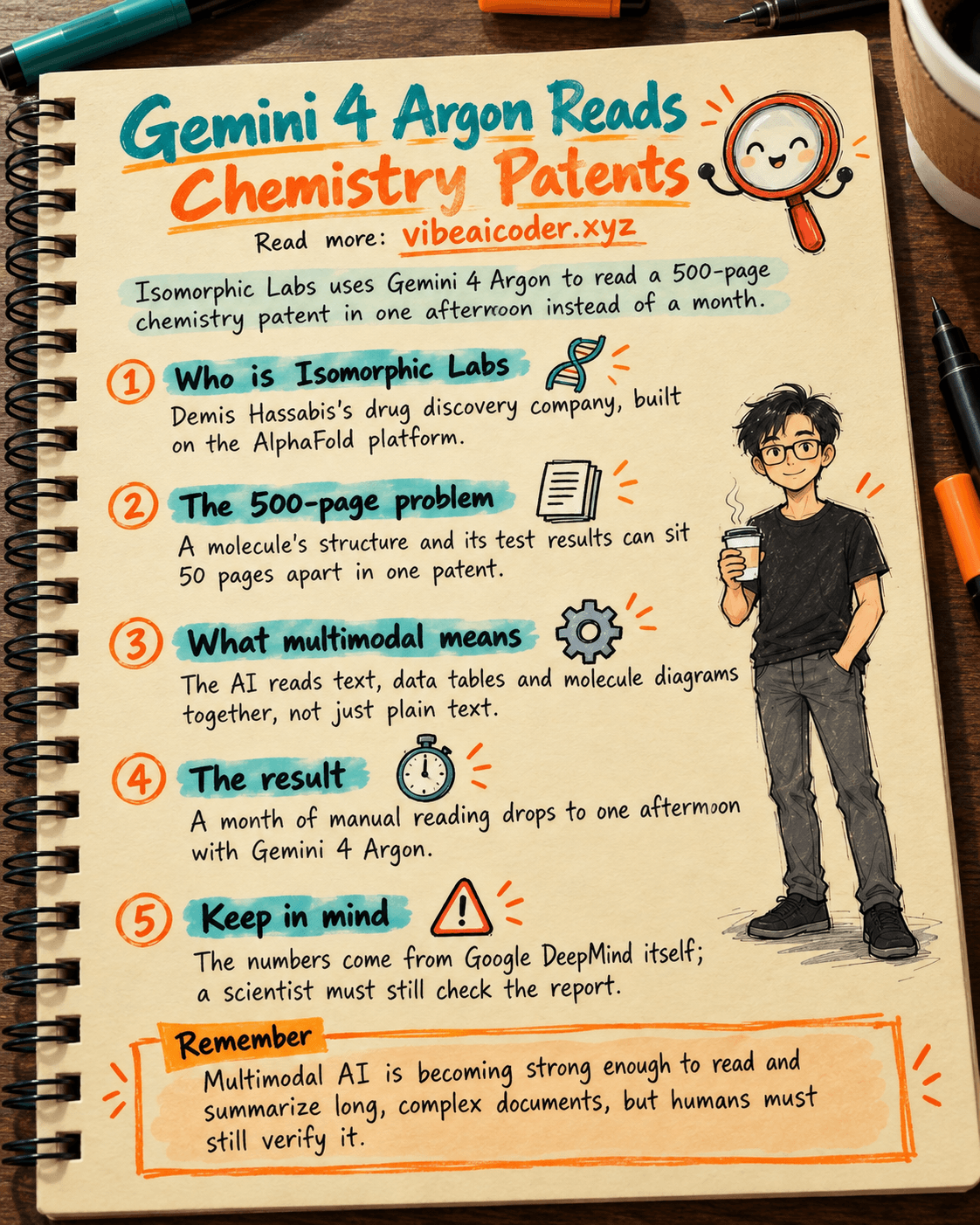
Gemini 4 Argon Reads a 500-Page Chemistry Patent in One Afternoon
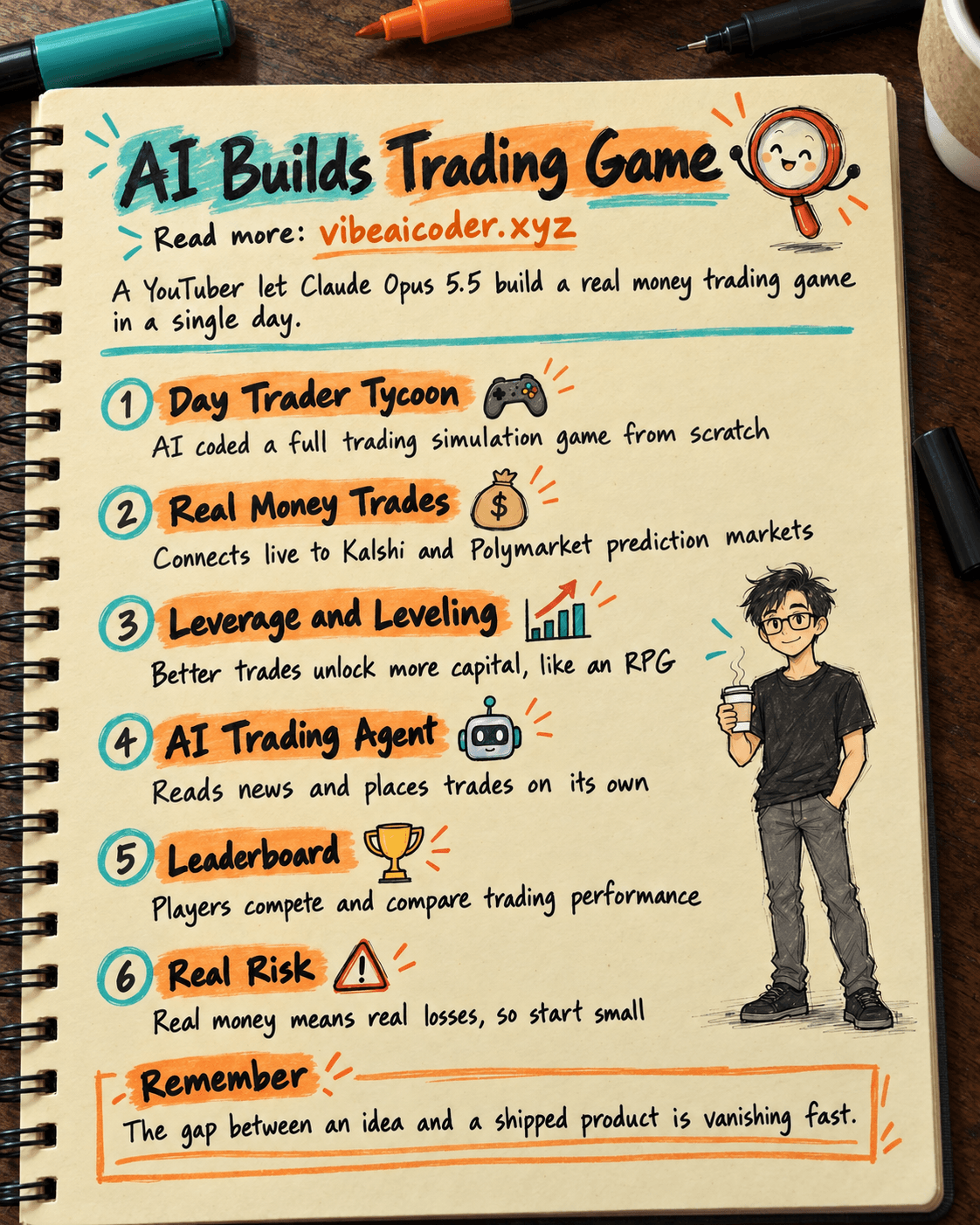
Claude Opus 5.5 Codes a Real Money Trading Game in One Day
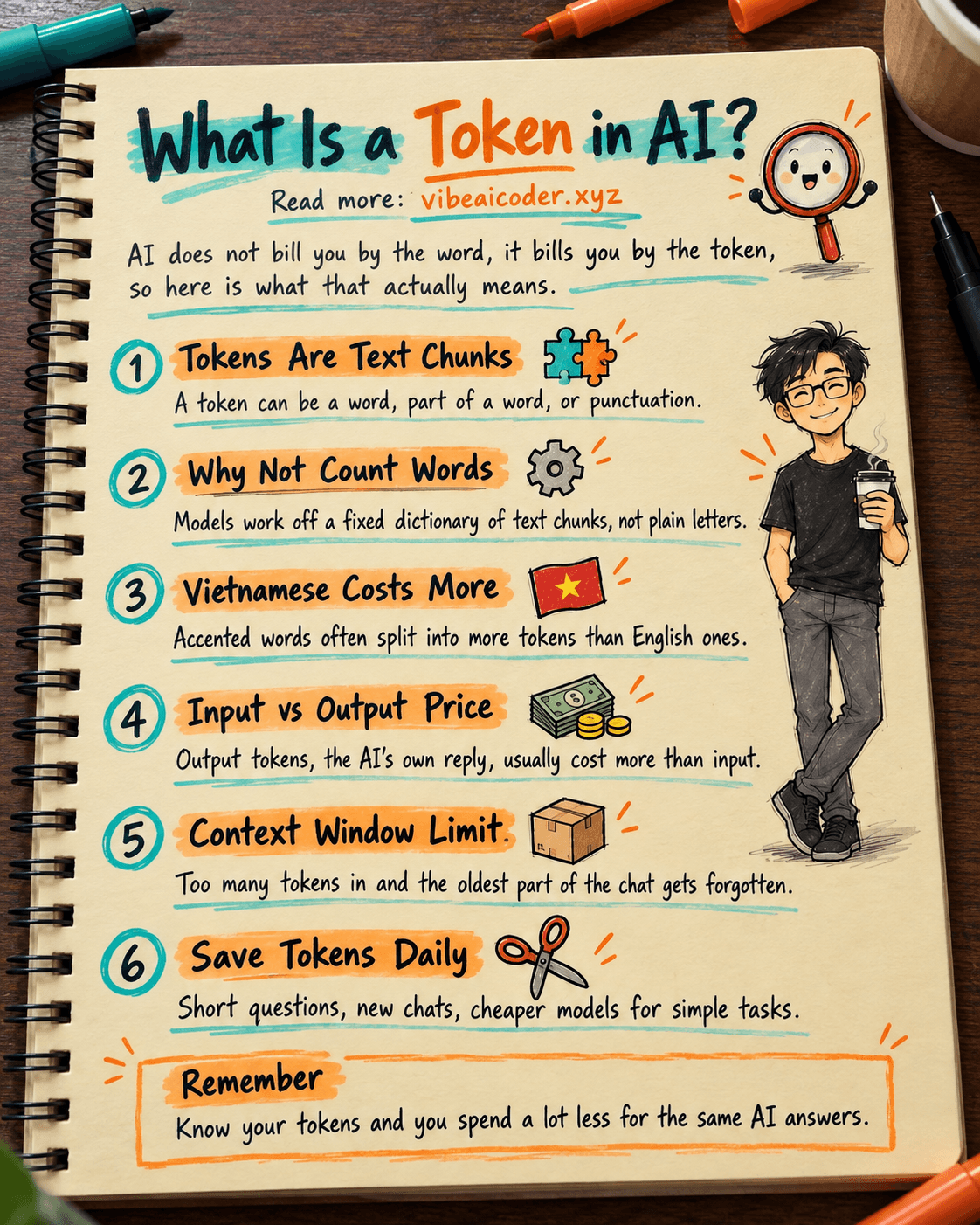
What Is a Token in AI? Why ChatGPT and Claude Charge by Tokens
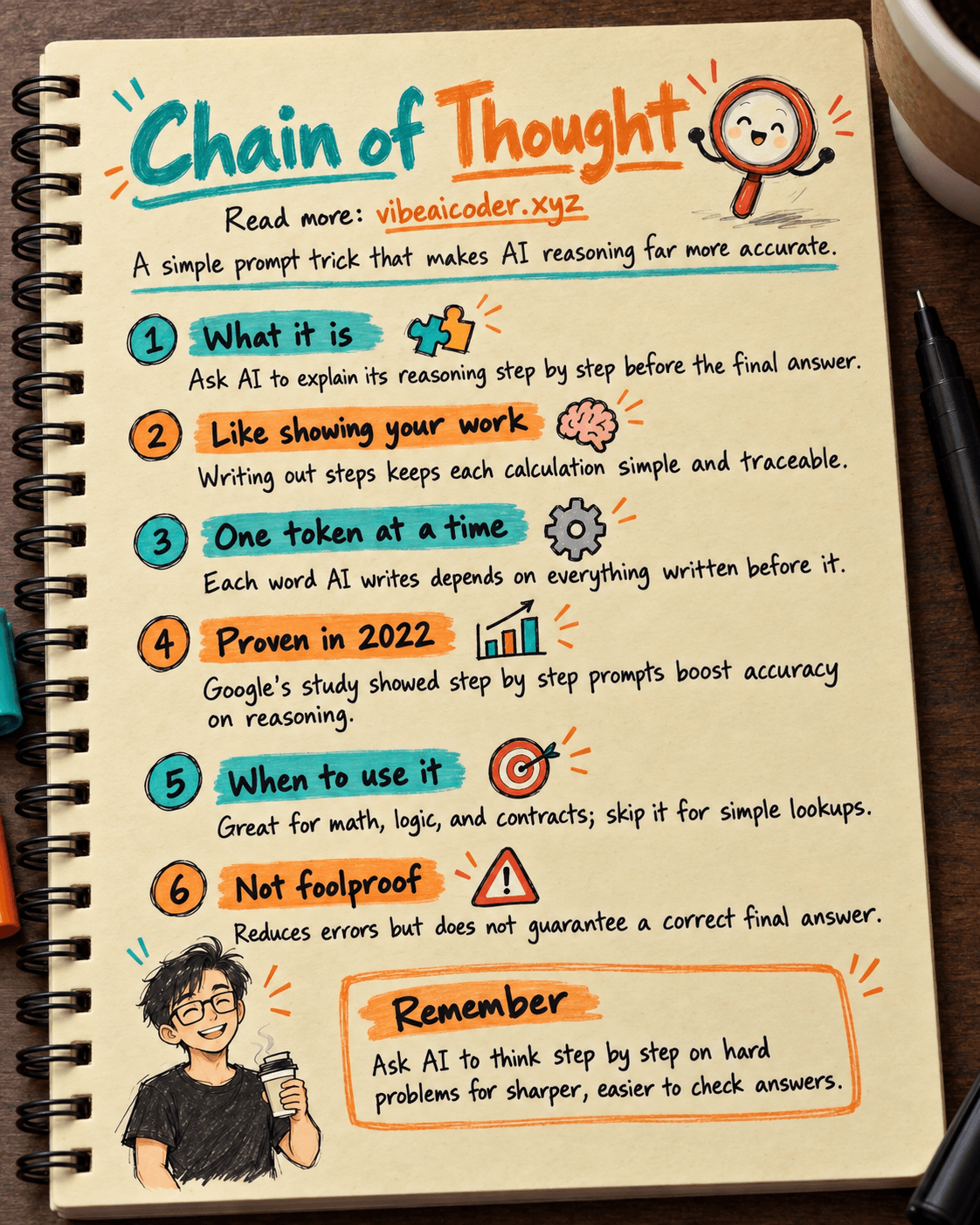
What Is Chain of Thought? Why Asking AI to Think Step by Step Works Better
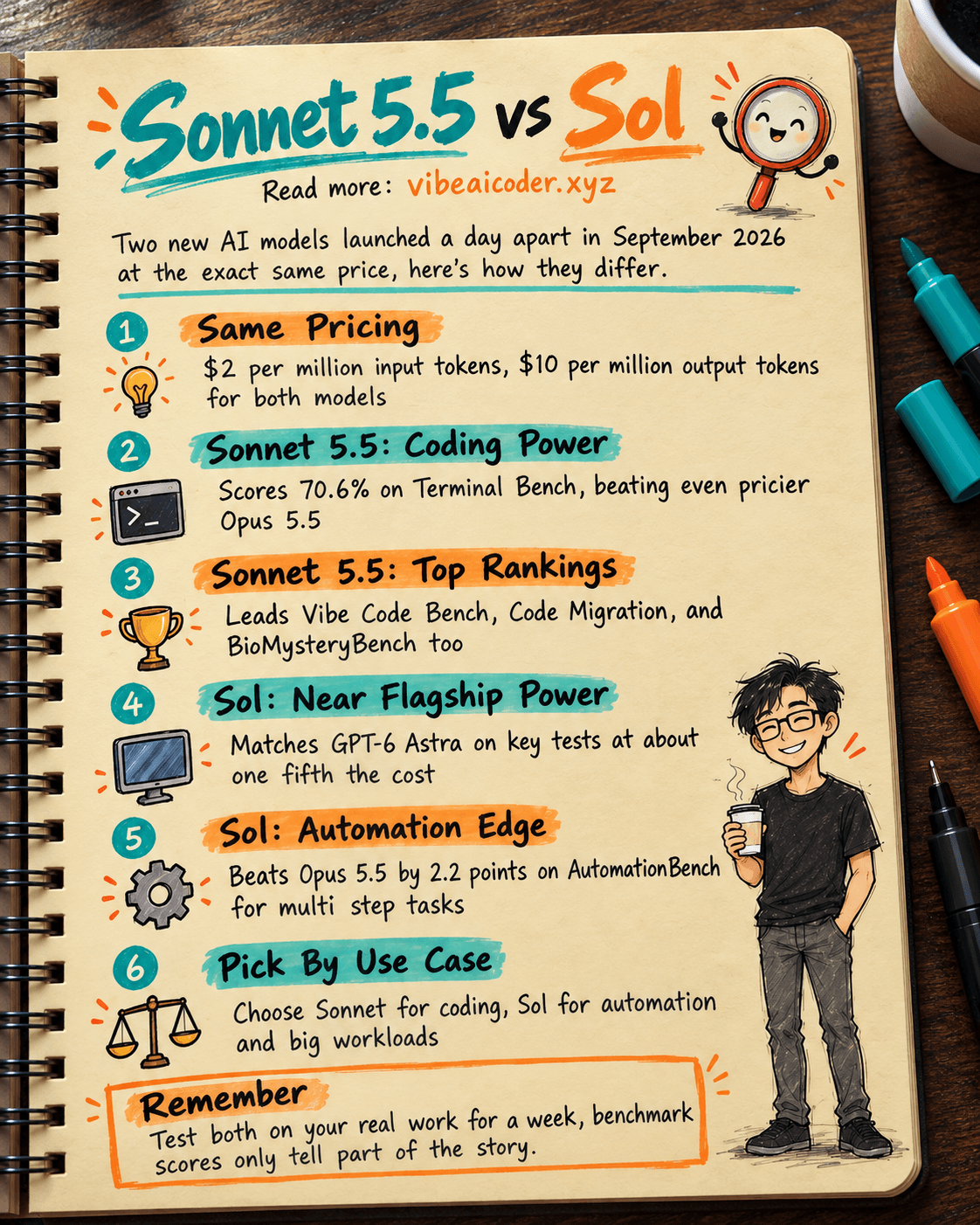
Claude Sonnet 5.5 vs GPT-6.1 Sol: Which AI Model Is Worth Using?
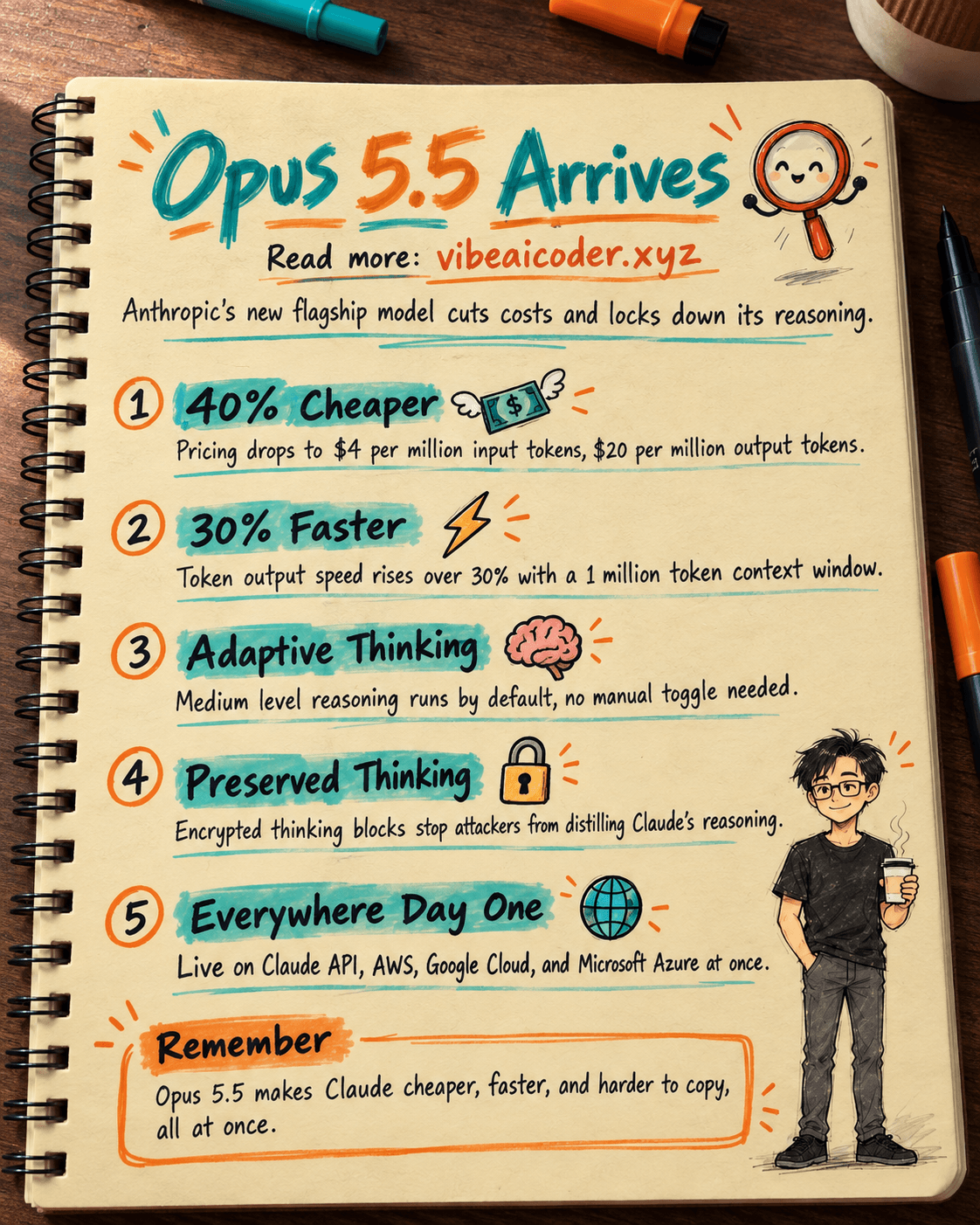
 Claude Opus 5.5 Launches: 30% Faster, 40% Cheaper, Blocks AI Brain Copying