 Claude Code Gmail Triage: Auto Morning Inbox Brief for CEOs
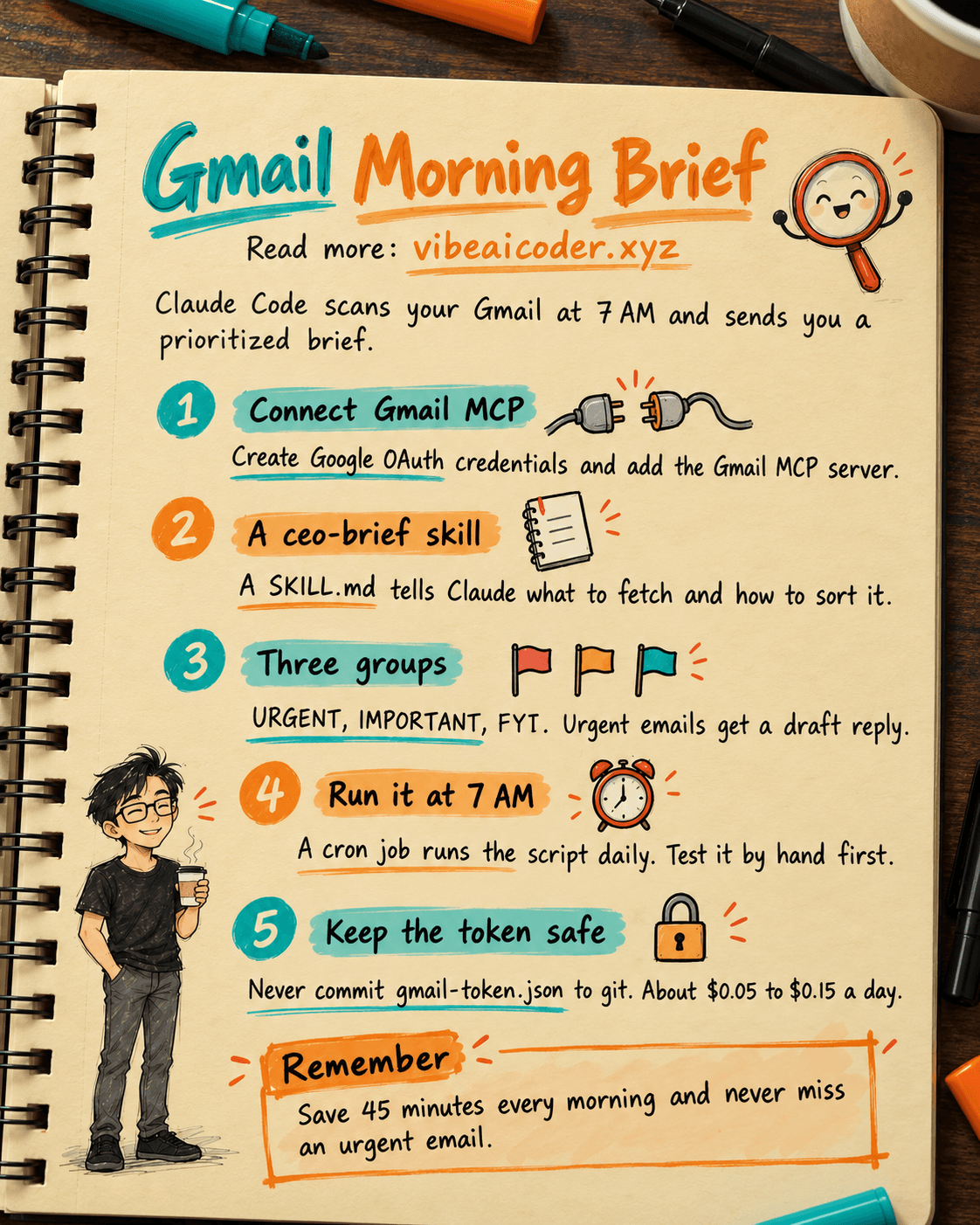
Do you lose 45 minutes every morning just reading email, trying to figure out what needs your attention first? This guide, first published on April 10, 2026, shows you how to get Claude Code to do that job for you at 7 AM, before you even finish your first cup of coffee.
The Every Morning Problem for CEOs
As a CEO or founder, you open your laptop and see 80 to 150 new emails. Which one is from a major client, which one is a board member asking a question, which one is just a newsletter, you end up sorting all of it by hand.
On average, 30 to 60 minutes every morning disappear just sorting the inbox, not counting the time spent replying. Your best energy of the day gets burned on work an AI could easily handle instead.
The fix is to combine Claude Code with the Gmail MCP, so it scans your inbox automatically at 7 AM and sends you a tidy brief sorted by priority.
Part 1: Basic Setup
Step 1: Install Claude Code (skip this if you already have it).
Run npm install -g @anthropic/claude-code, then check with claude --version.
Step 2: Create Google Cloud OAuth credentials. Go to https://console.cloud.google.com and create a new project called "ceo-claude-assistant." Open APIs & Services, then Library, search for Gmail API, and click Enable. Next, go to Credentials, click Create, choose OAuth client ID, select Desktop App, and download the credentials.json file. Save it to ~/.claude/gmail-credentials.json.
Step 3: Install the Gmail MCP server by running npm install -g @modelcontextprotocol/server-gmail.
Step 4: Configure Claude Code. Run claude config edit and add this block under mcpServers:
"gmail": {
  "command": "npx",
  "args": ["-y", "@modelcontextprotocol/server-gmail"],
  "env": {
    "GMAIL_CREDENTIALS_PATH": "/Users/YOUR_NAME/.claude/gmail-credentials.json",
    "GMAIL_TOKEN_PATH": "/Users/YOUR_NAME/.claude/gmail-token.json"
  }
}
Step 5: Authenticate for the first time. Restart Claude Code and it will open a browser asking you to sign in to Google and grant permission. The token gets saved to gmail-token.json.
Step 6: Test the connection by asking list my unread emails from today. If Claude returns a list, the setup is done.
Part 2: Build a Custom "ceo-brief" Skill
Create a folder with mkdir -p ~/.claude/skills/ceo-brief, then add a SKILL.md file with the frontmatter name: ceo-brief and a clear description.
In the Steps section, tell Claude to work in this order: fetch unread email from the last 24 hours, fetch email from starred senders (VIPs, board members, key clients), then sort everything into three groups.
Those three groups are URGENT (needs a reply within 4 hours, a deal at risk, a client escalation), IMPORTANT (needs a decision today, strategy, personnel), and FYI (updates, newsletters, nothing that needs action right away).
For every URGENT item, have Claude draft a reply in advance so you only need to review and hit send. For IMPORTANT items, list the exact decision that needs to be made. Roll FYI items up into 2 to 3 summary bullet points.
Format the output as a Daily Brief with the date, a red URGENT section, a yellow IMPORTANT section, a green FYI section, and a Stats section at the end (total emails scanned, oldest unanswered email, top senders).
Part 3: Run It Automatically at 7 AM
Create a wrapper script at ~/claude-morning-brief.sh containing cd ~/ceo-workspace followed by claude --skill ceo-brief > ~/ceo-brief-$(date +%Y%m%d).md 2>&1. Add an osascript line to show a "Daily brief ready" notification on macOS.
Run chmod +x ~/claude-morning-brief.sh to make it executable.
Set up a cron job with crontab -e and add the line 0 7 * * * /Users/YOUR_NAME/claude-morning-brief.sh, meaning the script runs automatically every day at 7 AM.
Important: test it manually first by running ~/claude-morning-brief.sh, then cat the output file to check the result. Do not rely on cron until you are sure the script runs correctly.
Part 4: Advanced Features
Want the brief sent straight to your phone? Add a curl POST call to the Telegram bot API inside the wrapper script, and you will get a Telegram notification before you even open your laptop.
Add the Slack MCP so Claude can also scan the #exec-team channel and fold it into the same brief. Add the Google Calendar MCP so the brief includes that day's meetings too, so you know which ones matter and which ones can be moved.
If you want the output in another language, just write the prompt in SKILL.md in that language. Archive daily briefs to Notion via the Notion MCP so you can search back through them easily later.
Security and Cost Tips
The gmail-token.json file holds an access token, so never commit it to git; add it to .gitignore right away. Back up your config JSON to 1Password or another secret manager.
Running this once a day costs roughly $0.05 to $0.15, depending on how many emails get scanned. That is about $3 to $5 a month, cheaper than a single Starbucks coffee.
If your inbox is large, configure scanning in batches of 50 emails to avoid timeouts. Set up a Gmail forwarding rule so Claude only touches your inbox and never reaches into other folders, for safety.
Real Results
After putting this in place, CEOs save 45 minutes every morning. Instead of sorting email, you can focus on the decisions that actually matter. No urgent issue slips through.
Response time with key clients dropped from 6 hours to 1 hour, which makes a real difference for closing deals and retention. The start of the day now goes to strategy, not admin work.
Are you ready to let Claude Code act as your chief of staff?
More articles

AI Training vs Inference: What Is the Difference?

Gemini 4 Argon Reads a 500-Page Chemistry Patent in One Afternoon
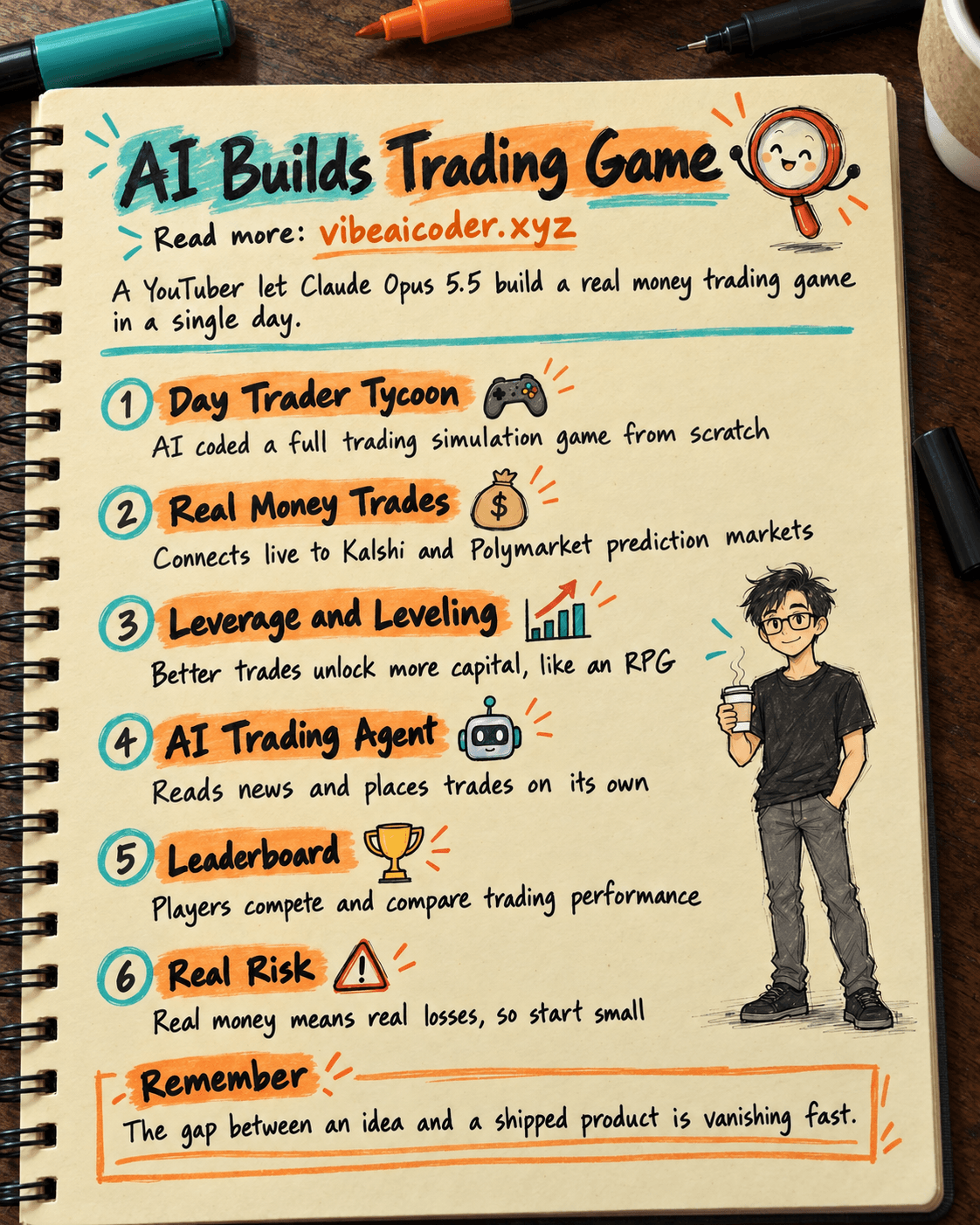
Claude Opus 5.5 Codes a Real Money Trading Game in One Day

What Is a Token in AI? Why ChatGPT and Claude Charge by Tokens
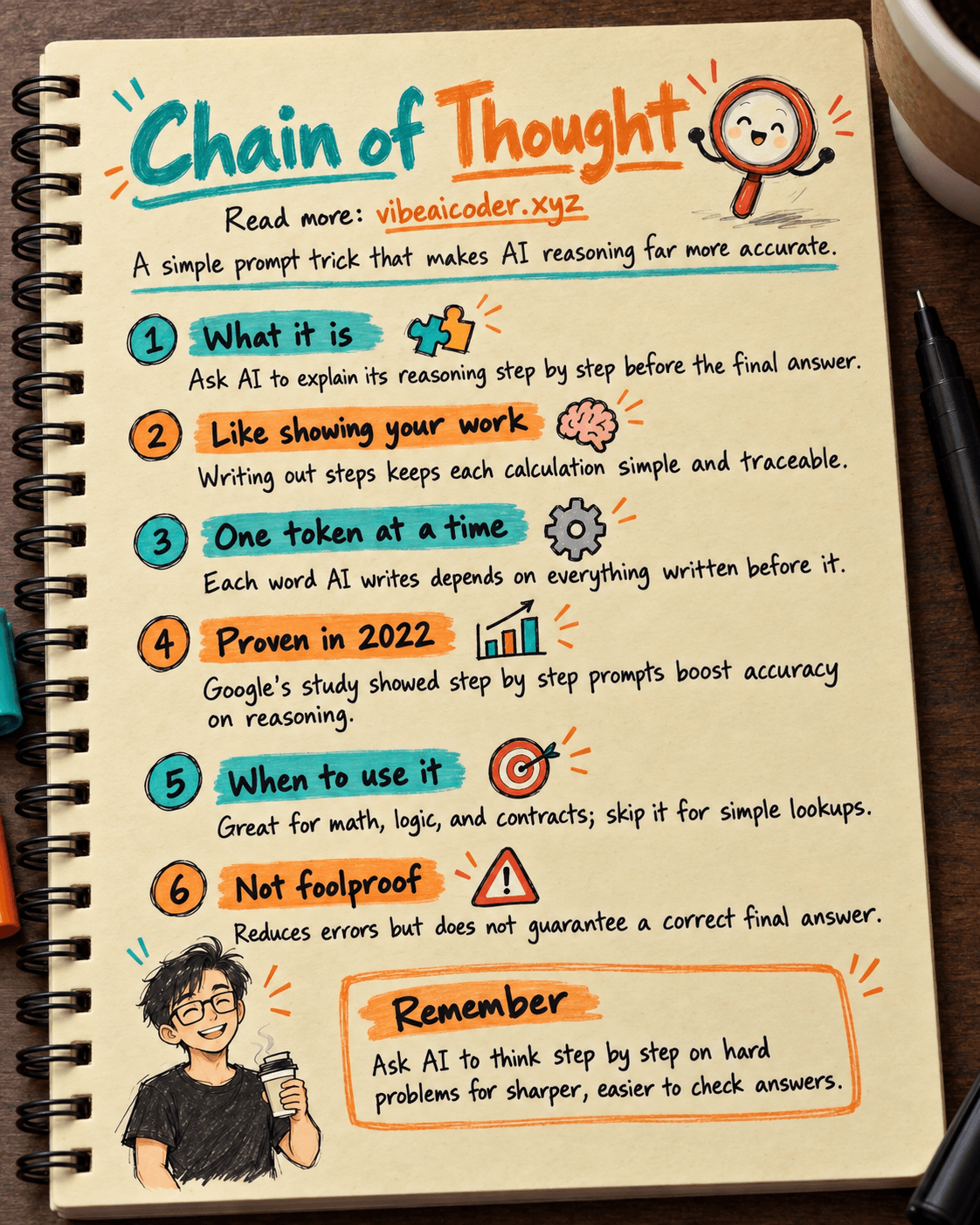
What Is Chain of Thought? Why Asking AI to Think Step by Step Works Better
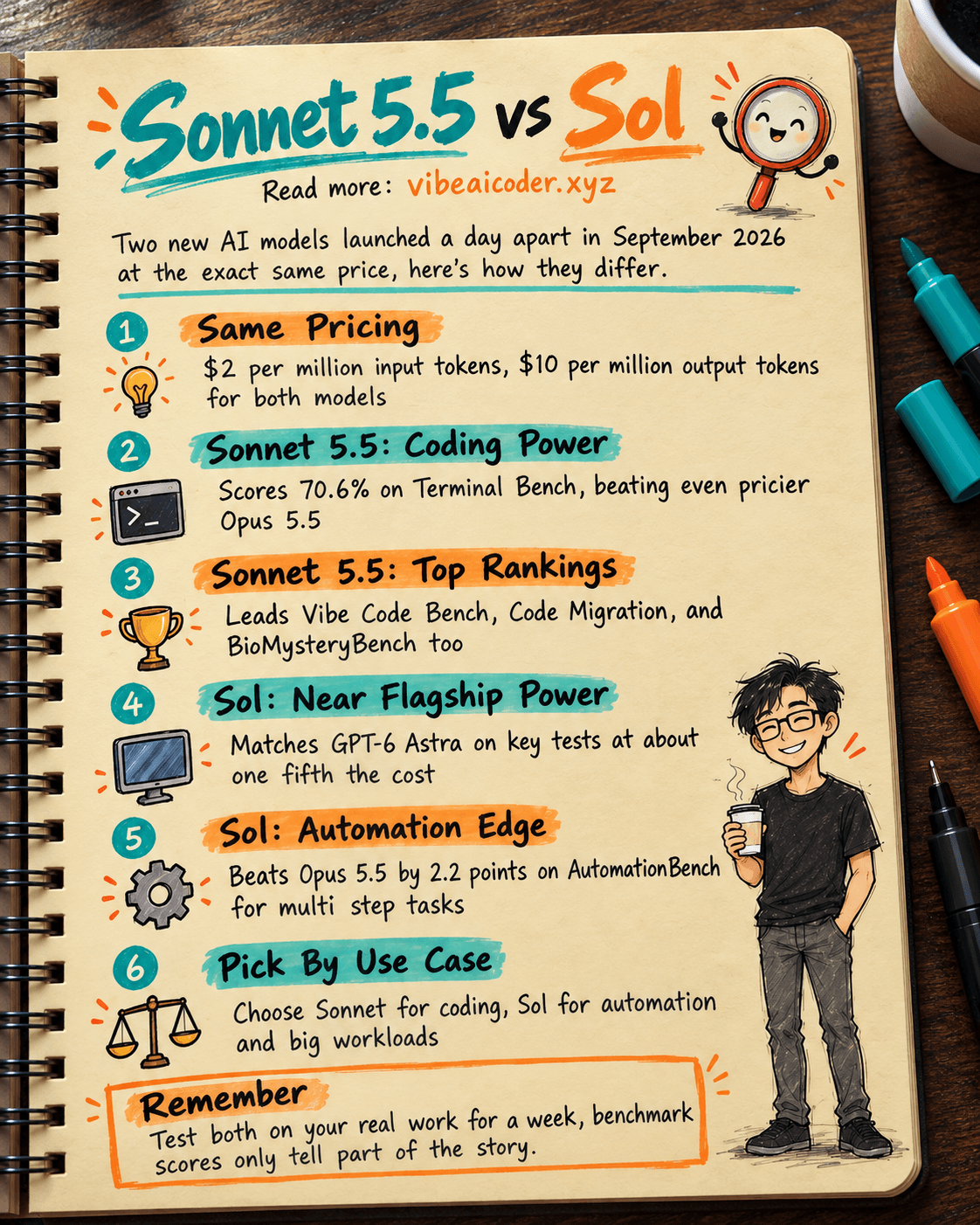
Claude Sonnet 5.5 vs GPT-6.1 Sol: Which AI Model Is Worth Using?