Set Up ChatGPT Desktop on Windows: Native or WSL2, Permissions and Troubleshooting
You have a project on a Windows computer and want ChatGPT desktop to help read code, inspect an error, and check a fix with you. This guide shows how to install the app, choose Windows native or WSL2 for Codex, set safe permissions, and resolve the problems that often stop new users. You need a Windows computer, an account allowed to use the app, a small project folder, and about 30 to 45 minutes.
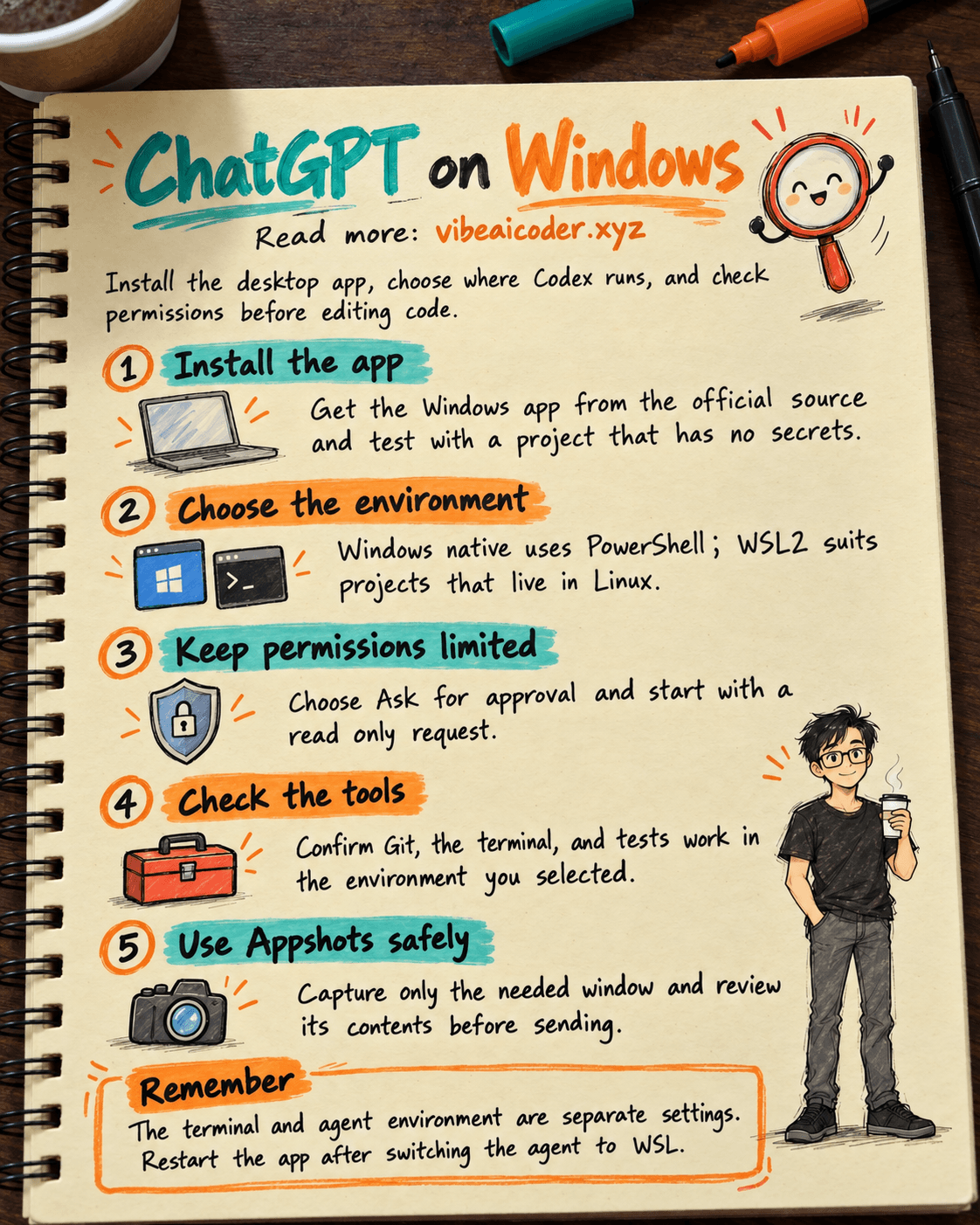
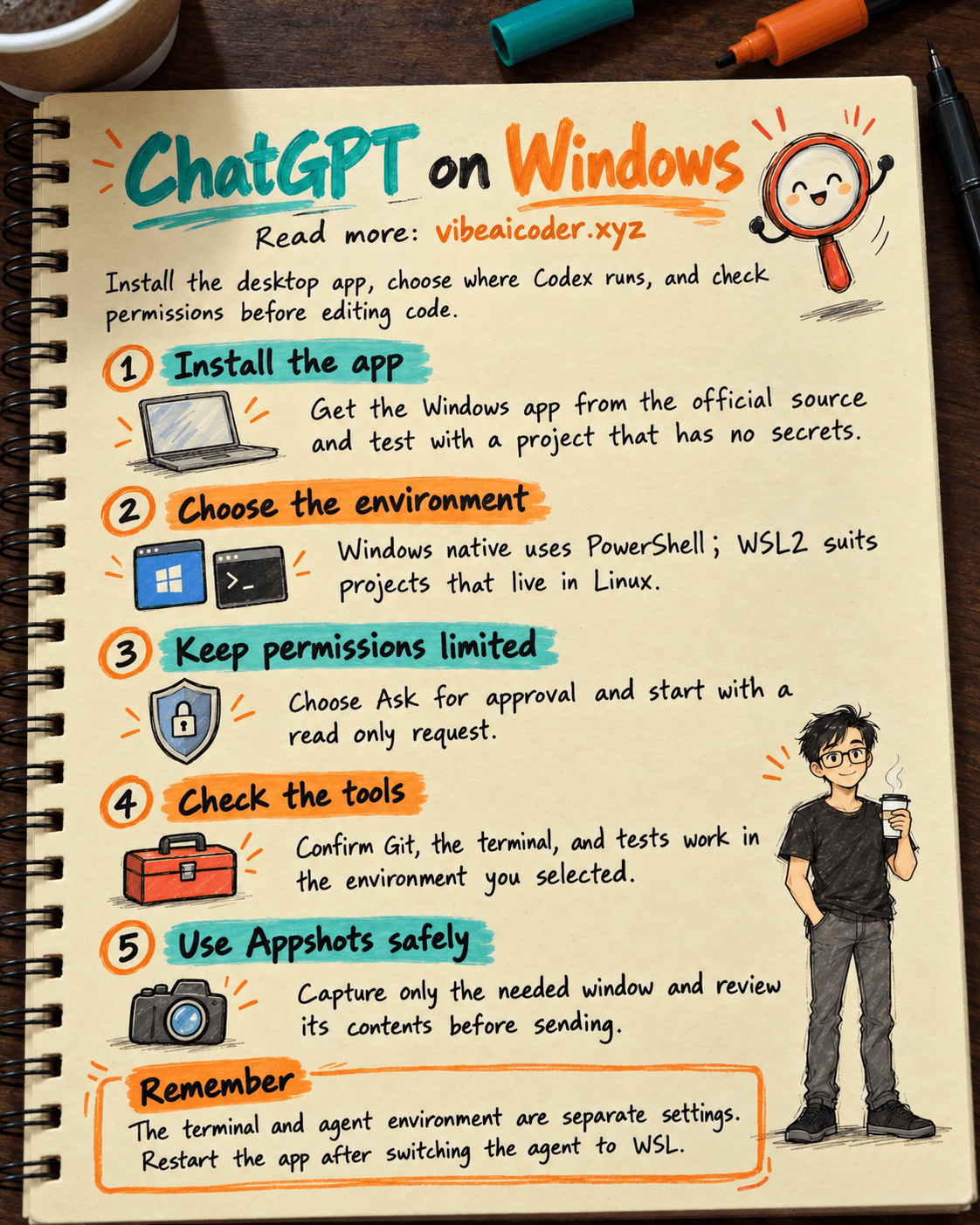
According to OpenAI's Windows guide, the app can run its agent directly on Windows with PowerShell and the Windows sandbox, or in Windows Subsystem for Linux 2, called WSL2. These environments have different paths, tools, and isolation. Choosing deliberately helps avoid a situation where the project opens but Git or the test command does not work.
 Prepare
Download the official ChatGPT desktop app for Windows. If you use PowerShell, OpenAI also provides this Microsoft Store installation command:
winget install --id 9PLM9XGG6VKS -s msstore
Sign in with an account that has access. If your company manages app installation, ask an administrator before installing it yourself. Prepare a project without secrets, with Git and a clear test command. Git lets the app show changes. The Codex CLI guide to reading and verifying an unfamiliar repository can help if you are new to repositories.
If you only want to capture another app's window and ask ChatGPT about it, see the separate guide to using Appshots for a checked work update. Here, the main decision is where Codex runs on Windows.
 Step by step
1. Choose where the agent actually runs
Windows native is the default. The agent runs commands in PowerShell and uses the Windows sandbox. If the project lives on a Windows drive, such as Documents or C:\Projects, start here. You do not need WSL just to try the first request.
WSL2 fits projects and build tools already living in Linux, or a team that works in Linux daily. The agent then runs in WSL and uses Linux sandboxing. OpenAI's guide says WSL1 is no longer supported starting with Codex 0.115, because the Linux sandbox moved to bubblewrap. If you only know that your computer has “WSL,” check which version it uses.
Opening a project in WSL does not mean the agent also runs there. If you keep the Windows native agent, OpenAI recommends keeping the project on a Windows drive and accessing it from WSL through /mnt/<drive>/.... To run the agent in WSL2, open Settings, change Agent environment from Windows native to WSL, and restart the app.
You can ask ChatGPT to compare the options, then confirm the project location yourself:
My project is at [Windows or WSL path]. The usual test command is [command].
Help me choose Windows native or WSL2 for Codex in ChatGPT desktop.
Explain where the agent will run commands, where I should keep the project, and what to check after switching.
Do not run commands or change settings. Ask me if information is missing.
2. Set permissions before giving Codex work
Before sending a request, choose Ask for approval beneath the composer if you want the sandbox to enforce boundaries and ask when an action needs more permission. OpenAI's Windows guide warns that full access does not confine Codex to the project folder and can lead to unintended changes. For your first trial, ask for a read only task:
Read this project and tell me its entry point, test command, and three most important files.
Only read files inside the project. Do not edit, install packages, access the network, or run commands that need administrator rights.
If something is blocked, explain the step and the reason, then stop.
After the app reads the right folder, request one small change and a way to verify it. The guide to limiting Codex permissions for team code changes goes further. If you launch the app with Run as administrator, the agent inherits that level of access. Do not use administrator rights just to avoid an ordinary setup error.
3. Choose a terminal, editor, and essential tools
In Settings, choose the default app for Open, such as VS Code or Visual Studio. Choose an integrated terminal that fits the project: PowerShell, Command Prompt, Git Bash, or WSL if installed. The integrated terminal and agent environment are separate settings. The terminal can be PowerShell while the agent runs in WSL. A new terminal selection applies only to new terminal sessions; open a new one or restart the app if you do not see the change.
If Git features are missing, check whether Git is installed on Windows. OpenAI gives this example:
winget install --id Git.Git
Install Node.js, Python, the .NET SDK, or GitHub CLI only if your project needs them. Confirm the terminal can find Git and run the project's test command. A command that works only in WSL will not automatically have the same environment in Windows native mode.
4. Try Appshots with a safe window
Appshots send the frontmost window to a chat. On Windows, press both Alt keys together or use your configured shortcut. The Appshot opens in the main app. It can include an image of what is visible and text made available by the app, even outside the visible scroll area. Close customer documents and secrets before testing it.
Open a public document, take an Appshot, inspect the attachment, and ask: “Explain what is visible, but do not act on my computer.” In Settings, you can change the shortcut and destination: Current chat, New chat, or Automatic. Automatic may use a chat that was active in the last 60 seconds.
If Appshots fail, update the app, check the shortcut, and ask whether the workspace allows the feature. With Google Docs, Gmail, Sheets, or Slides, ChatGPT may receive only the visible screenshot, not the whole document. Do not conclude that it read every page. An Appshot adds context to a chat; it does not replace repository or plugin permissions.
5. Troubleshoot in the right environment
PowerShell blocks a command: If you see npm.ps1 cannot be loaded because running scripts is disabled on this system, PowerShell's script execution policy may be the cause. OpenAI cites RemoteSigned as a common remedy, but your organization may manage the policy. Ask your administrator or read Microsoft's guidance before changing it. Do not broaden permissions on the basis of an unchecked answer.
A WSL project opens but Git is missing: Check whether the agent runs in Windows native mode or WSL. For a native agent, OpenAI recommends keeping the repository on the Windows drive and using /mnt/<drive>/... from WSL. If the work really needs Linux, switch the agent to WSL2 and restart the app.
A setting change seems ineffective: Distinguish a new terminal from a new agent environment. A terminal setting applies to new terminal sessions. Switching the agent to WSL requires an app restart. Check the project folder and a simple command before asking for code changes.
Appshots do not capture: Check the app version, shortcut, and workspace permission. On Windows, Appshots open in the main app. The Screen Recording and Accessibility setup described in the Appshots guide is for macOS; do not copy those steps onto Windows.
 Example result
Suppose Minh has a web project at C:\Projects\shop-demo and tests it with npm test. Minh installs the app, selects Windows native, keeps Ask for approval, and opens the project. Codex reads its structure and identifies the right test command without editing. Minh installs Git if the change viewer says it is missing, then asks for one interface label to be fixed. After the edit, Minh reviews the diff and runs the test. If PowerShell reports an npm.ps1 error, Minh records it, checks the computer's policy with an administrator, follows the approved solution, and reruns the test.
Minh also takes an Appshot of a public guide to ask about the error. Minh checks that the image reached the intended chat and contains no customer data. This is an illustrative example; actual steps and permissions depend on the computer and workspace.
 Tips for better results
Start with a small project. Reading one folder, changing one interface label, and running one test will show whether you chose the right environment. Do not start by upgrading the whole app.
Record three facts when reporting a problem. Is the agent Windows native or WSL2? Where is the repository? Did the error appear in the agent or integrated terminal? These details often separate a path problem from a permission problem.
Give a screenshot a clear purpose. Say whether you want an explanation or a suggested next step, and check the contents before taking action.
 Limitations
App controls and workspace permissions can change. The official Windows app, Appshots, and Settings pages are the sources to recheck. This guide does not ask you to change Windows security policy or enable administrator rights by default.
An Appshot is information you provide to a chat, not proof that AI saw the whole application. Codex can misread code or tests. For user facing changes, always review the diff, run the relevant tests, and have the responsible person approve.
 FAQ
FAQ
Must I install WSL to use ChatGPT desktop on Windows? No. The app uses a Windows native agent with PowerShell by default. Choose WSL2 when your project and tools need a Linux environment.
Does changing the terminal to WSL make the agent run in WSL? No. The integrated terminal and agent environment are configured separately. To move the agent to WSL, change Settings and restart the app.
Why does a repository in WSL open while Git features are missing? A Windows native agent may fail to detect Git for a repository opened through \\wsl$. OpenAI recommends keeping the repository on a Windows drive if you retain the native agent, or moving the agent to WSL2 when you need Linux.
Does an Appshot capture only what I can see? It captures the frontmost window and can include text the app exposes outside the visible area. Some apps provide only the visible screenshot. Inspect the attachment before sending it and do not assume it contains the whole document.
Should I disable security if PowerShell blocks npm.ps1? Do not disable it on your own. Record the error, check your computer's policy, and read Microsoft's guidance or ask an administrator. Change the policy only when you understand the scope and have permission.
Main sources: ChatGPT desktop app for Windows, Appshots, and Settings, OpenAI Learn. Checked October 5, 2026. #ChatGPTDesktop #Windows #Codex #WSL2 #Appshots
More articles
Gemini 4 Argon Reads a 500-Page Chemistry Patent in One Afternoon
Claude Opus 5.5 Codes a Real Money Trading Game in One Day
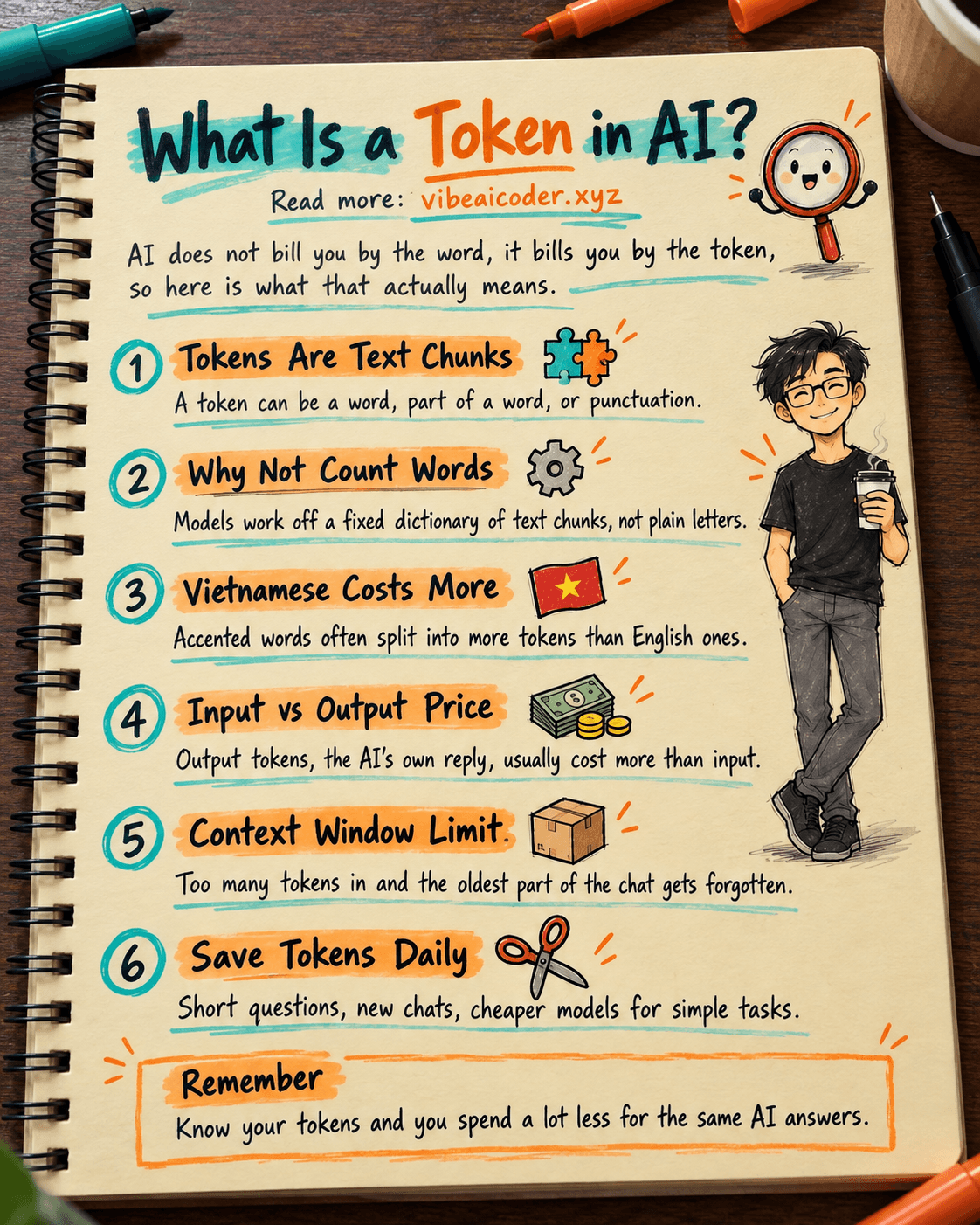
What Is a Token in AI? Why ChatGPT and Claude Charge by Tokens
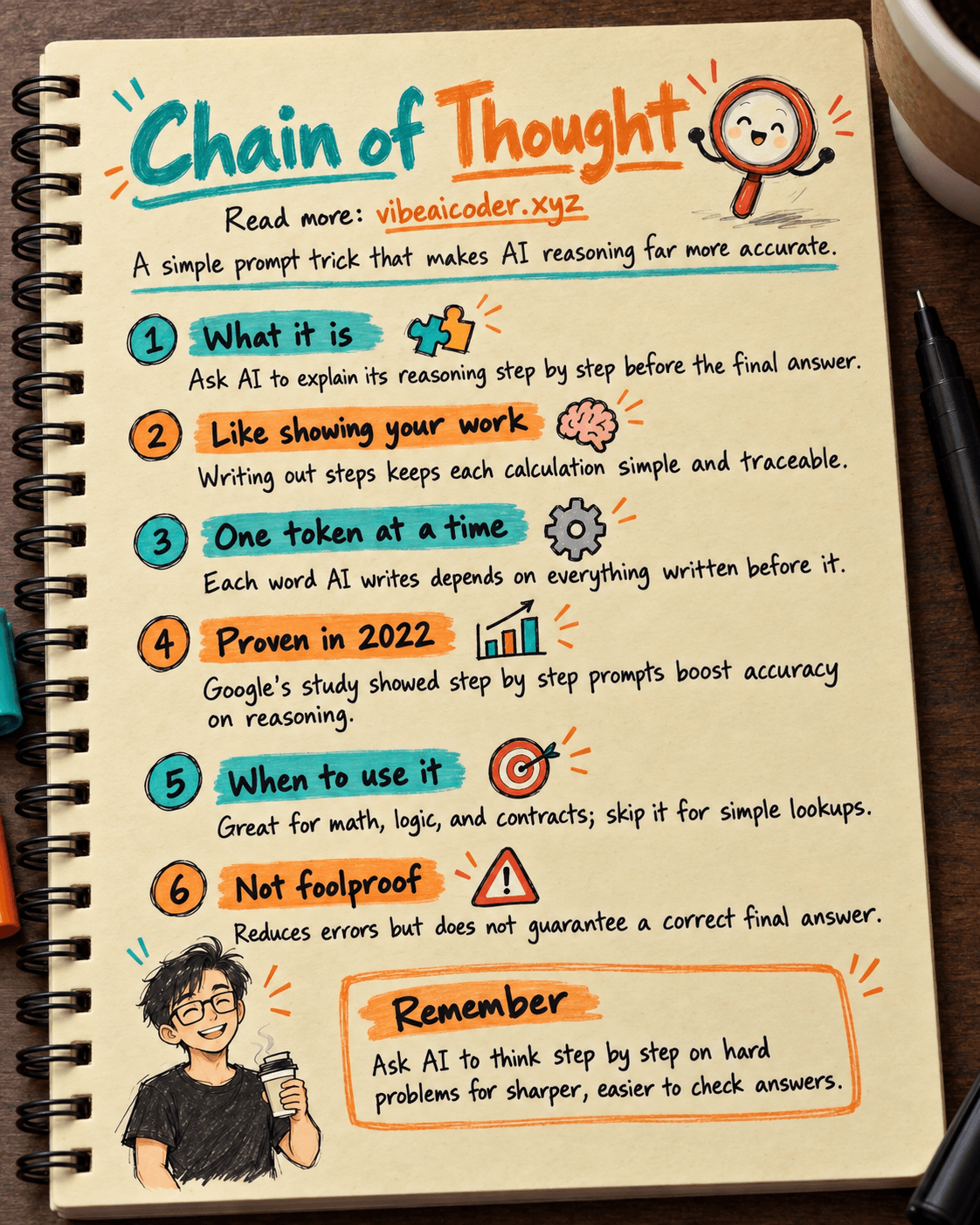
What Is Chain of Thought? Why Asking AI to Think Step by Step Works Better
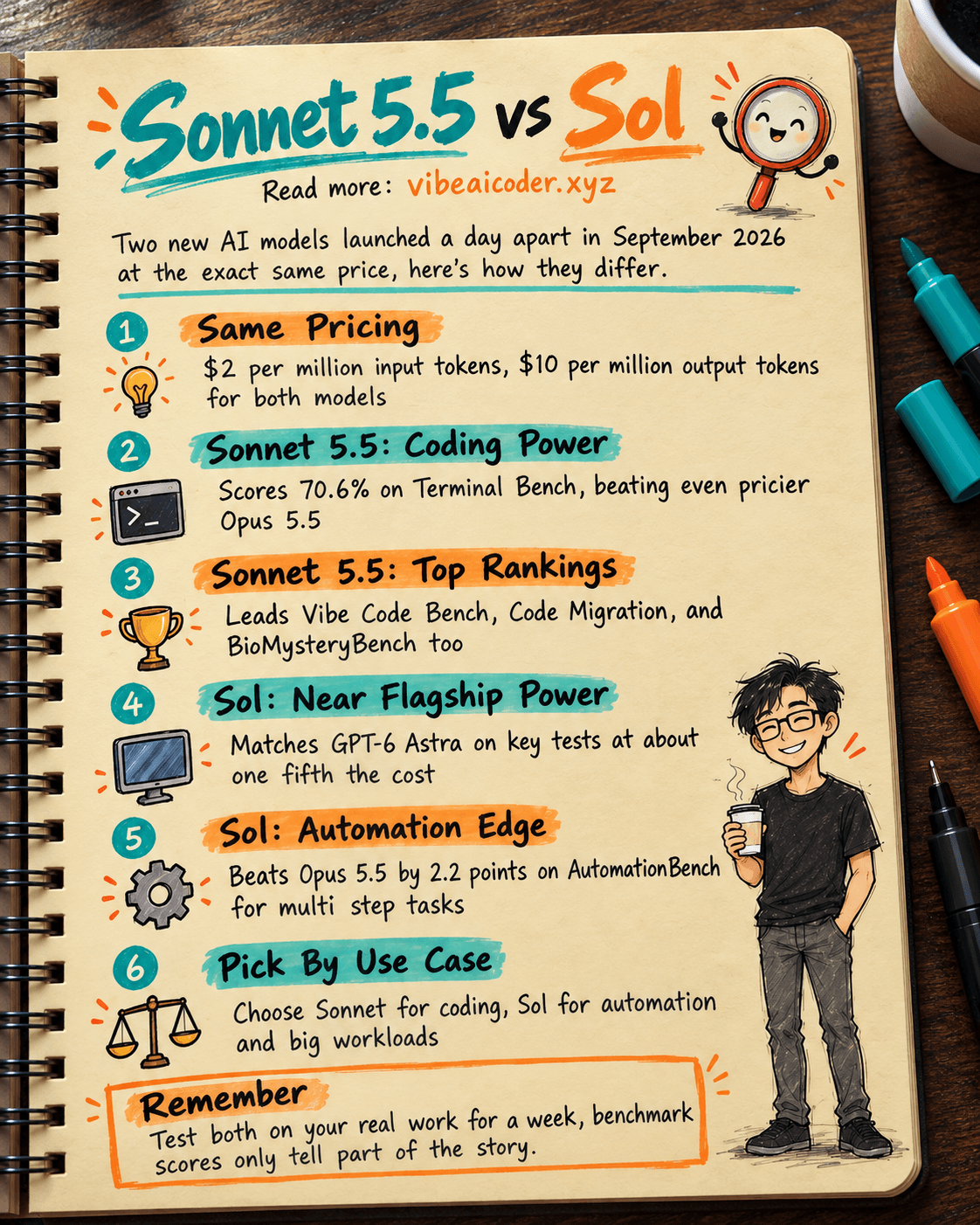
Claude Sonnet 5.5 vs GPT-6.1 Sol: Which AI Model Is Worth Using?
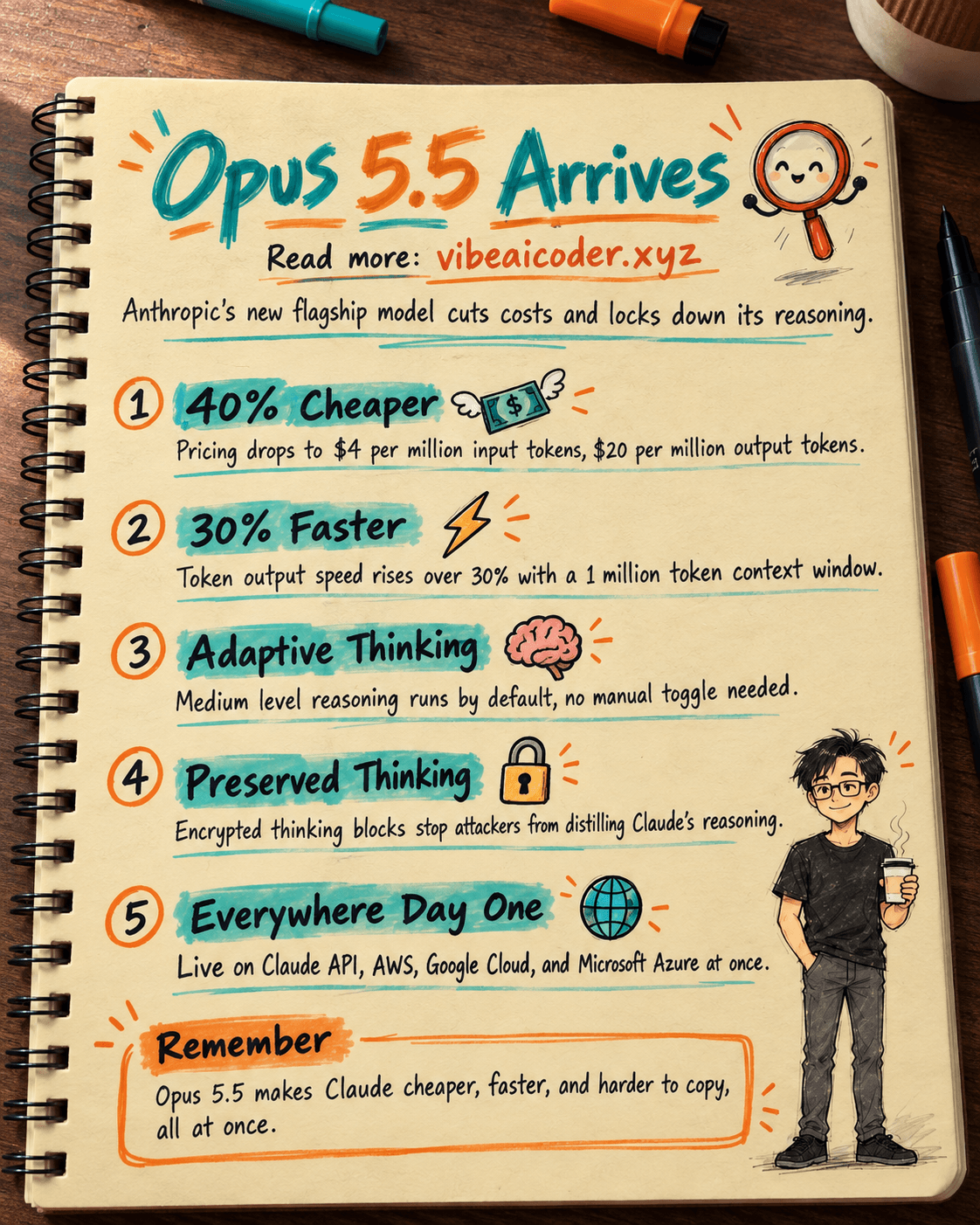
 Claude Opus 5.5 Launches: 30% Faster, 40% Cheaper, Blocks AI Brain Copying