Scan Multiple Pages into One PDF with ChatGPT on iPhone
You have several pages of handwritten class notes or paper documents to discuss with ChatGPT. Sending each page as a separate photo takes effort, especially when the order matters. In its October 1, 2026 release notes, OpenAI introduced a Scan option in the ChatGPT camera. It lets you capture multiple pages in sequence and combines them into one PDF ready to upload into a conversation.
Keeping the pages together makes it easier to ask questions about the whole document. The feature is rolling out on iOS. The release notes do not say it is available on Android or web, so you may not see the option yet.
📷 Find the Scan button
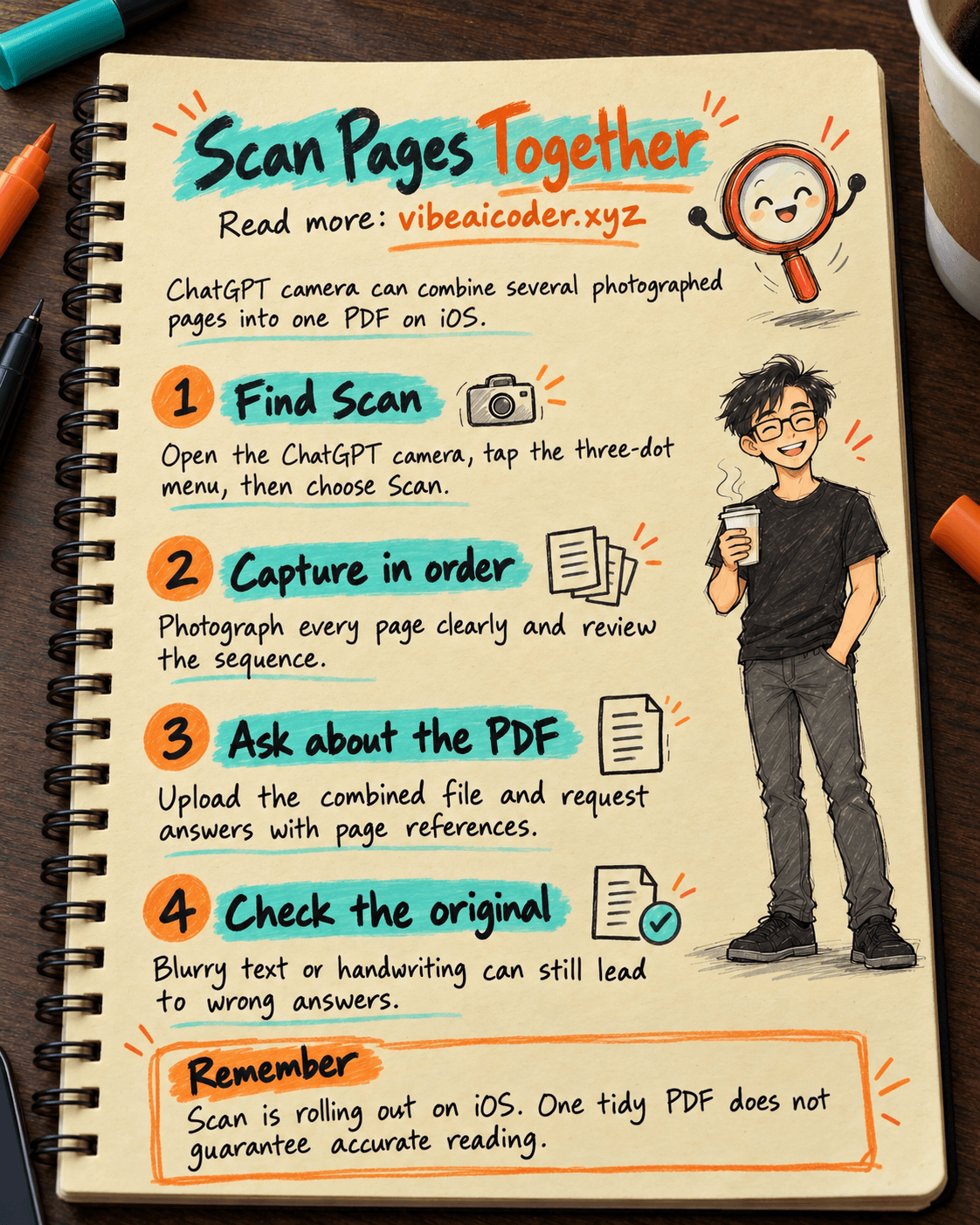
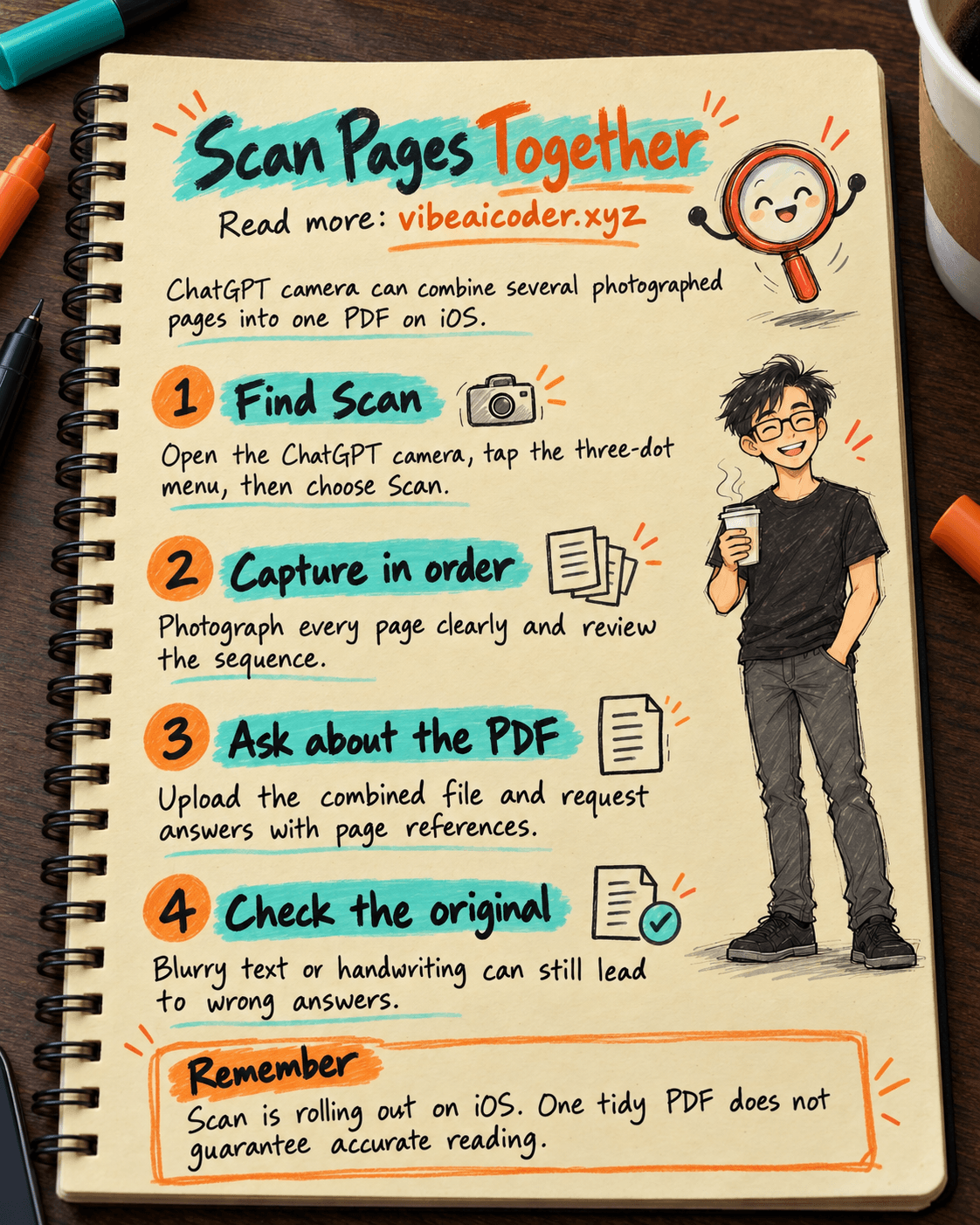
Open the camera in ChatGPT, tap the three-dot menu, then choose Scan. Capture the pages you want in the document. ChatGPT combines them into a PDF for upload to your chat.
Try two or three pages without sensitive information first. Put the pages in order, use good lighting and keep all four corners in frame. These are practical ways to improve legibility, not a guarantee that ChatGPT will read every handwritten word correctly. Review the PDF's page count and order before asking about it.
For class notes, you might ask: “List the five main ideas in this document and say which page supports each one. If you cannot read a word, tell me you are uncertain.” This makes it easier to check the answer against the paper. Our guide to clear ChatGPT prompts offers more examples.
 How is one PDF different from separate photos?
ChatGPT may still see three photos if you send them separately. A PDF groups the pages into one document, making it easier to preserve order, save and share. After a meeting, for example, you can scan four pages of notes, ask ChatGPT for a draft summary of decisions, then compare each item with the original page.
Scanning and combining pages is separate from understanding their contents. OpenAI's update confirms sequential capture, automatic PDF creation and preparation for upload. It does not promise perfect handwriting recognition, automatic correction of text in photos or a replacement for a dedicated scanner. Check names, figures and deadlines yourself.
If you are new to AI document analysis, our beginner's guide to AI explains why it can help and why it may still make mistakes.
 Three uses for a scanned document
Turn loose notes into a task list. Scan meeting notes and ask: “List the action items, owners if stated, and deadlines if stated. Leave missing details blank instead of guessing.” This creates a draft you can verify; it does not establish who actually accepted an assignment.
Study from paper. Scan a lesson or pages you are allowed to use. Ask for a plain-language explanation of one concept and five questions to test your understanding. Check formulas and diagrams against the original, since small details are easy to misread.
Find missing fields in a form. Scan your own form and ask for a list of blank fields. Cover or omit identification numbers, account numbers and other private details that are not needed. For legal, health or financial forms, have a qualified person review the final result.
 Limits to remember
The official announcement only says rolling out on iOS. Check your own app before buying a plan or changing devices because of a screenshot online. The PDF is prepared for upload into chat, but use of documents in a conversation still depends on your account's access, file limits and settings.
A neater PDF does not make the contents more accurate. Blurry images, cropped corners or difficult handwriting can still produce incomplete answers. Scan makes it easier to bring pages into ChatGPT; checking the paper remains your job.
Official source
More articles
Gemini 4 Argon Reads a 500-Page Chemistry Patent in One Afternoon
Claude Opus 5.5 Codes a Real Money Trading Game in One Day
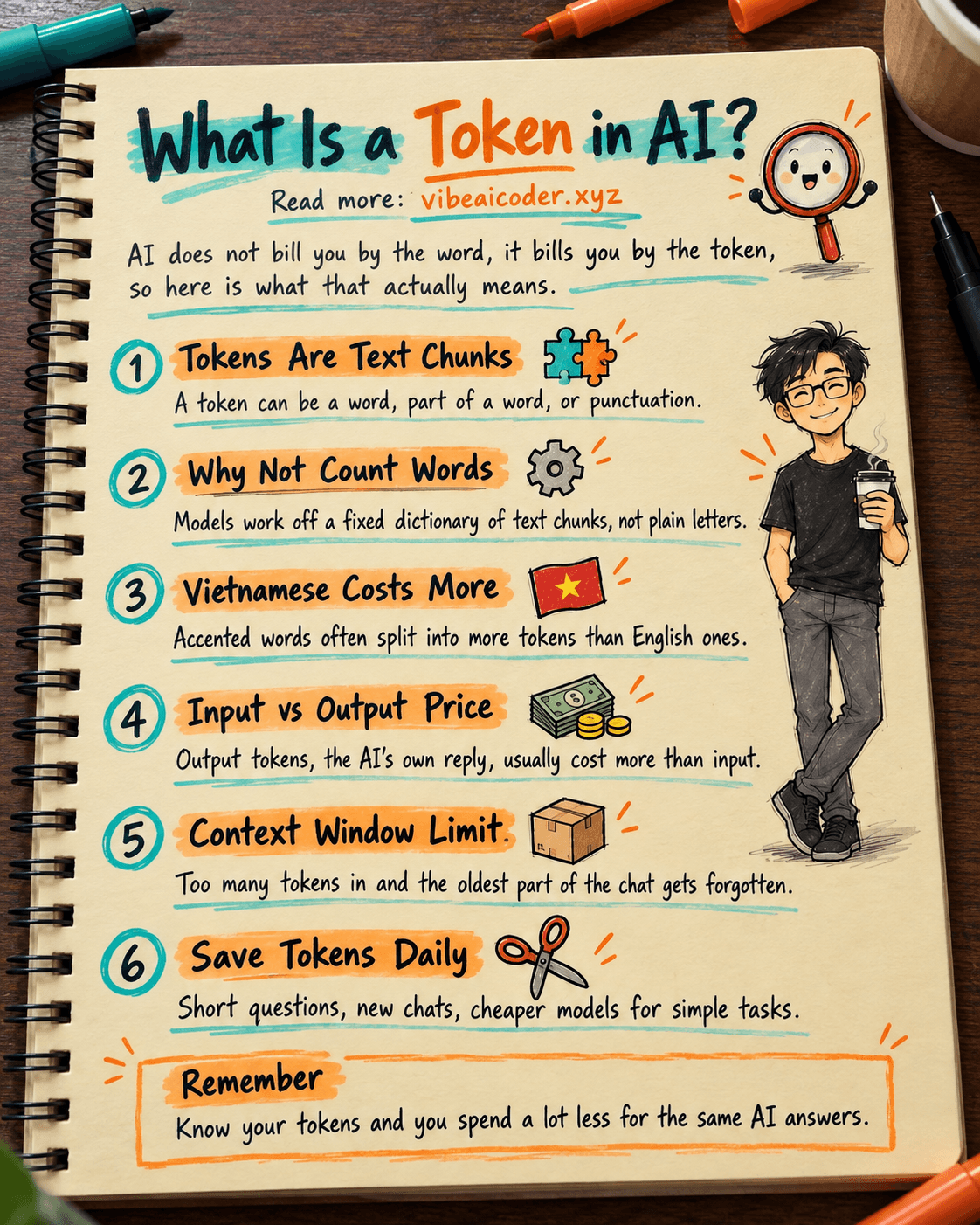
What Is a Token in AI? Why ChatGPT and Claude Charge by Tokens
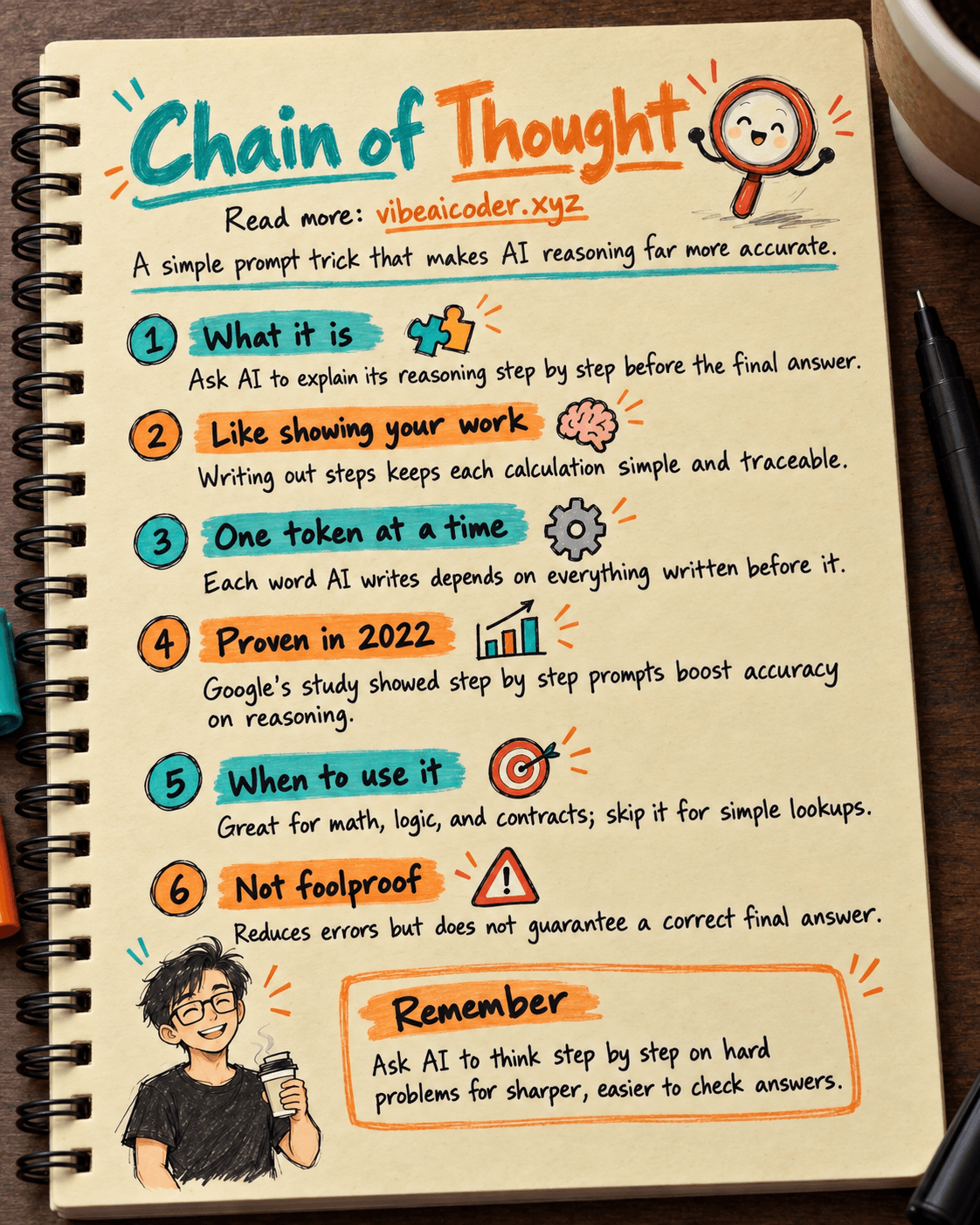
What Is Chain of Thought? Why Asking AI to Think Step by Step Works Better
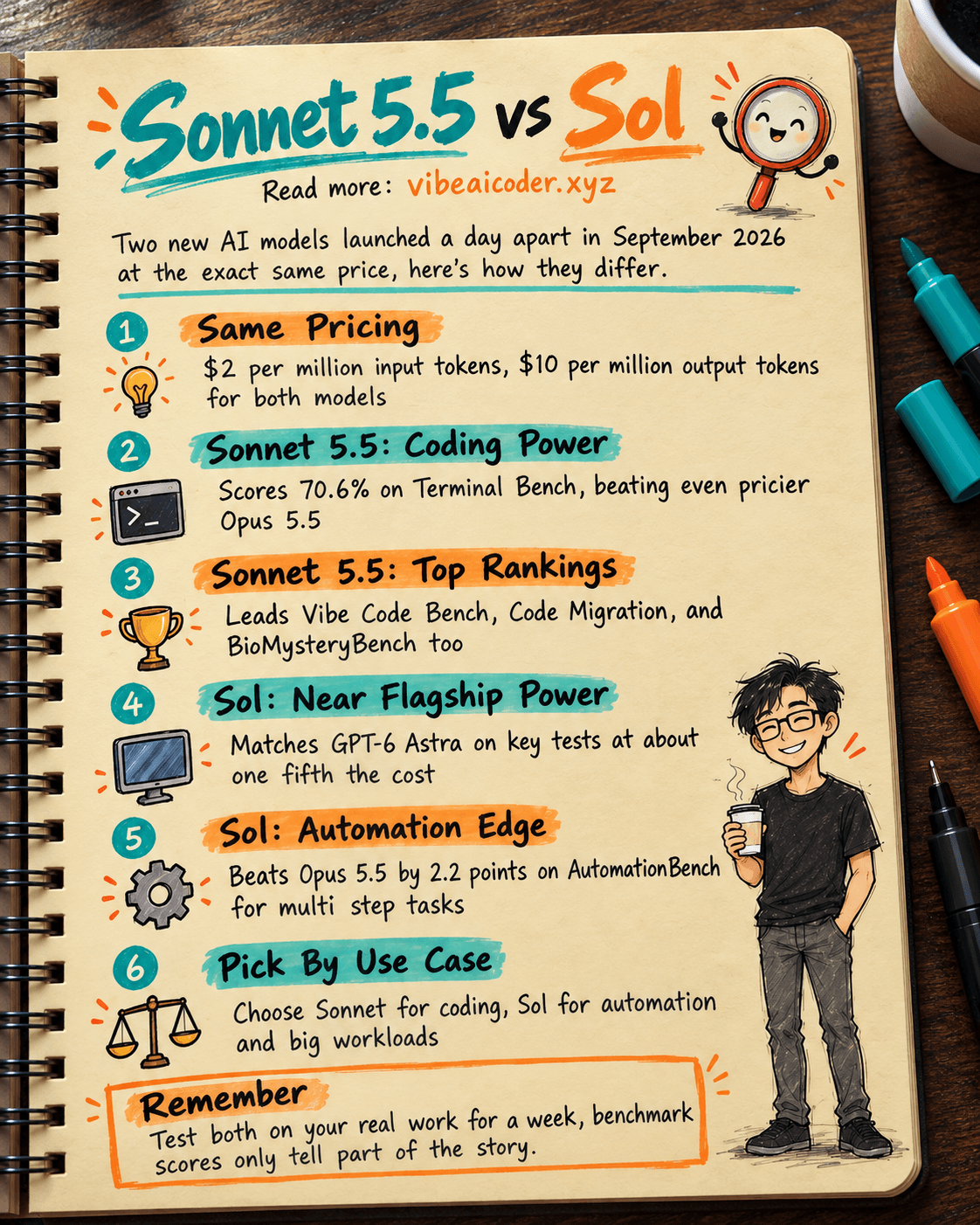
Claude Sonnet 5.5 vs GPT-6.1 Sol: Which AI Model Is Worth Using?
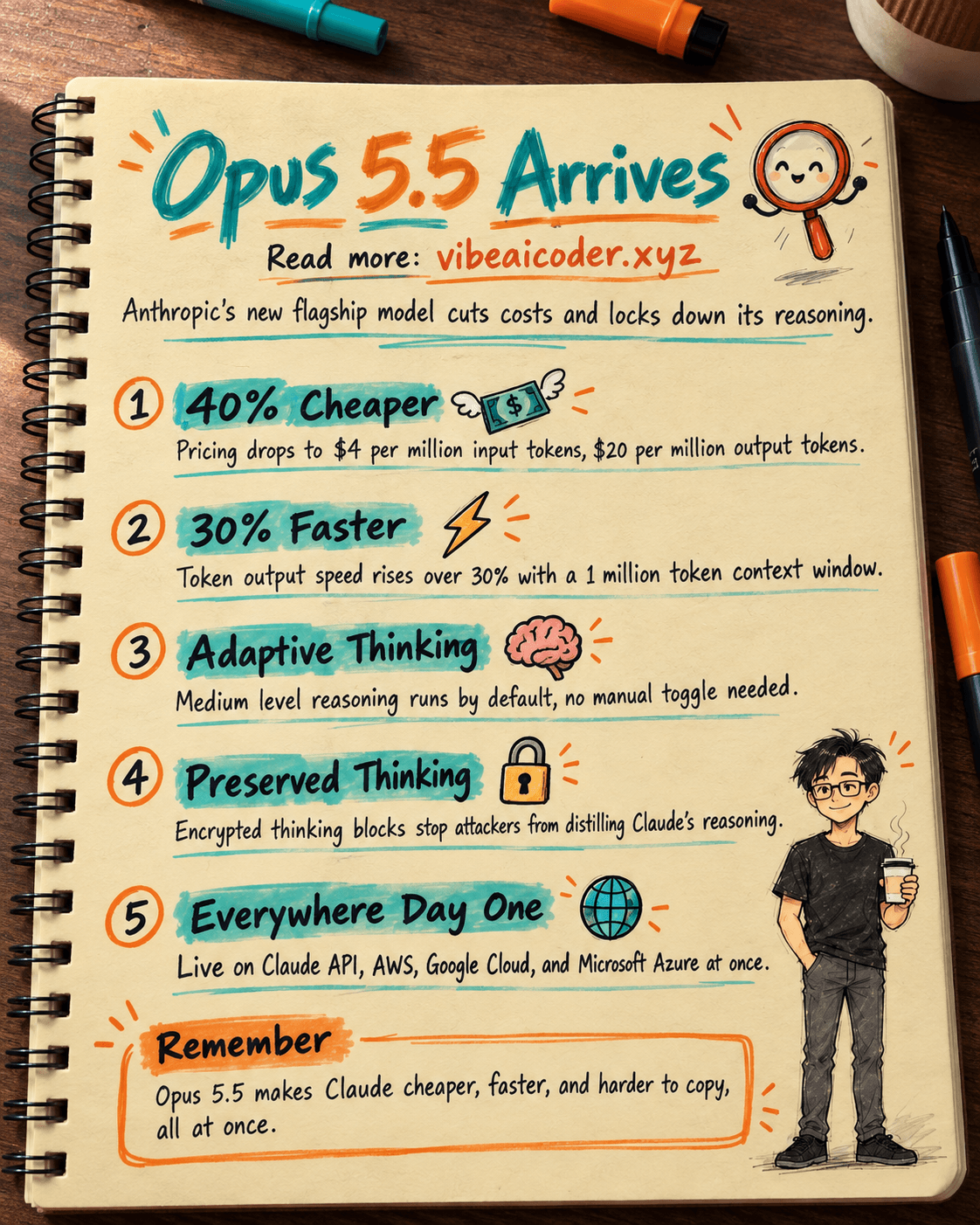
 Claude Opus 5.5 Launches: 30% Faster, 40% Cheaper, Blocks AI Brain Copying