Manage ChatGPT Work Usage Limits and Team Spending
As your team uses ChatGPT Work more often, the CEO needs to know how much each person can use, when overage charges may begin, and who can approve a higher limit. In about an hour with a workspace administrator, you can set a control plan for a pilot group and choose a review date. Bring the current agreement, remaining credits, administrative access, and a task with a measurable outcome.
According to OpenAI, workspace limits cover activity eligible under your plan and may include some Codex activity. They do not cover every way to use Codex or control OpenAI API Platform billing. If you have not chosen the pilot group and its Work permissions, start with our small-team ChatGPT Enterprise pilot guide.
 What to prepare
Bring together the person who owns the agreement, a workspace administrator, and the team lead. Record the billing period, remaining credits, overage terms, and rates in your agreement. Finance confirms invoice terms, the administrator configures controls, and the team lead judges whether the work is valuable.
Confirm which type of agreement you have. OpenAI's usage and cost guide explains shared workspace credits. It also says that an Enterprise agreement billed in USD must follow its own rate card and contract. Business has a different credit and spend-control model. This guide is for eligible Enterprise or Edu workspaces with monthly per-user credit limits. If your plan differs, check with your administrator and OpenAI account team.
Choose one group and one task, such as drafting a weekly report from approved documents. Gather existing Chat, Work, and Codex usage for a comparable period. Include only eligible activity in the workspace. Read how to measure adoption and work outcomes so a usage count is not mistaken for a benefit.
 Set the controls step by step
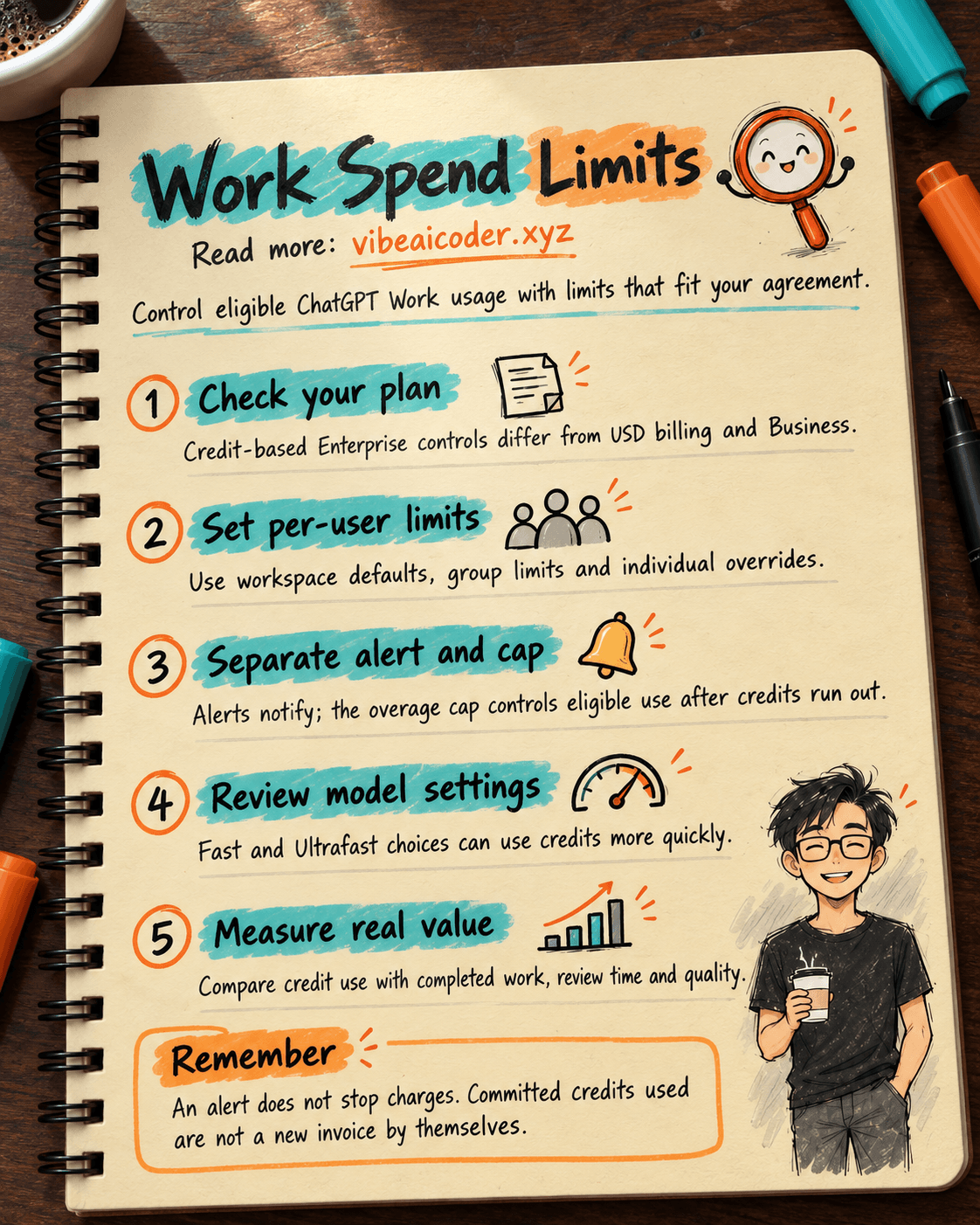
1. Separate access, consumption, and actual charges
Access to Work depends on roles, the plan, and workspace permissions. A credit usage limit constrains a user's eligible monthly usage. The invoice depends on committed credits, contracted rates, and overage terms. These are separate layers. A limit does not grant access to Work; access does not mean unlimited eligible usage.
Using committed credits reduces the balance. It does not automatically create a new charge beyond the agreement. After credits run out, eligible activity may continue and incur charges if the account allows overage within its configured cap. If overage is not permitted, eligible activity may pause. Check OpenAI's explanation against your actual contract.
2. Set a workspace default, then adjust groups and individuals
In eligible Enterprise or Edu workspaces, administrators can set a monthly per-user workspace default, group-specific defaults, and individual overrides. Base an initial value on observed usage and planned work, then review it after the pilot period. OpenAI does not prescribe one credit amount for every company.
An individual override takes precedence over group and workspace defaults. If a person belongs to several groups with configured limits, the highest group limit applies. A group without a limit is not a zero-credit group. Check each pilot participant's effective limit instead of looking only at one group's setting. These rules appear in OpenAI's usage and cost guide.
If the workspace allows increase requests, assign a reviewer and approval criteria. The Work admin FAQ says users can view their usage and request an increase when enabled, but cannot change assigned limits themselves. An approved request creates an individual override. Ask what work needs more capacity and what earlier usage achieved before approving it.
3. Configure alerts and the workspace overage cap separately
Credit alerts notify recipients at supported thresholds, but do not stop spending. The workspace overage limit is a separate control on eligible activity after the shared credits run out. In the Global Admin Console and Billing area, authorized staff should configure alert recipients and an overage amount consistent with the agreement. An alert email is not a spending cap.
If an account permits overage, leaving its limit unset may let eligible usage continue. Where supported, an overage limit of zero prevents entry into overage; “No limit” is not a zero cap. If the agreement does not permit overage, eligible activity stops when credits are exhausted. Record the setting and approver without recording secrets.
4. Review settings that change the pace of consumption
Consumption varies with the model, reasoning, speed, input and output volume, tools, and retries. Under Workspace settings > Models, administrators can choose the starting Work & Codex model and other options where supported. Fast Mode can use more credits. OpenAI says GPT-6 Astra Ultrafast is off by default in eligible Enterprise workspaces. Workspace owners can enable it, while existing per-user limits still apply to eligible usage. Review those limits first.
5. Read reports with work outcomes before raising a limit
Review credits consumed and remaining balance over the same period in reports your plan supports. Usage Insights may show tasks and their share of credits, but scope, freshness, and classification vary by workspace. Aggregated data does not attribute an exact cost to one workflow. Keep the export date and filters when reporting to the CEO.
The team lead should also track completed tasks, work and review time, errors, and rework. If credit use rises without better results, examine repeated tasks, overly broad sources, or an unsuitable model. If valuable work often hits a limit, consider a group increase or individual override. Record the reason, approver, and review date. Codex weekly limits follow another reset cycle and do not determine workspace billing.
You may ask ChatGPT to draft a proposal from information your organization permits you to share. An administrator must still check it against reports and the agreement:
Team: [team name]. Period: [start date] to [end date].
Remaining credits: [approved figure]. Usage: [credits and reporting scope].
Current limits: [workspace default, group limit, individual overrides].
Outcomes: [completed tasks, review time, errors, quality].
Recommend keeping, lowering, or raising a limit. Separate facts, assumptions,
missing data, and approvers. Do not calculate an invoice.
 Example outcome
Imagine eight people piloting a weekly report. The workspace default is 40 credits per person per month, the pilot group's limit is 80, and one person has an override of 120. Alerts have recipients, while Finance approves a separate overage cap. After two weeks, three people approach the group limit. Two produce reports that meet the standard; a third retries repeatedly because the source is wrong. The team fixes that source, keeps the group limit, and considers time-limited individual overrides for the two productive users. These numbers illustrate the order of controls, not OpenAI prices or default limits.
 Tips for better decisions
- Read each person's effective limit. Overrides and membership in several groups can change the value that actually applies.
- Assign an owner to each alert. An alert without a recipient and next action does little to control exposure.
- Change limits based on evidence. More activity is not proof of value. Review outputs, errors, and human review time.
 Limits to know
Control availability depends on the plan and agreement. Do not apply these Enterprise credit limits to Business, a USD-billed workspace, or API Platform. Do not assume that every Codex session using an API key, Bedrock, or another provider is governed by the ChatGPT workspace cap. Usage limits do not replace source-system access, roles, plugin policies, or device controls. Reaching a limit can pause eligible features, but it does not revoke access to other systems.
Reports can lag, and an estimated USD amount is not an issued invoice. Check the timestamp, billing period, and financial terms. Ask the OpenAI account team how a custom agreement applies and your Finance team what was actually charged. Raise limits after reviewing outcomes, not because one usage chart increased.
 FAQ
FAQ
Do Work and Codex share a usage limit? OpenAI says they share pricing, credits, and usage limits for plan-eligible activity. Workspace controls do not cover every Codex path or OpenAI API Platform billing. Confirm the team's authentication path and agreement before combining figures.
Will an 80% alert stop spending? No. An alert is a notice. Per-user limits and the workspace overage cap are separate controls. The 80% figure is only an illustrative threshold a company might choose if the interface supports it.
What limit applies to a person in two groups? Without an individual override, the highest configured group limit applies. An individual override takes precedence over both group and workspace defaults. Check that person's effective limit.
Is an overage cap of zero the same as leaving it unset? No. Where supported, zero prevents eligible usage from entering overage after committed credits run out. An unset value may allow overage for an eligible account; “No limit” is not zero. Check your agreement.
When should we approve a request for more credits? Identify the task that is blocked, previous outcomes, remaining credits, and possible overage impact. Approve a suitable user or group change, with a reason and review date, rather than raising the whole workspace cap by default.
Official sources: Usage limits and spend controls, ChatGPT Work usage and cost, Work admin FAQ, and Usage Insights, OpenAI Learn, checked October 5, 2026.
#ChatGPTWork #ChatGPTEnterprise #AIManagement #SpendControls
More articles

Gemini 4 Argon Reads a 500-Page Chemistry Patent in One Afternoon

Claude Opus 5.5 Codes a Real Money Trading Game in One Day

What Is a Token in AI? Why ChatGPT and Claude Charge by Tokens
What Is Chain of Thought? Why Asking AI to Think Step by Step Works Better
Claude Sonnet 5.5 vs GPT-6.1 Sol: Which AI Model Is Worth Using?
 Claude Opus 5.5 Launches: 30% Faster, 40% Cheaper, Blocks AI Brain Copying