Use Codex IDE to edit code and review changes before sharing
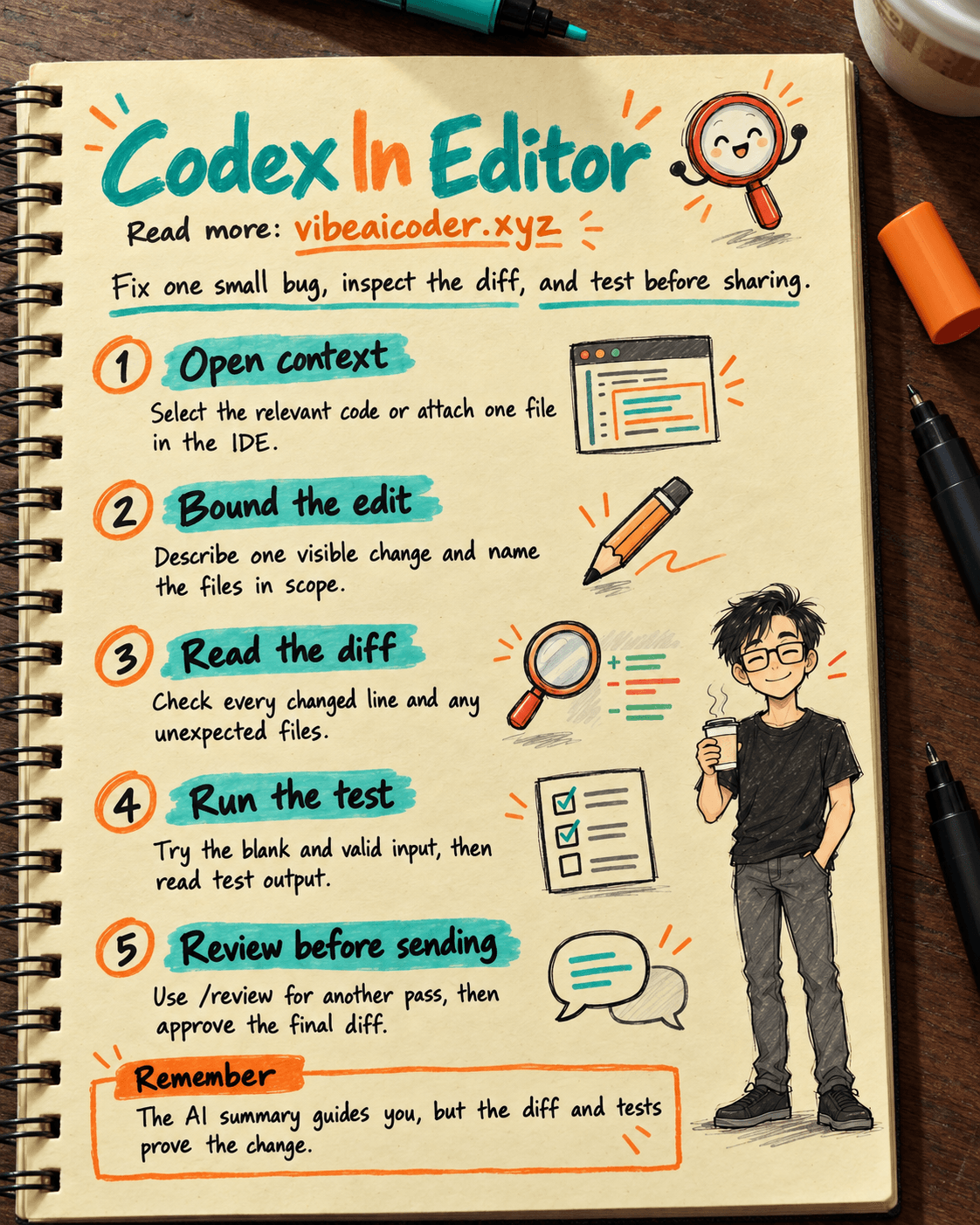
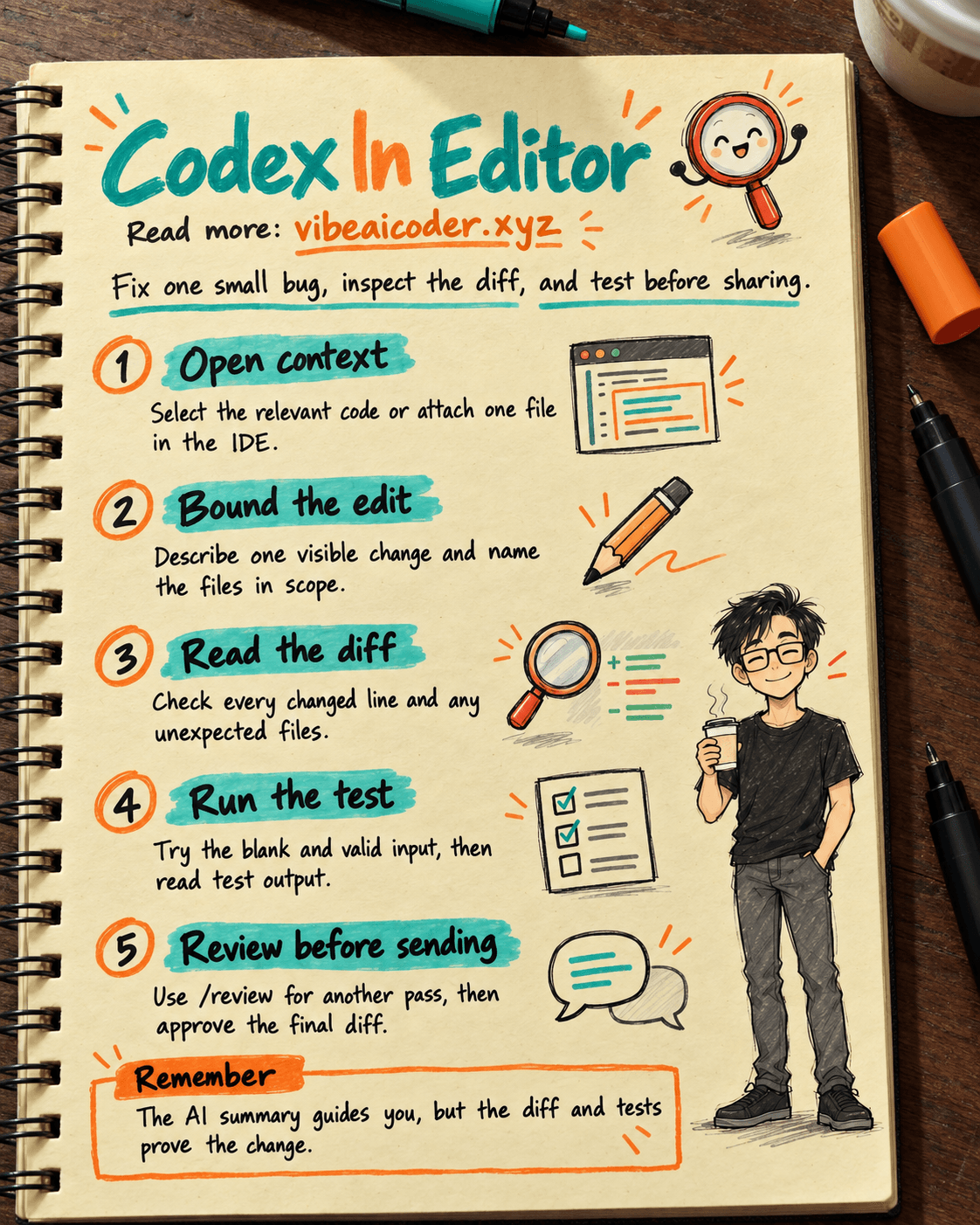
You can use Codex beside the file already open in your editor to fix a small interface bug, inspect the changed lines, and test the result before sharing it. Allow about 30 minutes for your first attempt. You need VS Code or a compatible editor, the Codex extension, a test repository, and an eligible account. The outcome is a focused change, a diff you have read, and a test you have run.
OpenAI's Codex IDE extension guide explains how to bring an open file or selected code into a request, inspect a summary and edits in place, then continue in the same chat. If you prefer a terminal, see our first Codex CLI change guide. This walkthrough keeps the context and the edit together in your editor.
 Prepare
Tool: install the Codex extension for VS Code, Cursor, or Windsurf. Open your repository and select the Codex icon. If it is hidden, run Codex: Open Codex Sidebar from the Command Palette. Sign in through the interface. Xcode and JetBrains have separate integrations; the steps below use the VS Code style extension.
Input: choose a small, visible bug. For example, a Send button remains enabled when the email field is blank. Identify the interface file, a related test file, and the repository's test command. Check the README if you do not know the command. Create a Git checkpoint before delegating the change so you can compare and revert it, as OpenAI recommends.
Boundary: work on a separate branch. Do not use real customer data or secrets in your example. Check permissions before letting Codex run commands; our Codex scope and approval guide covers that process. Selecting code gives Codex context for your question. It does not grant the agent additional access.
 Step by step
1. Open the right code and add just enough context
Open the form file and select the code that controls the Send button. In the composer, you can refer to an open file, a selection, or a recent chat. The extension commands include chatgpt.addToThread for a selection and chatgpt.addFileToThread for a whole file. You can find them through the Command Palette. /ide-context controls automatic IDE context.
Do not send the whole repository into one question simply because you have not found the bug. Ask Codex for a path first, then inspect that file yourself. If you know where the bug is, name the file and the current behavior. Start with a read-only request:
In [form file path] and the selected code, explain why the Send button remains enabled when the email field is blank. First explain the control flow and identify the related test file. Do not edit code yet.
A useful answer identifies a function or line, the current condition, and a way to confirm it. If Codex guesses without pointing to code, ask for evidence. For readers new to agents that can inspect and edit files, our AI agent explainer provides the background.
2. Request one bounded edit
After confirming the file, ask for a small change. Describe the visible result, file scope, and test. Replace the square-bracket placeholder with your repository path:
Change [form file path] so the Send button is disabled when the email is empty or contains only whitespace. Preserve the existing behavior for a valid email. If this repository already has form tests, update the relevant test. Do not change other screens. After the edit, list the changed files and the test command you ran.
If the proposed change reaches authentication, payments, or data files, stop and reconsider the scope. A small request does not guarantee that Codex touches just one file. Read the changed-file list. Ask why any extra change is necessary before keeping it.
According to Developer settings, messages sent while Codex is working go into a queue by default (queue), or can steer the current run (steer). Cmd or Ctrl + Shift + Enter reverses the behavior for one message. Check the mode before adding an urgent constraint; a queued message has not changed the edit currently in progress.
3. Read the summary, then the diff in your editor
When Codex says it is finished, use its summary to find the changes, then open each file's diff. The IDE guide describes reviewing edits beside the source and following up in the same conversation. The summary helps you navigate; the diff shows which lines actually changed. Ask:
- Is the button disabled only under the requested conditions, or also when the input is valid?
- Does the new logic handle whitespace-only input?
- Do tests cover both empty and valid input?
- Were unrelated files edited, deleted, or reformatted?
- Does any new code read a token, send data over the network, or alter permission settings?
You do not need to know every implementation detail to review a diff. Ask Codex to explain a confusing line, but the repository owner or reviewer still needs to read it. If something is wrong, identify the lines to remove or fix. Recheck the diff after every follow-up because the final edit may differ from the first.
4. Run tests and request a review of uncommitted changes
Run the repository's test command and read the output. If dependencies are missing or tests cannot run, record why and pass the work to someone with the right environment. For an interface change, open the test page and try both a blank and a valid email. Automated tests and a manual check answer different questions.
With a diff in place, use /review in the composer to ask Codex to review uncommitted changes or compare them with a base branch, as the OpenAI IDE command list describes. Make the request specific:
Review the uncommitted changes for the Send button task. Look for logic errors, edge cases, and missing tests. Include the file path, relevant line, and reason for each finding. Do not edit code during this review.
/review adds a second pass. It does not replace reading the diff, running tests, or human approval. In editor settings, chatgpt.reviewDelivery defaults to inline when possible. Select detached for a separate review chat. This is an editor presentation setting, not a command permission policy.
5. Share only after recording verification
Before committing or opening a pull request, record the goal, changed files, and test result. Capture before and after screenshots if the interface changed. Read the final diff after the review. If you keep only part of an edit, select it with your editor's Git tools and rerun tests. A response saying "fixed" does not mean that the code has been sent to the shared repository.
If the task grows or needs a separate runtime, the Codex IDE extension can hand work to Codex web when your account has access. Return to the editor to inspect the result. Our Codex Cloud bug-to-pull-request guide explains that workflow. The current walkthrough keeps a small edit local.
 Example result
In the test repository, Codex points out that the disabled condition does not trim whitespace. You request a focused form fix and two tests. The diff contains only the component and its test file. The test command passes; manual checks show the button disabled for blank input and enabled for a valid email. /review finds no new issue, but a reviewer still reads the diff before the pull request. If a test fails, record the failure and its reason.
 Tips for better results
- Start with a selection or one relevant file. Add another file only for a clear reason.
- Ask for one observable behavior and one matching check per turn.
- Create a Git checkpoint and inspect the diff after each turn.
- Keep
chatgpt.*in editor settings. Developer settings distinguishes them fromconfig.toml, which holds model, permissions, sandbox, and MCP settings shared with the CLI. - On Windows,
chatgpt.runCodexInWindowsSubsystemForLinuxhelps when your repository and tools live in WSL2. Changing it reloads VS Code.
 Limits to know
IDE context does not mean Codex understands the whole repository. An open file can be outdated, a selection can omit a related function, and tests may not run on your machine. When evidence is missing, open the relevant file and ask again. Security, payment, or customer data changes need an expert reviewer.
The chatgpt.* settings affect how the extension appears and handles messages in the editor. They do not grant agent permissions. By contrast, config.toml or organization policy can affect both CLI and IDE behavior. Do not try to fix an access error by randomly toggling interface settings. OpenAI may update button names and paths, so check the current interface as you work.
 FAQ
FAQ
Can I follow this guide in Cursor or Windsurf? OpenAI lists them as compatible editors for the Codex extension. Button positions may differ, but the Codex icon and sidebar command are starting points.
Does selecting code prevent Codex from editing anything else? No. The selection provides context for the request. State the edit scope in your prompt and inspect the full diff afterward.
Does /review run tests and guarantee correct code? No. It starts a review of changes. You still need to run tests, read their results, and check the intended behavior.
Why did my follow-up message not affect the ongoing edit? It may be queued under chatgpt.followUpQueueMode = queue. Check the current mode or steer the run if you need the constraint applied now.
Should I change a chatgpt.* VS Code setting to choose a model? No. Model and other agent settings shared with the CLI live in config.toml. The chatgpt.* settings control extension behavior in the editor.
Official sources: Codex IDE extension, Developer settings, and Developer commands, OpenAI Learn, checked October 5, 2026.
More articles

Gemini 4 Argon Reads a 500-Page Chemistry Patent in One Afternoon

Claude Opus 5.5 Codes a Real Money Trading Game in One Day

What Is a Token in AI? Why ChatGPT and Claude Charge by Tokens
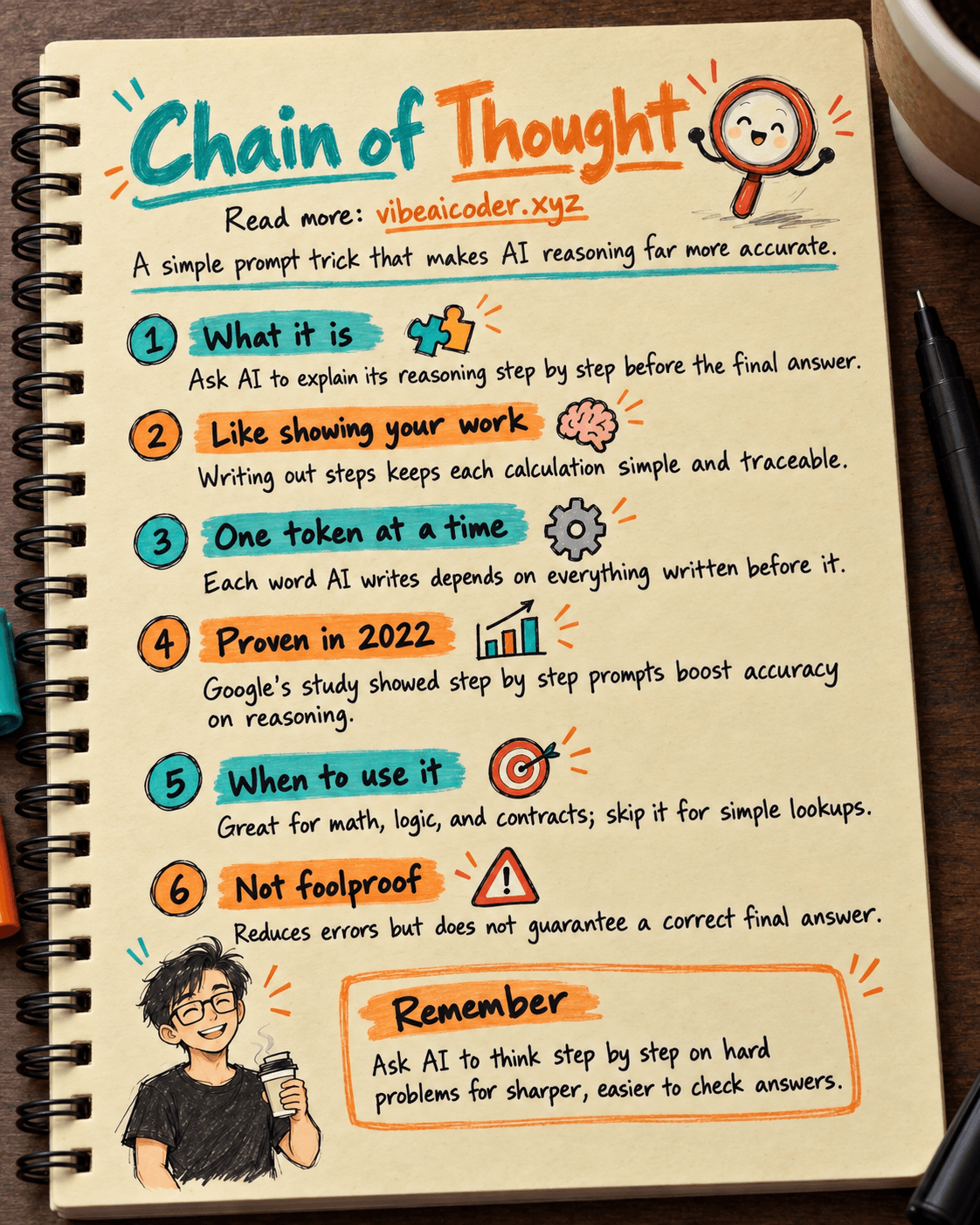
What Is Chain of Thought? Why Asking AI to Think Step by Step Works Better

Claude Sonnet 5.5 vs GPT-6.1 Sol: Which AI Model Is Worth Using?
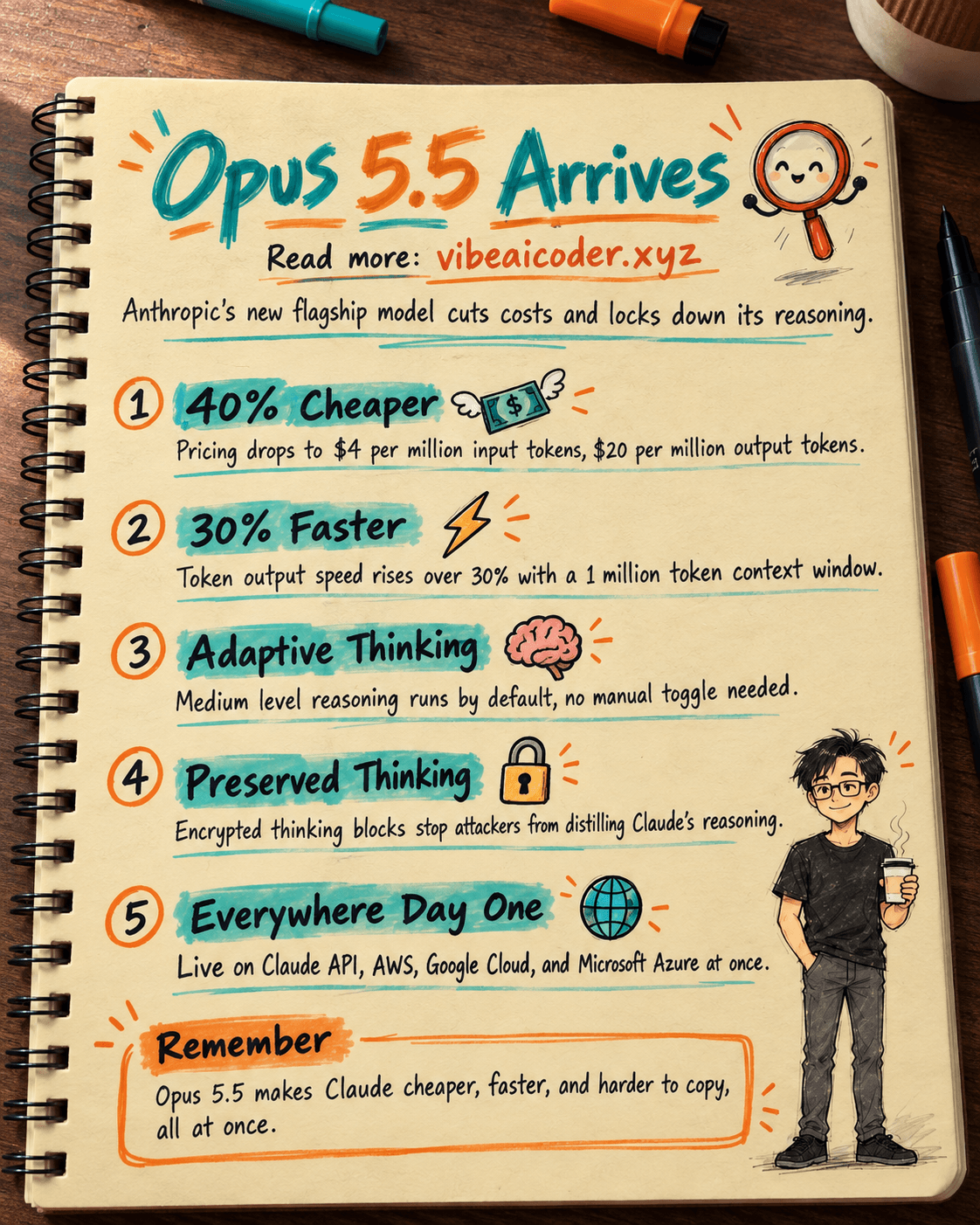
 Claude Opus 5.5 Launches: 30% Faster, 40% Cheaper, Blocks AI Brain Copying