Use NotebookLM to Turn a Lecture Recording Into a Study Summary in 15 Minutes
🎧 Use NotebookLM to Turn a Lecture Recording Into a Study Summary in 15 Minutes
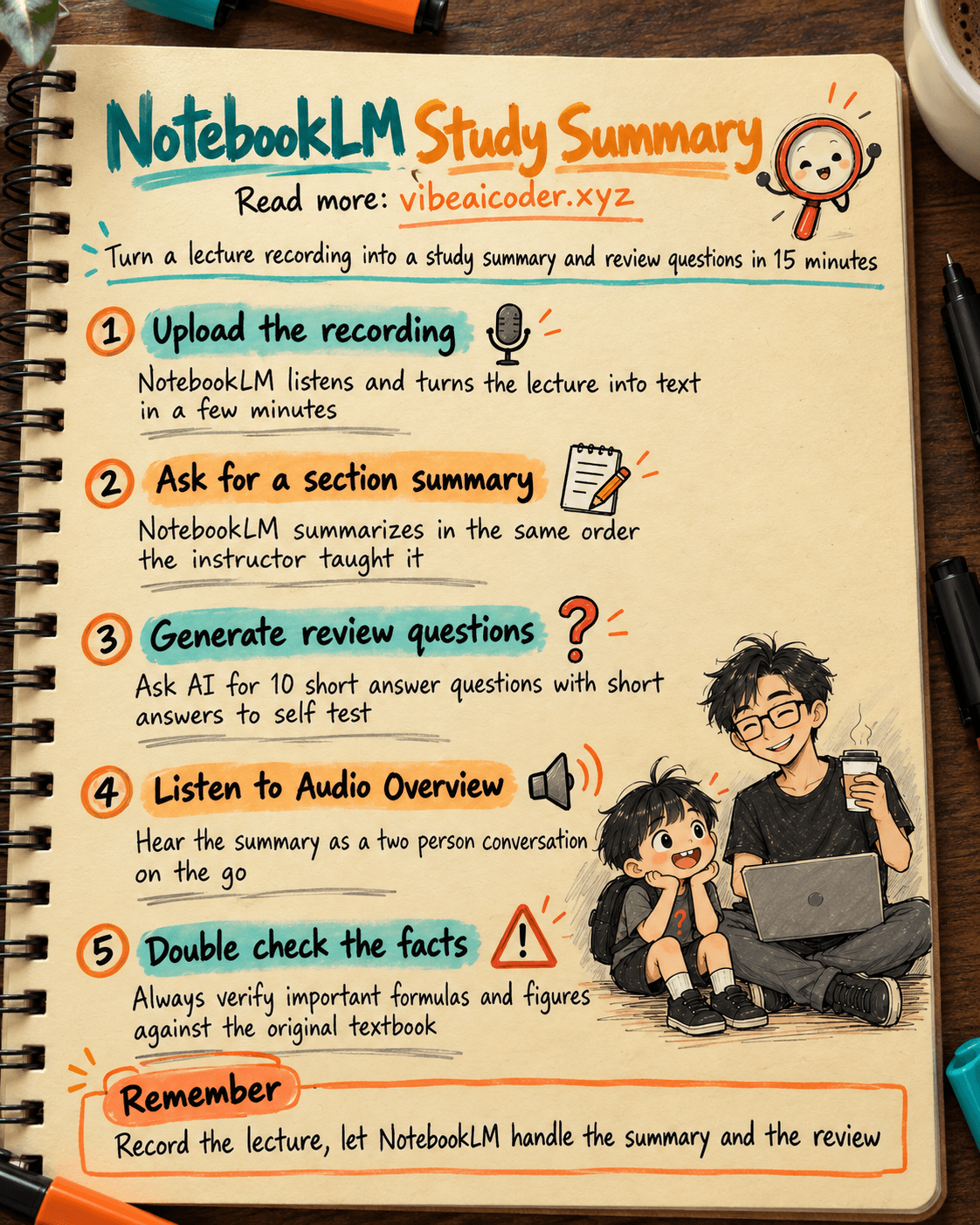
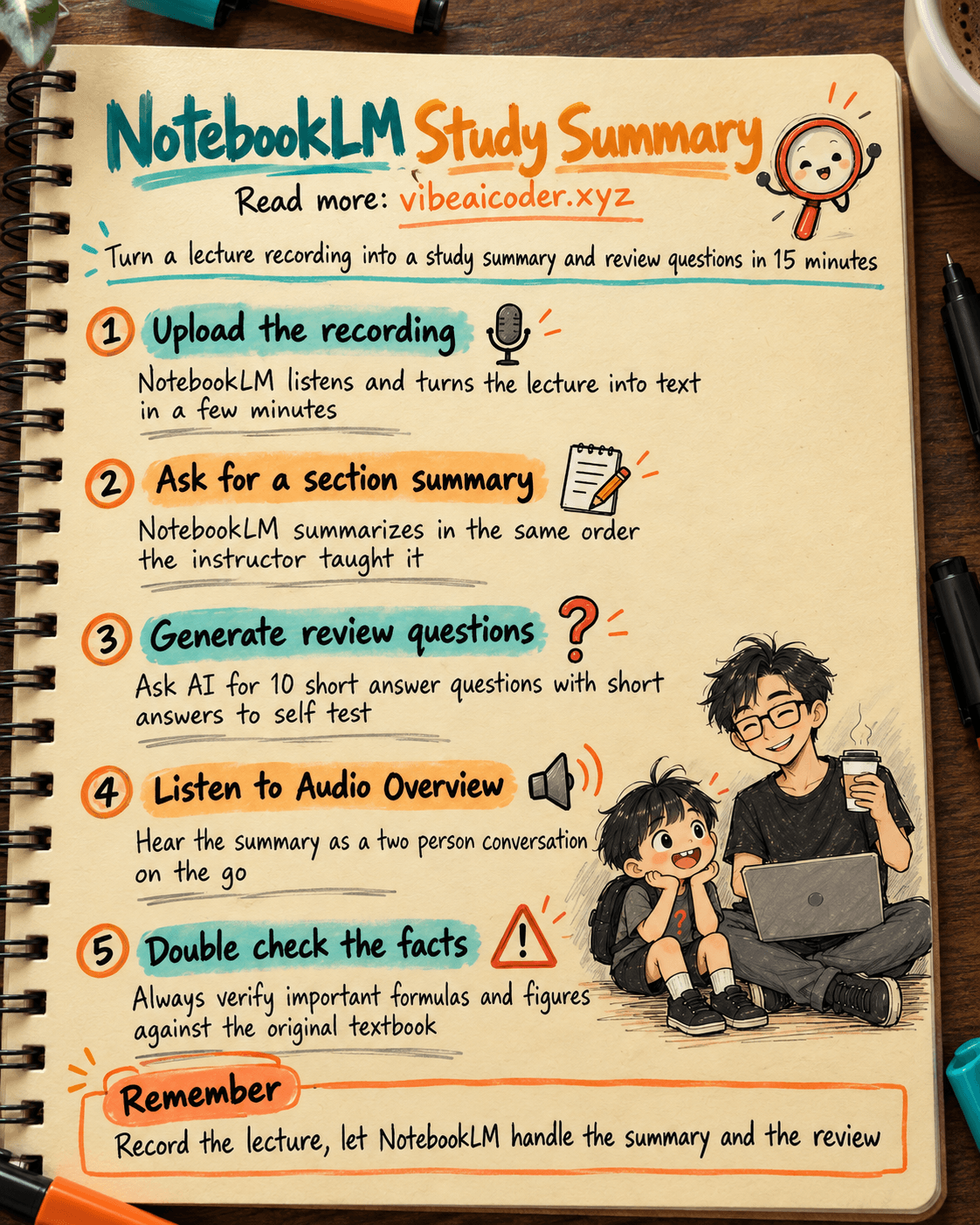
You sit through a lecture, can't take notes fast enough, and when you get home and open the recording you have no idea which part to replay. This guide shows you how to take that same recording, drop it into NotebookLM (Google's free tool) and get a section by section summary plus a set of review questions, all in about 15 minutes. All you need is a Google account and the lecture recording (a phone voice memo is enough).
 What you need
- A free Google account, the one you already use for school.
- Access to NotebookLM from a computer or phone browser.
- The recording of the class: common formats like mp3, m4a or wav all work. You do not need to transcribe anything yourself, NotebookLM listens to the file and converts it to text when you upload it.
- If you have the lecture slides or photos of the whiteboard, keep them handy to add to the same notebook, the summary will be more complete.
 Step by step
Step 1: Create a new notebook
Open NotebookLM and click Create new. Name the notebook after the subject or session, for example "[subject name] - session [date/chapter]", so you can find it again later.
Step 2: Upload the recording as a source
Click Add source and choose the recording file from your device. NotebookLM listens to it and turns the lecture into text, which takes about 1 to 3 minutes depending on length. If you have slides or whiteboard photos, add them in this same step, NotebookLM treats every source in the notebook as one related set of material.
Step 3: Ask for a summary by section
Once the source finishes processing, type this into the chat box:
Summarize this lecture into the main sections, in the same order the
instructor presented them. For each section write 2 to 3 bullet points
with the most important idea and any example the instructor mentioned.
Keep the exact terminology for [subject name], do not drop any formula
or figure that was mentioned.
Step 4: Generate a set of review questions
Keep going in the same notebook:
From the lecture content above, create 10 short answer review questions,
ordered from easy to hard, with a short answer right under each question.
Prioritize questions about [specific topic from the lecture] since the
instructor emphasized this part.
Step 5: Save the summary
Click on the answer and choose Save to note to keep the summary in the notebook, separate from the question and answer thread. You can come back and ask more anytime, for example asking it to explain a confusing part again. NotebookLM always answers based on the actual recording, with citations pointing back to the source so you can double check.
 Sample result
For a 45 minute lecture on photosynthesis, the summary NotebookLM returns might look like this:
- What photosynthesis is: plants use light, water and CO2 to make sugar and release oxygen.
- Two main stages: the light reactions happen in the thylakoid membrane, the dark reactions (Calvin cycle) happen in the stroma of the chloroplast.
- Example the instructor gave: comparing a leaf to a "tiny solar powered factory".
Along with that come 10 short answer questions like "Why does the dark stage still depend on light indirectly" with a short answer right below, so you can quiz yourself before closing the book.
 Tips for better results
- The clearer the recording, the less background noise, the more accurate the summary. Sit closer to the speaker or the instructor when recording in a noisy room.
- Create a separate notebook for each session instead of mixing several lectures in one place, so when you ask follow up questions NotebookLM does not confuse content across sessions.
- If a lecture runs longer than an hour, ask for a summary by time block, for example "summarize the first 20 minutes" then continue with the next part. This gives a more detailed summary than asking for the whole session at once.
- Use NotebookLM's Audio Overview feature to listen to the summary as a two person conversation, handy for reviewing while you commute.
 Limits to know
- NotebookLM listens and converts speech to text automatically, so it can still misread a rare technical term or an unclear name. Always double check important figures and formulas against the original textbook before you memorize them.
- The free plan limits how many sources you can upload per notebook, enough for one subject session by session but not for an entire semester in one notebook.
- This is a study aid, not a replacement for listening closely when an instructor says "this will be on the test". Use the summary to review quickly, not to skip paying attention in class.
 FAQ
FAQ
Is NotebookLM free? Yes, the free plan is enough to summarize each session, you only need a Google account.
Does a regular phone recording work? Yes, as long as the file is in a common format like mp3 or m4a, you don't need special recording equipment.
Does NotebookLM understand Vietnamese and other languages? Yes, NotebookLM can listen to and answer in many languages, even when a lecture mixes in English technical terms.
How do I know if the summary is accurate? NotebookLM always includes citations pointing to the position in the original source, click on them to replay that exact part of the recording and check it yourself.
Can I use this for meetings or workshops too? Yes, the process is identical, just change the summary question to fit the meeting or workshop you attended.
More articles
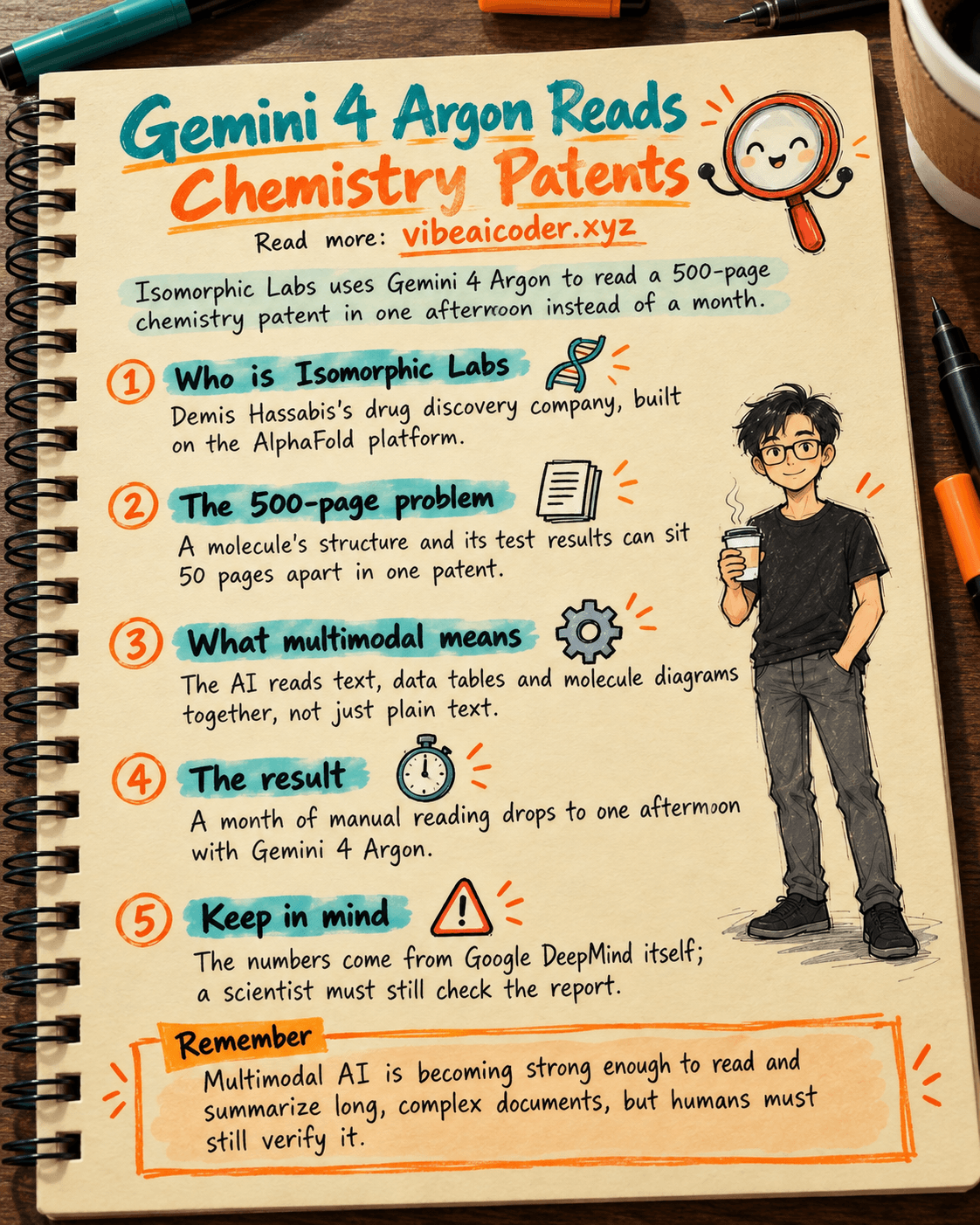
Gemini 4 Argon Reads a 500-Page Chemistry Patent in One Afternoon

Claude Opus 5.5 Codes a Real Money Trading Game in One Day
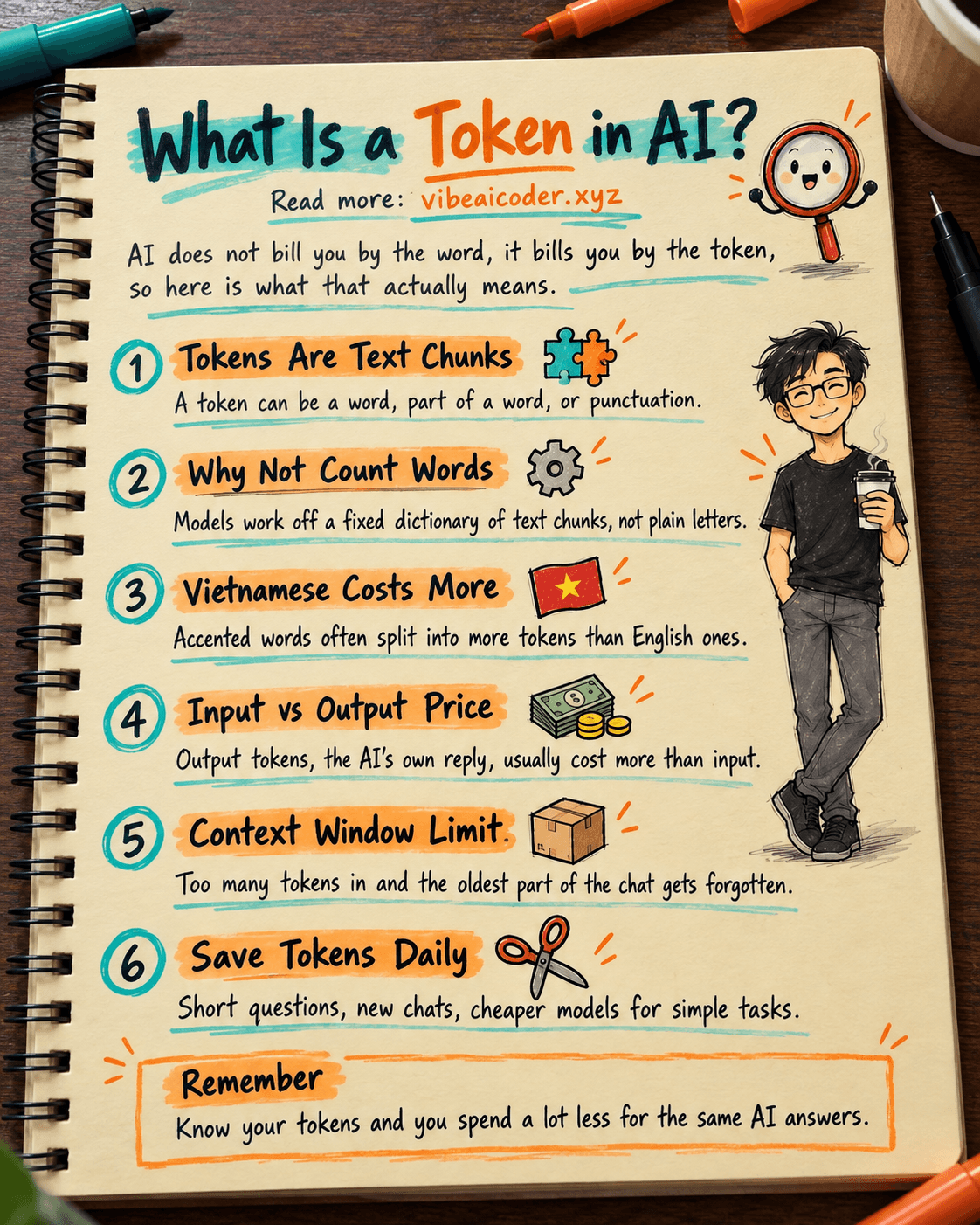
What Is a Token in AI? Why ChatGPT and Claude Charge by Tokens
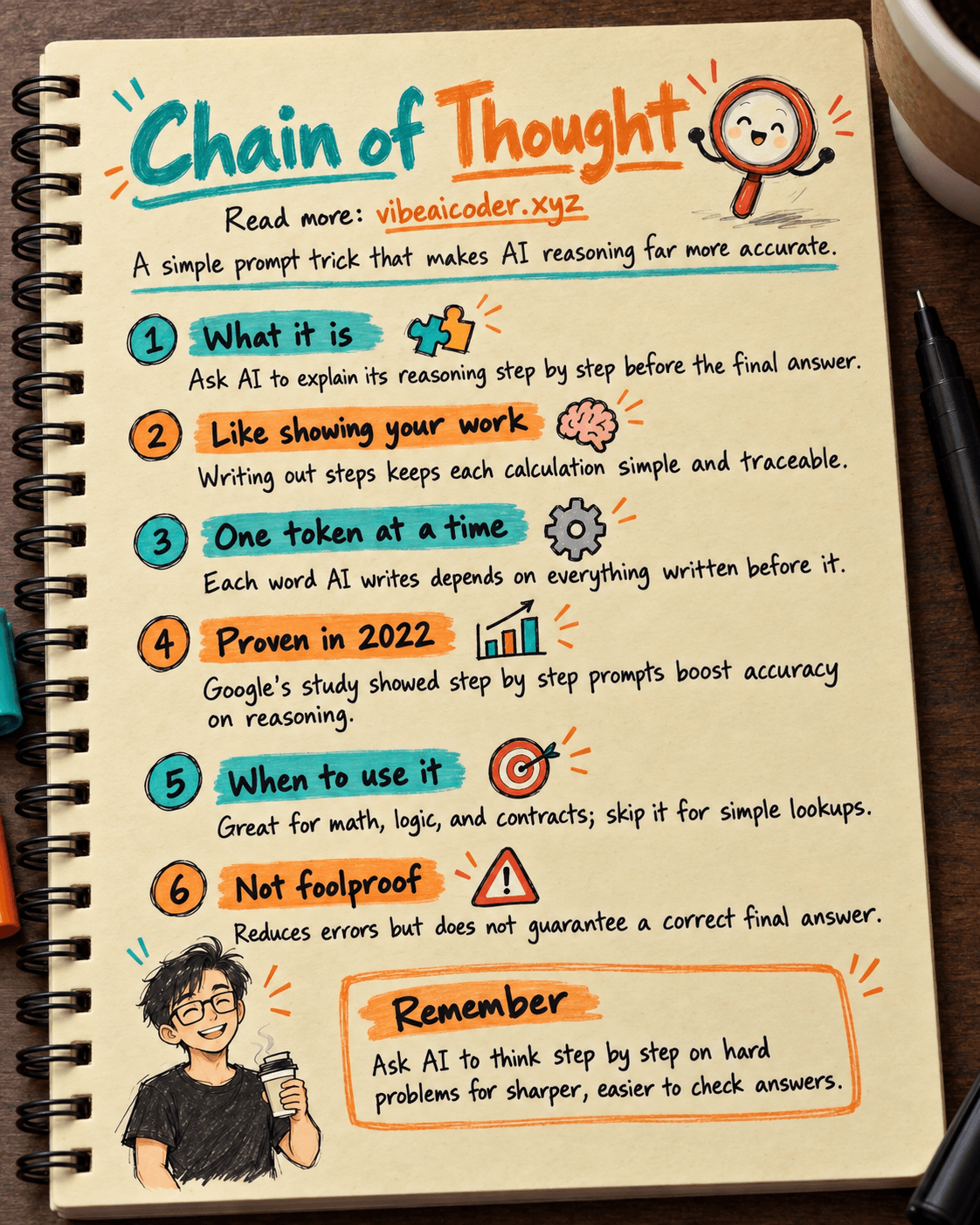
What Is Chain of Thought? Why Asking AI to Think Step by Step Works Better
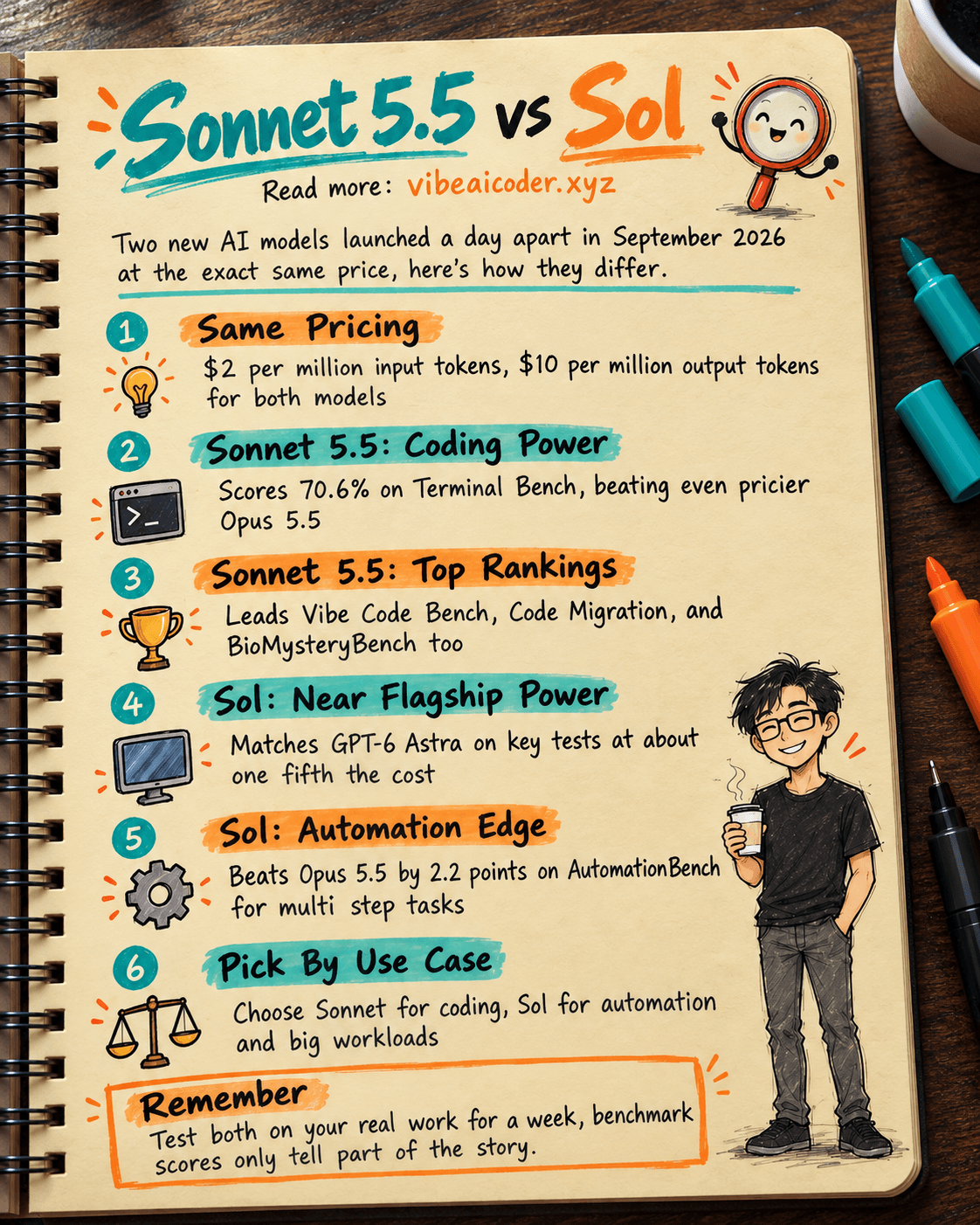
Claude Sonnet 5.5 vs GPT-6.1 Sol: Which AI Model Is Worth Using?
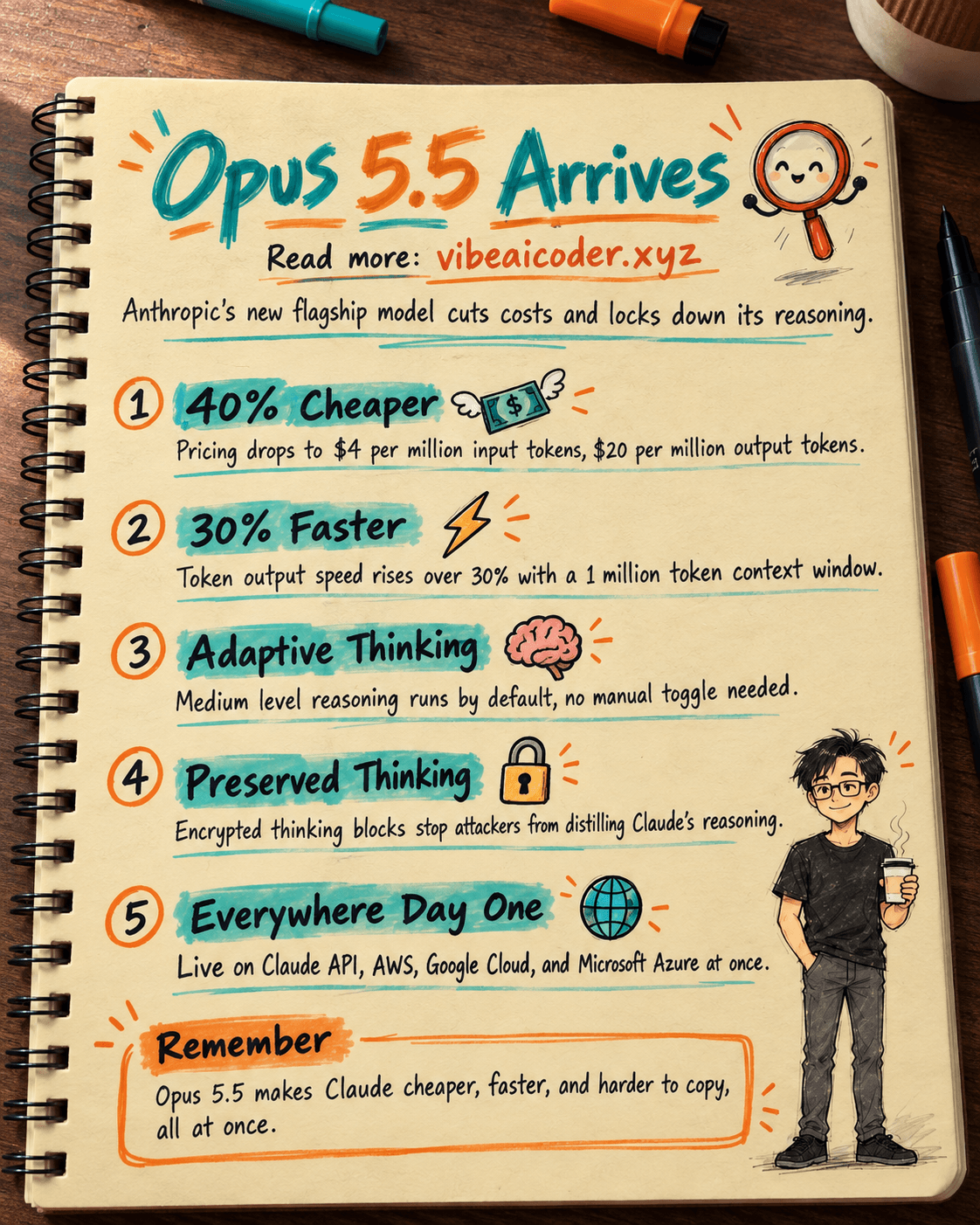
 Claude Opus 5.5 Launches: 30% Faster, 40% Cheaper, Blocks AI Brain Copying