 Claude Code VS Code Extension vs Terminal CLI: Which One to Use
Claude Code comes in two forms: a VS Code Extension for a visual, in-editor experience, and a Terminal CLI for raw power. A lot of people ask which one they should use. The honest answer is both, depending on the task.
Where the VS Code Extension Shines
The extension installs from the marketplace and requires VS Code 1.98+. You open it from the Spark icon in the Editor Toolbar, the Activity Bar, or the Command Palette.
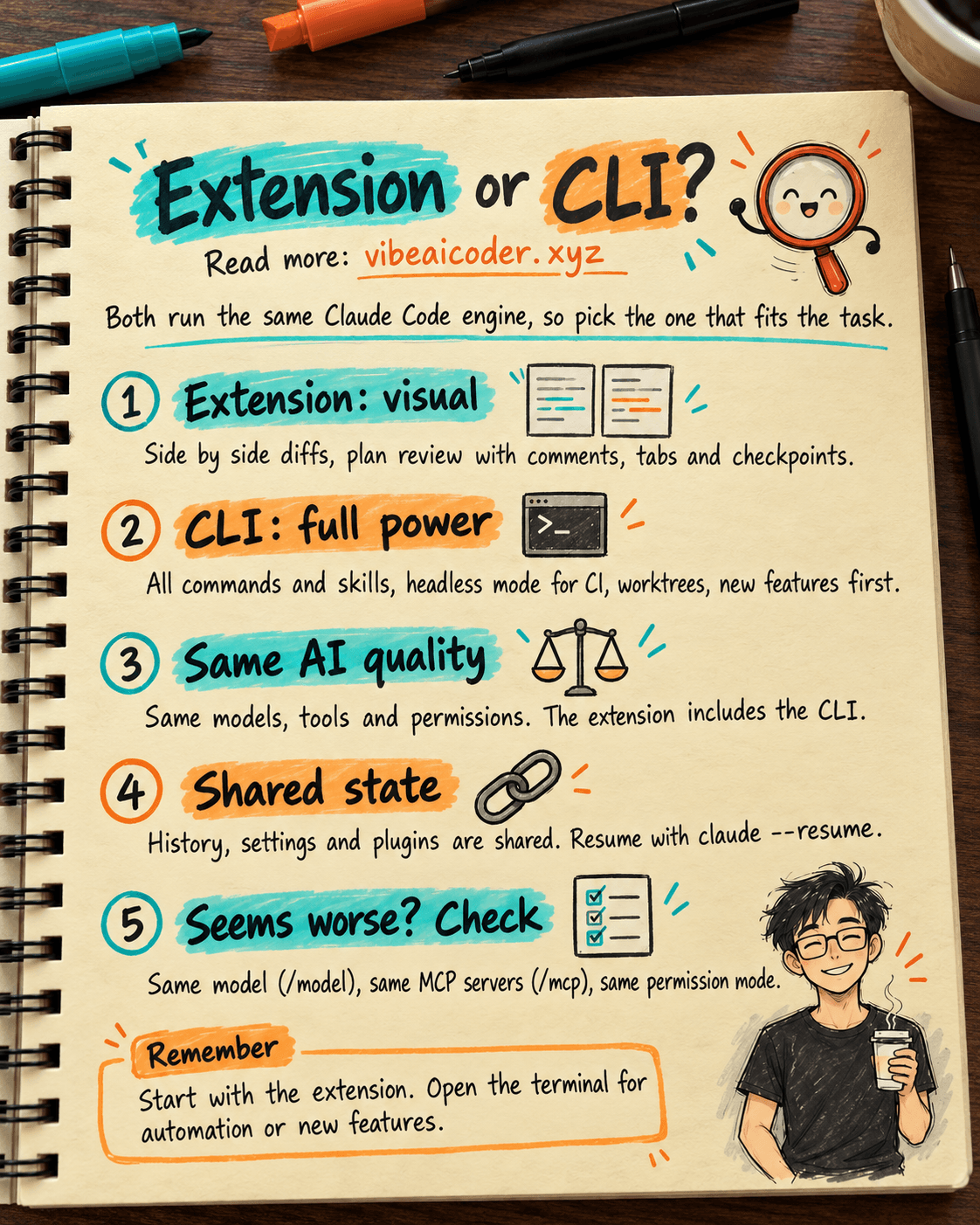
Its biggest strength is the side by side diff: Claude edits a file and you see before and after right next to each other, then click Accept, Reject, or Tell Claude. @-mentioning files with line ranges via Option+K (Mac) or Alt+K inserts @file.ts#5-10 straight from your current selection.
Plan mode review lets Claude write a plan as a markdown doc, and you can add inline comments before accepting it. Conversation history has a UI dropdown for searching, renaming, and resuming sessions easily. Multiple tabs let you run several conversations side by side, and rewind checkpoints let you hover over a message and "Fork conversation from here."
There is also Chrome integration through @browser that lets Claude control a tab, plus Jupyter notebook support that runs Python cells with a confirmation dialog. It fits developers who live inside an IDE every day, solo founders who are not comfortable with a terminal, and anyone reviewing a lot of pull requests.
What the Terminal CLI Has That the Extension Doesn't
The CLI is still the "full version" of Claude Code. The extension is catching up, but a lot of features only exist in the CLI.
The biggest one is full commands and skills: VS Code only ships a subset, while the CLI has everything. The bash shortcut lets you type !ls right from the prompt to run a quick bash command, with tab completion for commands and file paths. Headless mode, claude --print "prompt", is built for CI automation, and worktree isolation, claude --worktree feature-auth, spins up a separate environment for you.
Hooks configuration is more detailed, and scripting automation through cron or shell scripts is much easier. New features always ship on the CLI first and get ported to the extension later. It fits advanced developers, DevOps, CI/CD pipelines, power users who want speed, and anyone who prefers a keyboard-only workflow.
So Is the AI Quality Actually Different Between the Two?
This is the question that worries people the most: does using the Extension mean fewer permissions and therefore lower quality than the Terminal? The short answer is no, the AI quality is exactly the same. Here is the full explanation so you can stop worrying.
Both run on the same backend. The extension is not a "lite version" of Claude Code. It is a GUI wrapper around the same CLI engine. According to the official docs, "the extension includes the CLI." In other words, the extension contains the CLI inside it, they are not two separate products. That means the same Claude models (Opus, Sonnet, Haiku), the same system prompt, the same tool access (Read, Write, Edit, Bash, WebFetch), the same context window, and the same code reasoning quality. When you type a prompt in the extension, it calls the exact same API with the exact same tools as the terminal. Output quality is identical.
Permissions are the same, only the UI looks different. Both run with your own user account permissions. There is no "sandbox" limiting the extension. Claude inside the extension can read and edit any file in the project, run any bash command, call network APIs, install packages, everything the terminal can do. The only real difference is how the approval UI shows up: the terminal uses a text prompt like "Allow this command? (y/n)," while the extension uses a modal dialog with Accept/Reject buttons. Permission modes (default, plan, acceptEdits, bypassPermissions) work identically in both, and they share the same config in ~/.claude/settings.json.
The real differences don't affect quality. Things the extension is missing, like the !ls bash shortcut, tab completion, or the full set of slash commands, are UX conveniences, not AI capabilities. The !ls shortcut is just a fast way to type a command; Claude inside the extension can still run ls if you simply tell it to "list files in the current folder." AI reasoning and code quality are not affected at all.
When does quality actually differ? Output only differs when you use a different model (say the extension defaults to Sonnet while the terminal is set to Opus), when different MCP servers are connected (though since config is shared, this is usually the same), or when you use different skills or plugins (the extension has a subset, but core skills stay the same). Within the same task and the same config, output is identical. You can test this yourself: open both, ask the same question about the same codebase, and compare. The results will match.
If the Extension seems worse than the Terminal, check three things. First, is it the same model? Type /model in both to verify. Second, are the same MCP servers active? Type /mcp to see the list. Third, is the permission mode the same? Plan mode will produce different output than acceptEdits mode because Claude's approach changes. 99% of the time when the "extension seems worse," it comes down to a config difference, not the extension being nerfed.
The Important Part Most People Miss
The two tools share state almost entirely, and that is the key to using them well.
Conversation history is shared: start a session in the extension, open a terminal, type claude --resume, pick that session, and keep going right where you left off. Settings in ~/.claude/settings.json apply to both, so you only configure MCP servers and hooks once. Plugins installed through /plugins in the extension show up in the CLI immediately too.
Most importantly, there is an IDE MCP server: when the extension is active, it runs a local MCP server called "ide" that the CLI automatically connects to. That means running claude inside VS Code's integrated terminal will automatically open diffs in the native VS Code viewer and read your current selection for @-mentions. This is the best of both worlds.
The Real Workflow I Actually Use
For exploring a new codebase, I open the Extension, @-mention folders, let Claude scan and explain things, since the GUI is much easier to navigate.
For automation tasks, I open the terminal and type claude --print "write a script that backs up the database every 2 hours", then pipe stdin/stdout straight into my shell pipeline. For a big refactor, I use the Extension with plan mode, carefully reviewing the plan with inline comments before accepting it.
For parallel side-project work, I use the terminal with --worktree, running three worktrees in parallel to try three different approaches. For debugging in production, I use the Extension because I need to see logs and stack traces directly, combined with @terminal:name so Claude can read command output.
Tips for Switching Between the Two Tools
If you are in the VS Code Extension and need a CLI-only feature, open the integrated terminal (Ctrl+` or Cmd+`) and type claude. It automatically connects to the IDE MCP server and still gives you the native diff viewer.
If you are in an external terminal and want the GUI, type /ide to have the CLI connect to your open VS Code window. Cross-tool resume works with claude --resume from anywhere: pick a session started in the extension and continue it in the CLI, or the other way around through the Past Conversations dropdown.
It is not really about "which one should I choose," it is about "which one fits this moment." If you are just starting out, install the Extension first since it is more visual and intuitive. Once you hit limits around automation or need the newest features, open the terminal. Since both share state, you never really get lost switching between the two tools.
Which one do you use more in your daily workflow, the Extension or the Terminal?
More articles

Gemini 4 Argon Reads a 500-Page Chemistry Patent in One Afternoon

Claude Opus 5.5 Codes a Real Money Trading Game in One Day

What Is a Token in AI? Why ChatGPT and Claude Charge by Tokens
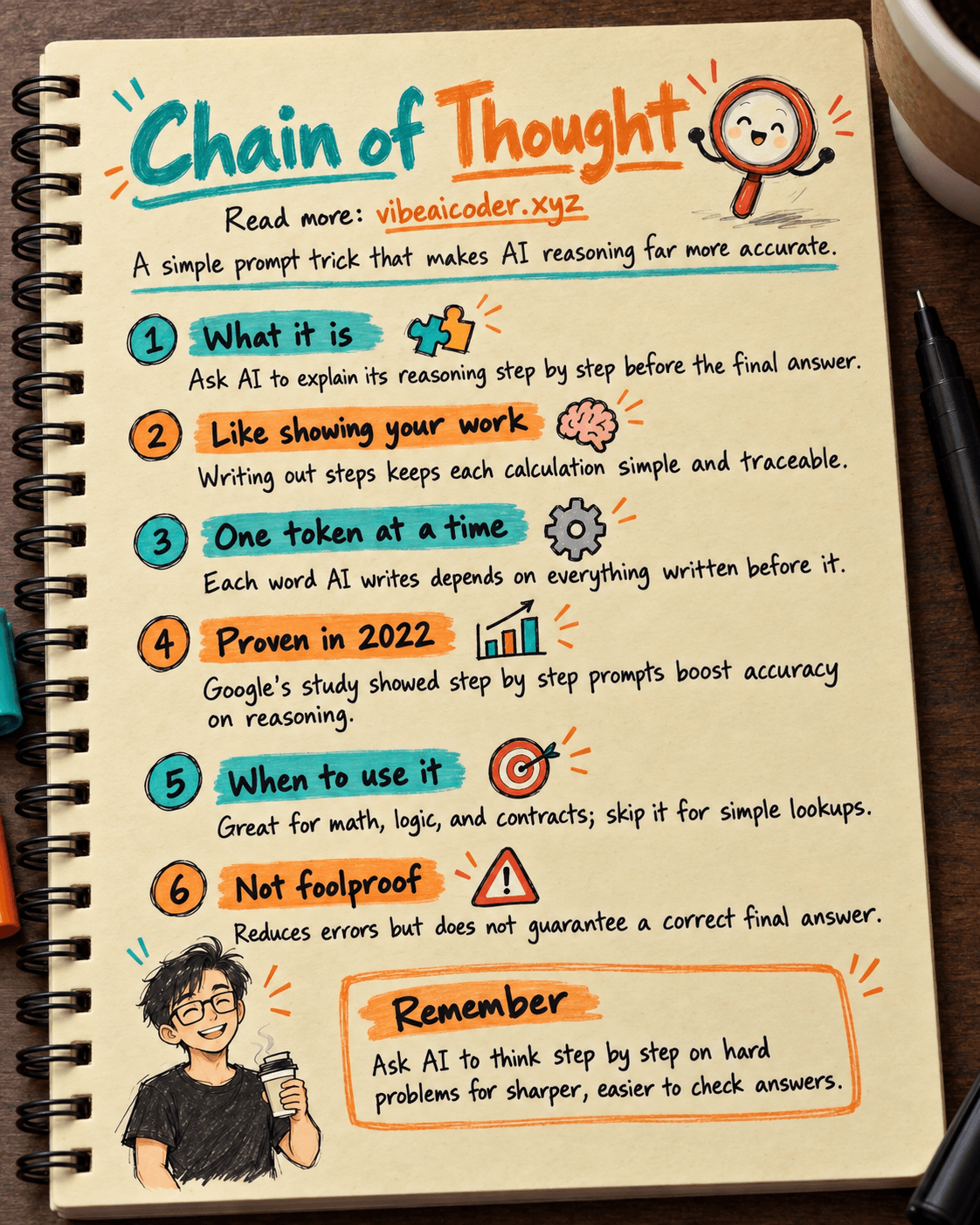
What Is Chain of Thought? Why Asking AI to Think Step by Step Works Better

Claude Sonnet 5.5 vs GPT-6.1 Sol: Which AI Model Is Worth Using?
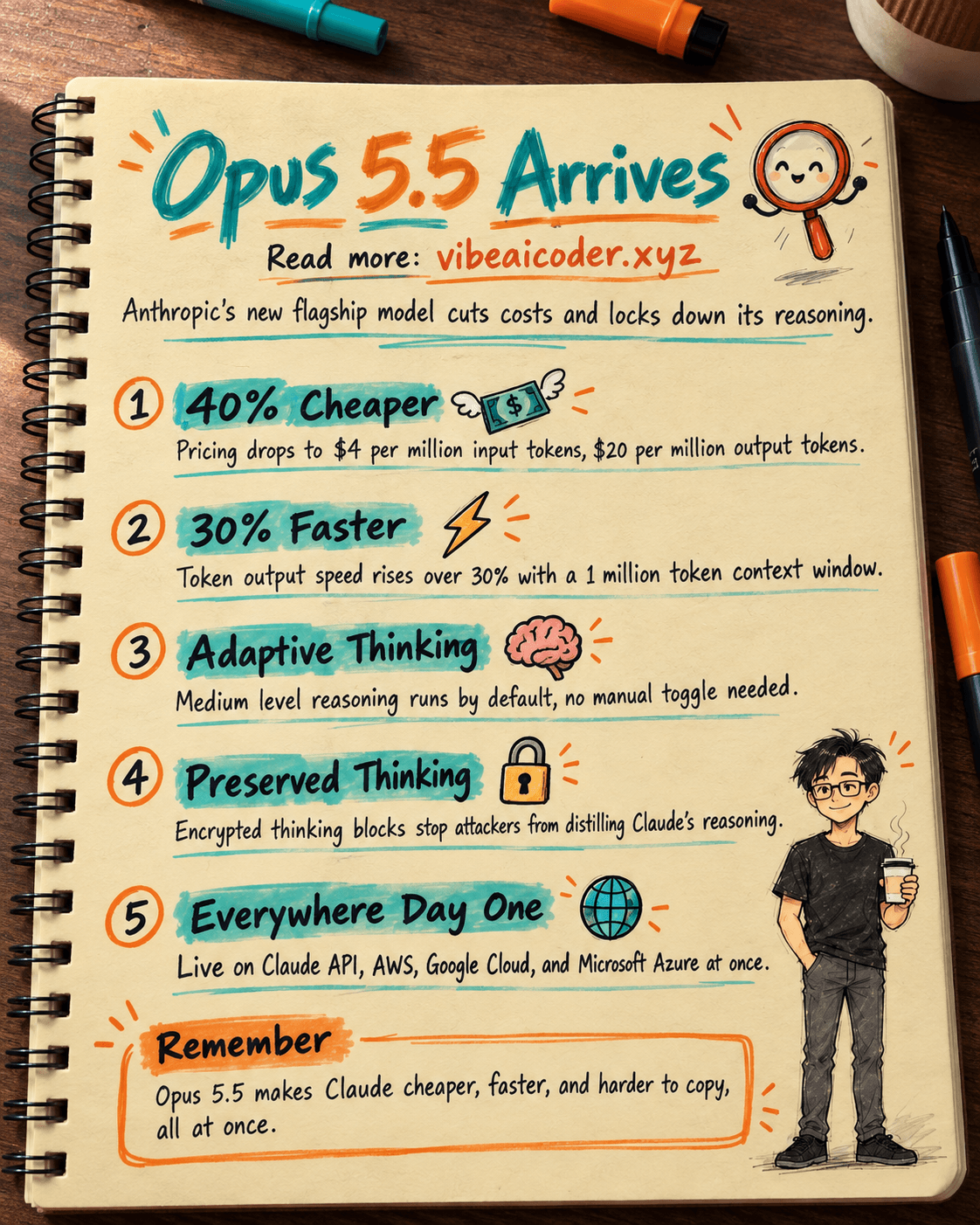
 Claude Opus 5.5 Launches: 30% Faster, 40% Cheaper, Blocks AI Brain Copying