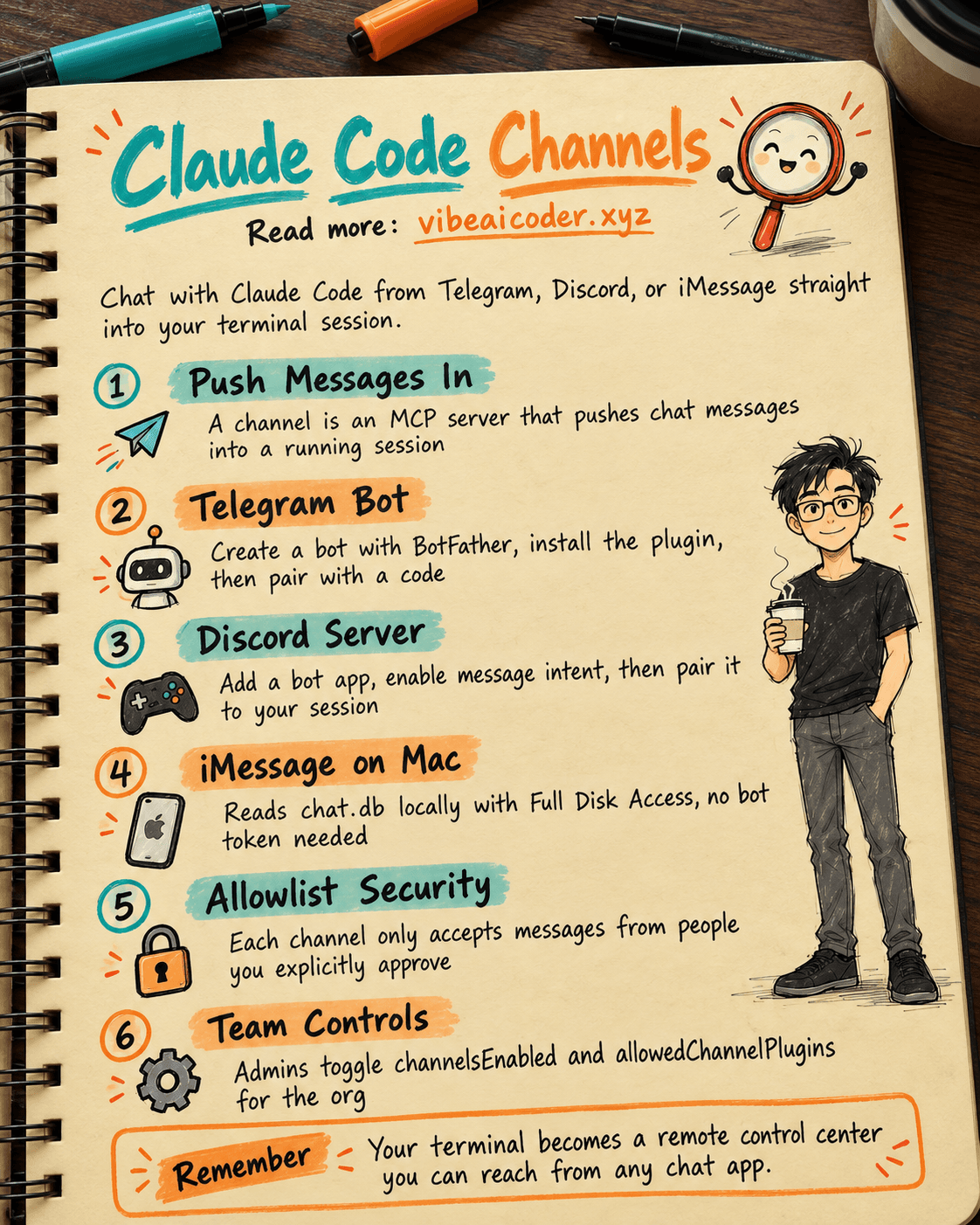
Claude Code Channels: Chat with Claude via Telegram, Discord, or iMessage
Claude Code just launched a feature called Channels, which lets you send messages from Telegram, Discord, or iMessage straight into a Claude Code session that's already running on your computer. Instead of sitting in front of a terminal, you just open a chat app on your phone, type a command, and Claude executes it immediately on your machine.
This feature is currently in research preview and requires Claude Code v2.1.80 or later.
What are Channels?
A channel is an MCP server that can push events into an active Claude Code session. The biggest difference from other features: everything still runs entirely on your own machine. Your files, MCP servers, and project configuration all stay exactly where they are.
When Claude replies through a channel, you'll see the incoming message in the terminal but not the actual reply content. The terminal only shows the tool call and a confirmation (such as "sent"), while the real answer shows up on the chat platform itself.
Channels support two-way communication: Claude reads your message and replies on the same channel, acting like a genuine chat bridge.
Three supported platforms
Telegram
Telegram is the most popular option for mobile users. You create a bot through BotFather, then connect that bot to Claude Code.
Setup steps:
-
Open BotFather on Telegram, send the
/newbotcommand, and choose a name and username (must end inbot). Copy the token it gives you. -
In Claude Code, install the plugin:
/plugin install telegram@claude-plugins-official
- Configure the token:
/telegram:configure <token>
The token is saved at ~/.claude/channels/telegram/.env.
- Restart Claude Code with the channels flag:
claude --channels plugin:telegram@claude-plugins-official
- Open Telegram and send any message to the bot. It will reply with a pairing code. Go back to Claude Code and run:
/telegram:access pair <code>
/telegram:access policy allowlist
That's it. From now on you can send Claude commands through Telegram whenever you want.
Discord
Discord is a good fit for teams that want to share one Claude bot.
Setup steps:
-
Go to the Discord Developer Portal and create a new application. Under Bot, set a username and copy the token.
-
Turn on Message Content Intent under Privileged Gateway Intents.
-
Go to OAuth2 > URL Generator, select the
botscope, and grant these permissions: View Channels, Send Messages, Send Messages in Threads, Read Message History, Attach Files, Add Reactions. Open the generated URL to add the bot to your server. -
In Claude Code:
/plugin install discord@claude-plugins-official
/discord:configure <token>
- Restart with channels enabled:
claude --channels plugin:discord@claude-plugins-official
- Send the bot a DM on Discord to get a pairing code, then run:
/discord:access pair <code>
/discord:access policy allowlist
iMessage
iMessage is the simplest option, but it only works on macOS. No bot token or external service needed. The plugin reads directly from the Messages database and sends replies through AppleScript.
Setup steps:
-
Grant Full Disk Access to your terminal app under System Settings > Privacy & Security > Full Disk Access. The plugin needs to read the
~/Library/Messages/chat.dbfile. -
Install the plugin:
/plugin install imessage@claude-plugins-official
- Restart with channels enabled:
claude --channels plugin:imessage@claude-plugins-official
-
Open Messages on any device signed in with your Apple ID and send yourself a message. It reaches Claude instantly, no extra setup required.
-
To let other people message Claude:
/imessage:access allow +12125551234
Security
Each channel keeps its own allowlist. Only people you've explicitly added can send messages; everyone else is blocked outright.
Telegram and Discord use a pairing flow: you message the bot, get a verification code, then enter that code in Claude Code. iMessage is simpler, messaging yourself is automatically allowed.
Important: anyone allowed to message a channel can approve or deny tool use inside your running session. Only add people you genuinely trust.
Beyond the allowlist, you also control which servers are active in a given session through the --channels flag. Being listed in .mcp.json isn't enough to push messages; the server also has to be named in --channels.
Settings for Team and Enterprise
On Team and Enterprise plans, Channels is disabled by default. Admins control it through two settings:
| Setting | Purpose | When not configured |
|---|---|---|
channelsEnabled | Master switch. Must be true for channels to work | Channels are blocked |
allowedChannelPlugins | Defines which plugins are allowed once channels are on | Anthropic's default list |
Admins turn the feature on from claude.ai > Admin settings > Claude Code > Channels, or by setting channelsEnabled: true in managed settings.
Example configuration allowing specific plugins:
{
  "channelsEnabled": true,
  "allowedChannelPlugins": [
    { "marketplace": "claude-plugins-official", "plugin": "telegram" },
    { "marketplace": "claude-plugins-official", "plugin": "discord" },
    { "marketplace": "acme-corp-plugins", "plugin": "internal-alerts" }
  ]
}
Pro and Max users who don't belong to an organization skip these checks entirely. Channels are available by default, and users opt in per session with --channels.
Channels vs. other features
| Feature | How it works | Best for |
|---|---|---|
| Channels | Pushes messages from a chat app into a running session | Sending commands from your phone, receiving CI webhooks |
| Remote Control | Controls a session from claude.ai or the mobile app | Steering an already-running session remotely |
| Web Sessions | Runs a task in a cloud sandbox | Handing off independent work to check on later |
| Slack | Creates a web session from @Claude in Slack | Kicking off a task from a team conversation |
| MCP Server | Claude queries it on demand, no push | Giving Claude read/query access to a system |
Channels fill the gap by pushing events from an external source straight into a session already running on your local machine.
Real-world use cases
Chat bridge: You're out and about, open Telegram, and send "review PR #42." Claude runs on your machine, reads the code, analyzes it, and sends the result straight back to Telegram.
CI/CD webhooks: A deployment pipeline fails, and a webhook sends a message into the channel. Claude already has your files open, so it reads the logs and proposes a fix automatically.
Quick iMessage tasks: Message yourself "update dependencies and open a PR." Claude handles the whole thing hands-free.
Discord for teams: The whole team sends tasks to a shared Claude bot in a Discord server, each person pairing with their own account.
Try it fast with Fakechat
If you don't want to set up Telegram or Discord yet, you can use fakechat, a demo channel that runs a chat UI on localhost with no authentication or external service required.
/plugin install fakechat@claude-plugins-official
Restart:
claude --channels plugin:fakechat@claude-plugins-official
Open your browser at http://localhost:8787, type a message, and watch Claude respond right away.
Build your own channel
You can build a channel for your own systems by writing an MCP server that supports pushing events. Check the Channels Reference docs to get started.
Some ideas: a webhook receiver for GitHub Actions, an error tracker, or an internal deployment pipeline.
Things to keep in mind
- Channels require signing in with a claude.ai account. Console accounts and API keys aren't supported.
- Events only arrive while a session is open. For always-on availability, run Claude in a background process or a dedicated terminal.
- If Claude hits a permission prompt while you're away from the terminal, the session pauses. Some channel servers can forward that prompt so you can approve it remotely.
- The feature is still a research preview, so the
--channelssyntax and protocol may change.
Claude Code Channels turns your terminal into a remotely accessible control center. No need to open your laptop or SSH in, just send a message from the app you already use every day.
More articles

Gemini 4 Argon Reads a 500-Page Chemistry Patent in One Afternoon

Claude Opus 5.5 Codes a Real Money Trading Game in One Day
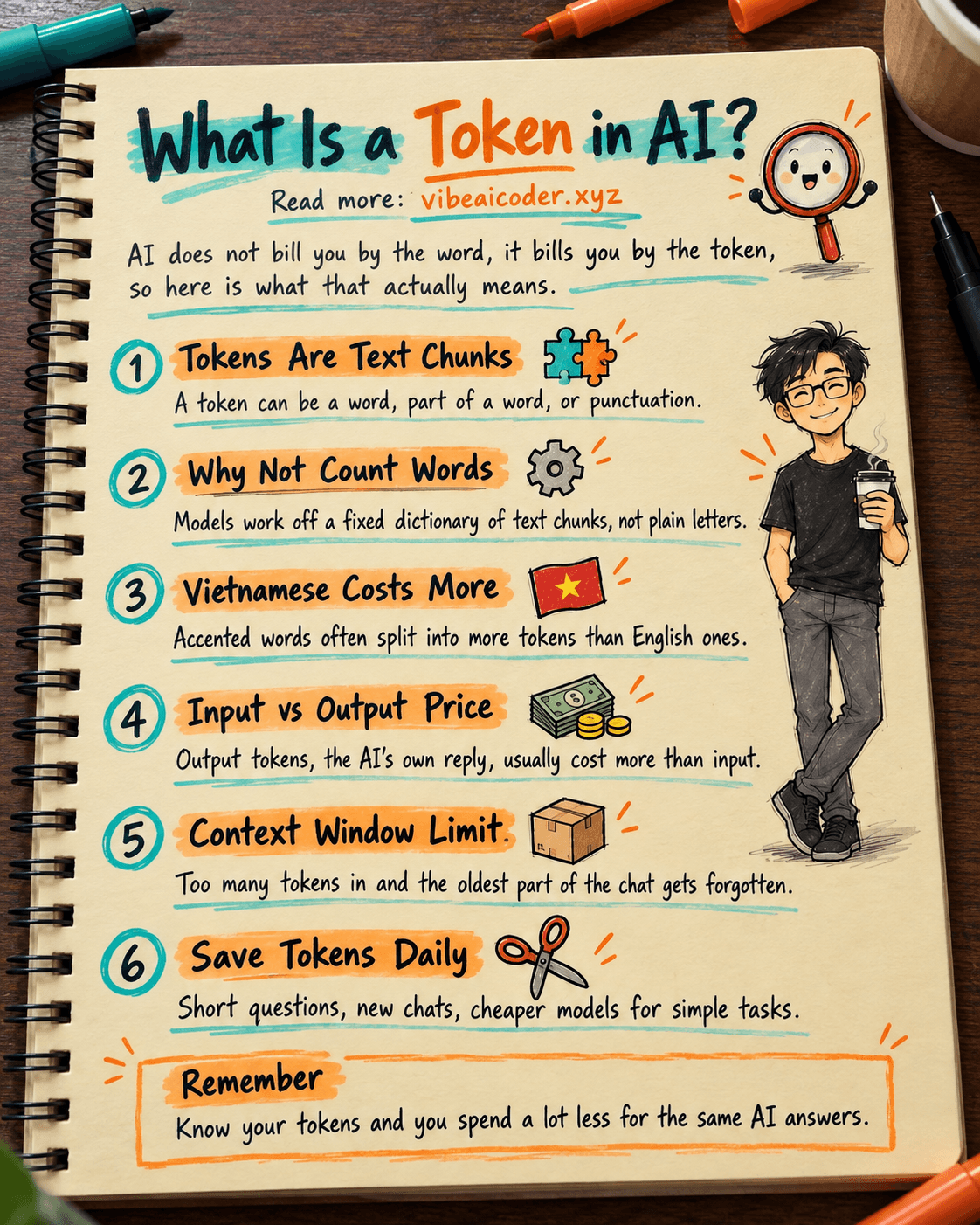
What Is a Token in AI? Why ChatGPT and Claude Charge by Tokens
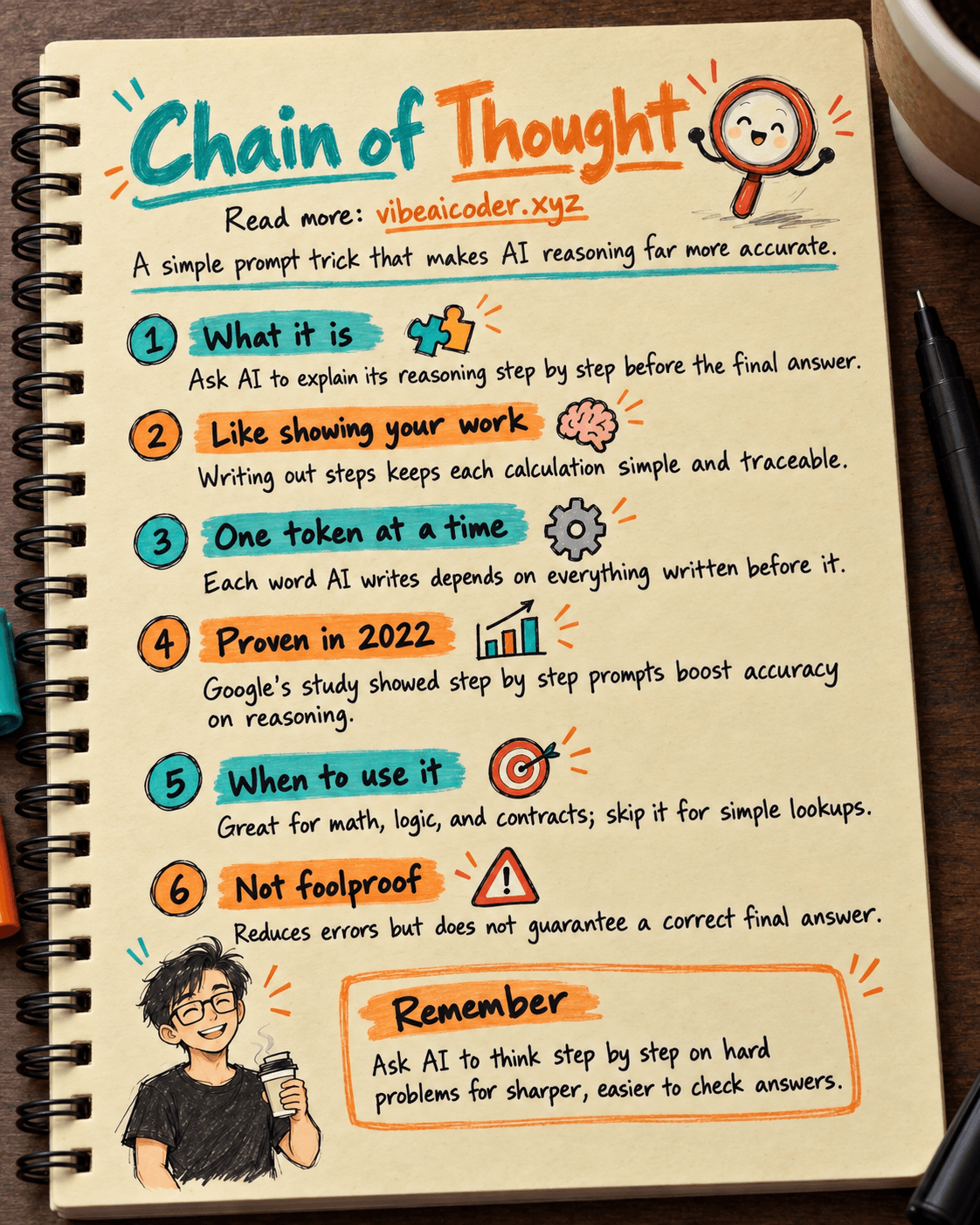
What Is Chain of Thought? Why Asking AI to Think Step by Step Works Better
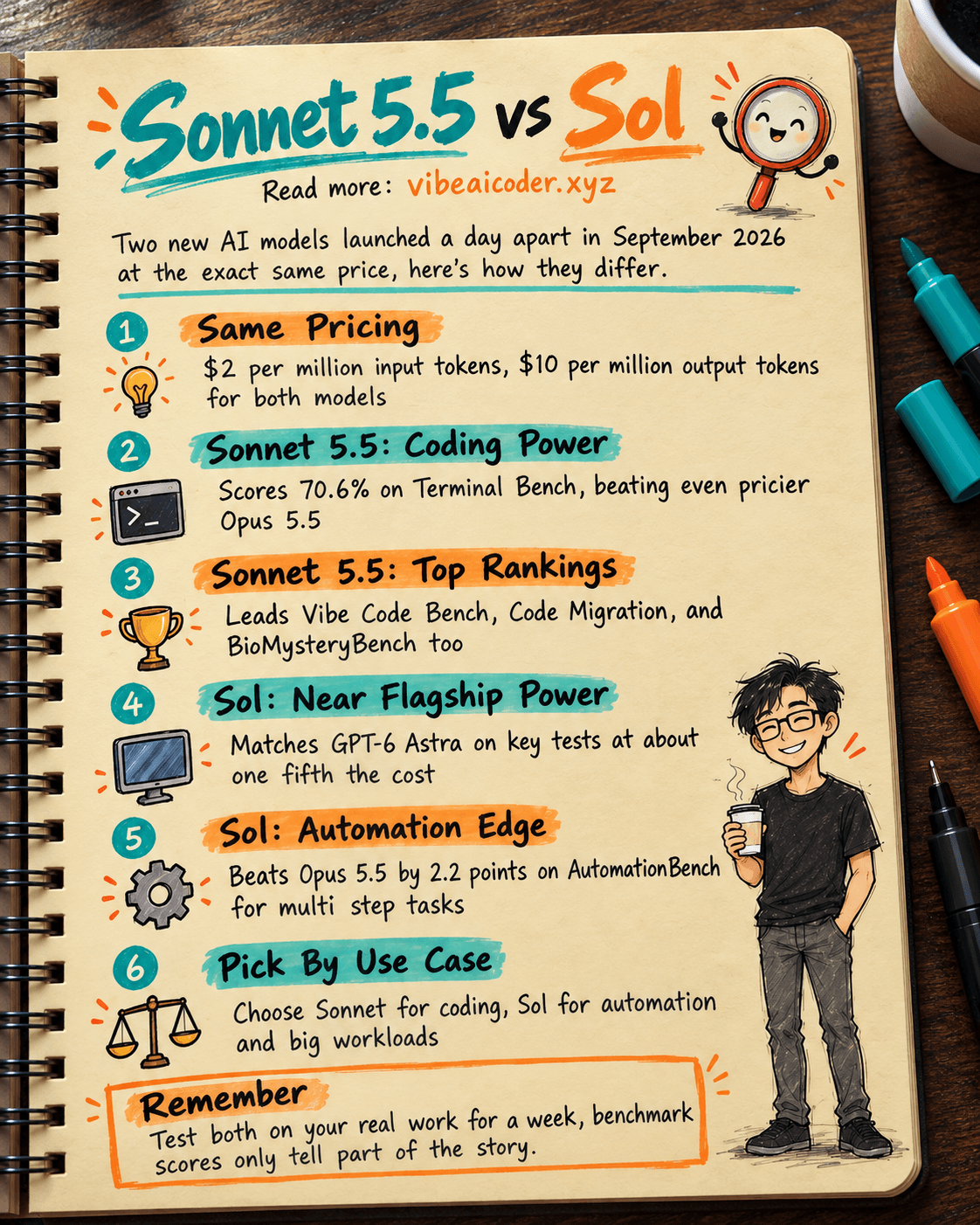
Claude Sonnet 5.5 vs GPT-6.1 Sol: Which AI Model Is Worth Using?
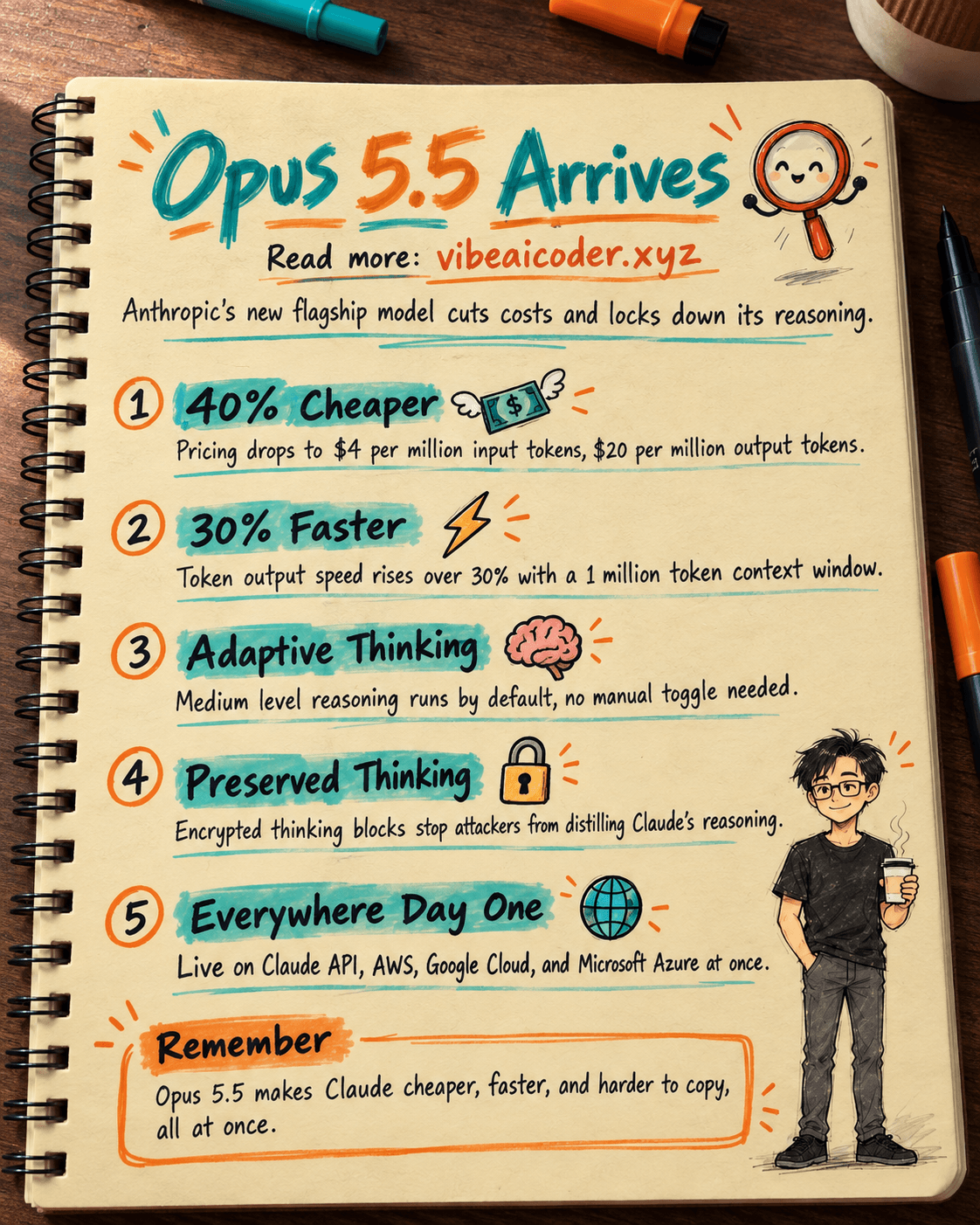
 Claude Opus 5.5 Launches: 30% Faster, 40% Cheaper, Blocks AI Brain Copying