What Is Claude Code? A Complete Beginner's Guide to Installing and Using It
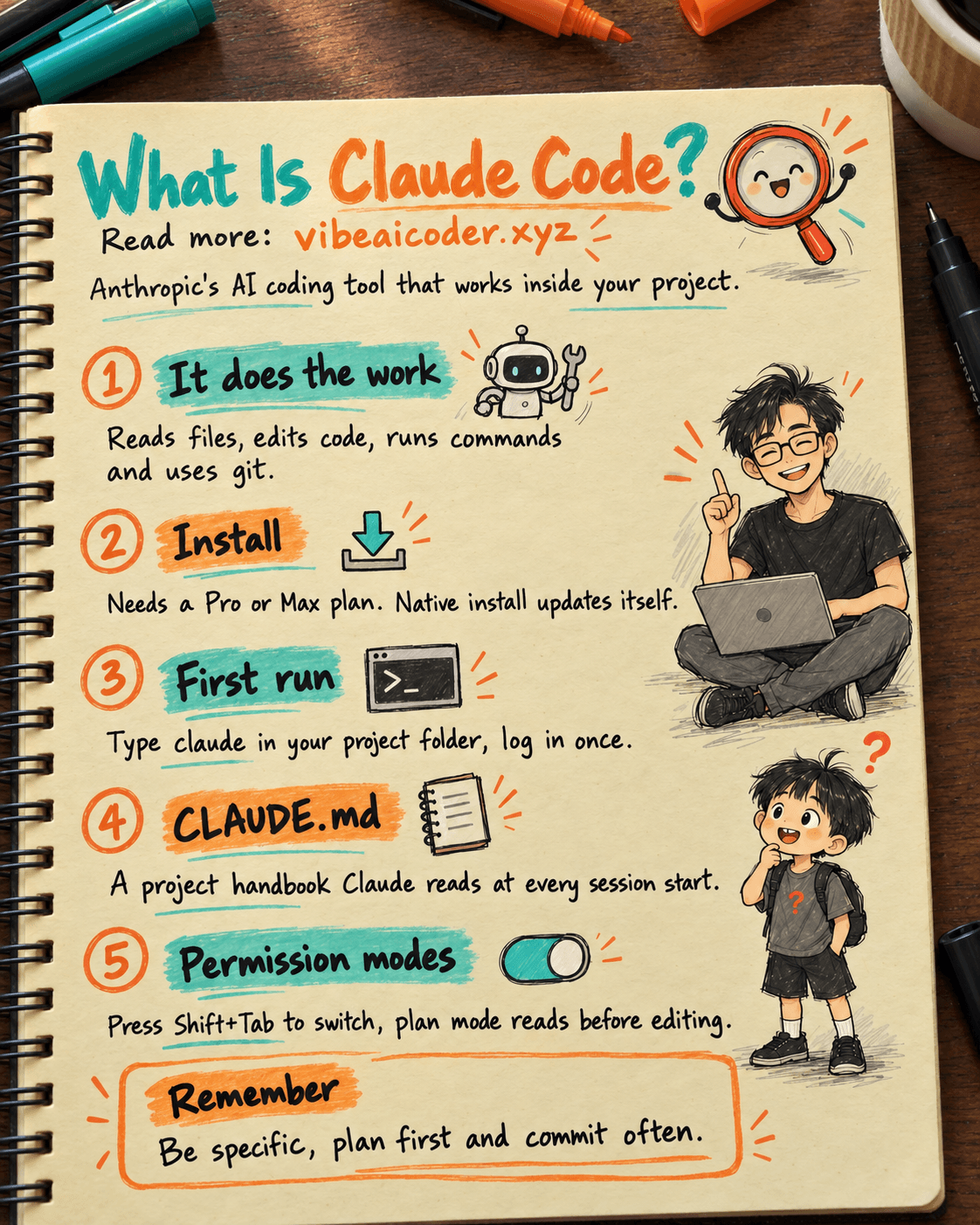
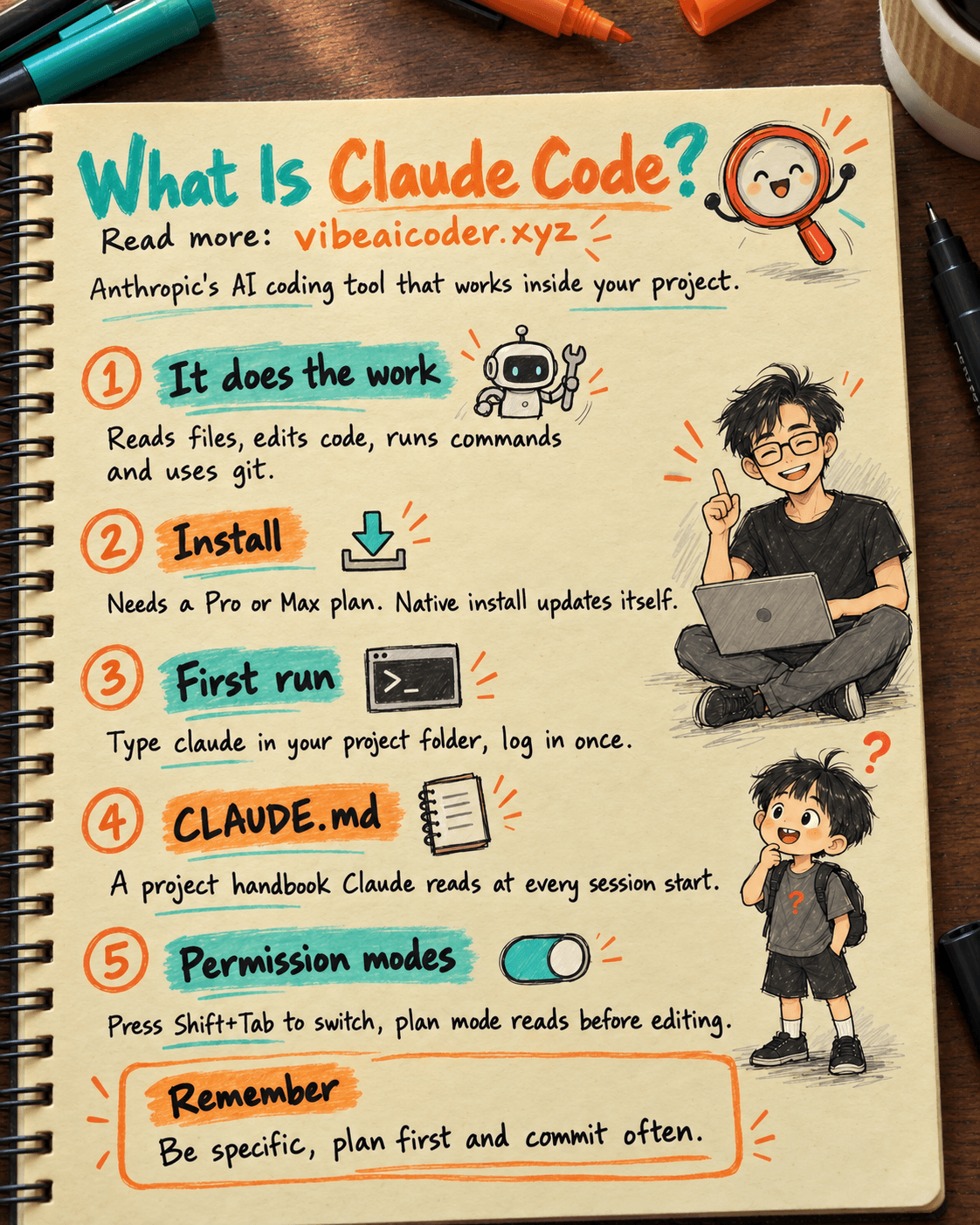
Claude Code is Anthropic's AI coding tool. It runs in your terminal, inside code editors (IDEs like VS Code and JetBrains), as a desktop app and in the browser. It understands your whole project, edits many files at once, runs commands, works with git and connects to the tools you already use. You just describe what you need in plain language, and Claude Code plans the work, writes the code and checks the result.
This post goes from the basic idea to installation, your first run, the main features and tips for using it safely. All technical details come from Anthropic's official documentation.
 What is Claude Code?
According to the official docs, Claude Code is an agentic coding tool. "Agentic" here means the AI doesn't just answer questions, it takes action on its own: it opens files to read them, edits code, runs commands to check its work, then reports back to you.
Think of Claude Code as a programming colleague sitting next to you. You say "fix the bug where the sign-up form still submits when it's empty", and it finds the relevant code, understands the context, writes a fix and runs the tests if the project has them.
Claude Code is available in several places, called "surfaces":
- Terminal: the most complete version, used from the command line.
- VS Code and Cursor: an extension that shows code changes right in your editor.
- JetBrains: a plugin for IntelliJ IDEA, PyCharm, WebStorm and other IDEs in the family.
- Desktop app: use Claude Code without opening a terminal.
- Web browser: go to claude.ai/code, nothing to install.
The nice part is that all these surfaces share the same "engine" underneath. Your CLAUDE.md instructions file, settings and the project's MCP connections work the same way everywhere.
 How is Claude Code different from an AI chatbot?
Many people think Claude Code is just "ChatGPT for developers". The difference is actually big.
With a normal chatbot, you have to copy code into the chat box, read the answer, then copy the code back and paste it into your file. The chatbot can't see your project and doesn't know which files relate to which.
Claude Code is different:
- It reads your project itself: the official docs say clearly that Claude Code reads project files as needed, so you don't have to paste in context.
- It edits many files at once: one request can lead to changes across several files.
- It runs commands: runs tests, installs libraries, reads error logs.
- It works with git: sees which files changed, writes commit messages, creates new branches, opens pull requests.
- It connects to outside tools: through MCP, it can read documents in Google Drive, update Jira tickets or pull data from Slack.
In short: a chatbot is an advisor, while Claude Code is someone who actually does the work in your project.
 Installing Claude Code
Before installing, you need the right account. According to the official docs, Claude Code requires a Pro, Max, Team or Enterprise plan, or a Console account (prepaid API usage). The free claude.ai plan does not include Claude Code.
Your computer needs:
- macOS 13.0 or later, Windows 10 version 1809 or later, Ubuntu 20.04 or later, Debian 10 or later, or Alpine Linux 3.19 or later.
- At least 4 GB of RAM.
- An internet connection.
The recommended way to install is the Native Install. Open a terminal and run the command for your system.
On macOS, Linux or WSL:
curl -fsSL https://claude.ai/install.sh | bash
On Windows PowerShell:
irm https://claude.ai/install.ps1 | iex
On Windows CMD:
curl -fsSL https://claude.ai/install.cmd -o install.cmd && install.cmd && del install.cmd
The native install updates itself in the background, so you always have the latest version. If you prefer a package manager, you can install with Homebrew or WinGet (these two don't update automatically, so you need to upgrade them yourself from time to time):
brew install --cask claude-code
winget install Anthropic.ClaudeCode
After installing, open a new terminal window and check:
claude --version
If you see a version number followed by "(Claude Code)", the install worked. If the terminal says it can't find the claude command, the install folder isn't on your system path (PATH). Anthropic's troubleshooting page explains how to fix this in detail. You can also run claude doctor to have it check your installation.
A few small notes:
- On Windows, the docs recommend also installing Git for Windows so Claude Code can use its Bash tool. Without it, Claude Code uses PowerShell instead.
- Installing with npm is still possible, but it is listed under advanced options and needs Node.js 22 or later. Beginners should use the native install above.
- Don't like the terminal? You can download the desktop app or install the Claude Code extension in VS Code. Both give you a visual, more familiar interface.
 Your first run
Open a terminal in the project folder you want to work on, then type claude:
cd path-to-your-project
claude
The first time you run it, Claude Code asks you to log in. Follow the prompts and a browser window opens so you can verify your account. You only log in once, and after that you don't need to do it again. To switch accounts, type /login inside a session.
Once you're in, you'll see the Claude Code prompt, with the version, the model in use and the current folder shown above it. Start with a few questions so Claude gets to know the project. The official docs suggest questions like:
- "what does this project do?"
- "explain the folder structure"
- "where is the main entry point?"
You can ask in whatever language you're most comfortable with. Then try a small change, and Claude will find the right file and show you the change.
A few basic commands worth remembering:
claude: start a session.claude -c: continue the most recent conversation in this folder.claude -p "your question": ask once and exit, handy for scripts./help: see the list of available commands./clear: clear the conversation history to start a new task./exit: quit Claude Code.
 Claude Code's main features
This is what turns Claude Code from "an assistant that knows code" into "an assistant that gets what you mean". Each feature gets a short explanation, plus a detailed post if you want to dig deeper.
1. CLAUDE.md: your project's handbook. This is a text file at the root of your project that Claude Code reads at the start of every session. You put in it how to run the project, your coding conventions and the things that "must always be done". Type /init and Claude analyzes the project and creates a starter CLAUDE.md for you. The docs recommend keeping it under 200 lines so Claude follows it better. See also: how to write a CLAUDE.md file so Claude understands your project.
2. Permission modes: you decide what Claude can do on its own. Claude Code has several modes, for example: Manual (asks you before most file edits and commands), acceptEdits (edits files freely, only asks about other things), plan (only reads and makes a plan, no edits yet) and auto (a secondary model does the safety checks for you). Press Shift+Tab to switch modes at any time. Learn more in the post Claude Code's permission modes.
3. Slash commands: shortcuts that start with /. Type / to see every command and skill available. You can also create your own commands for things you do often. Guide: create your own slash command with a single file.
4. Skills: reusable packaged workflows. A skill is a ready-made set of instructions for one kind of task, for example "review a pull request" or "deploy to the test environment". Unlike CLAUDE.md, which is always loaded, a skill is only loaded when you call it or when Claude decides it's relevant. Details in the post Claude Code Skills help the AI work the way you want.
5. Hooks: run commands automatically at the right moment. A hook runs a command before or after one of Claude's actions, for example formatting code after every file edit, or running checks before a commit. The key point: CLAUDE.md is just advice, while a hook always runs no matter what Claude decides. Read more: turn your terminal into an automation machine with hooks.
6. MCP: a gateway to outside tools. MCP (Model Context Protocol) is an open standard that lets AI connect to other data sources and tools. With MCP, Claude Code can work with Google Drive, Jira, Slack or your internal tools. If this is new to you, read what MCP is and how Claude connects to all your tools.
7. Sub-agents: a team of specialist assistants. Claude Code can create several sub-agents that work in parallel on different parts of a big task, while the main agent coordinates and gathers the results. You can also define your own specialist agents for specific roles. Guide: create specialist sub-agents with the .claude/agents folder.
 Examples of what you can ask Claude Code to do
The official docs list many real tasks. Here are the easiest ones to start with:
- Understand an unfamiliar project: "explain what this project does and what the main folders are for".
- Fix bugs: paste an error message or describe the problem, and Claude traces through the code, finds the root cause and fixes it.
- Build a new feature: "add input validation to the user sign-up form".
- Write tests: "write tests for the login module, run them and fix whatever fails".
- Clean up code: fix formatting across the whole project, upgrade libraries, resolve merge conflicts.
- Work with git: "commit these changes with a clear message", "create a new branch called feature/quickstart".
- Schedule recurring jobs: Claude Code has Routines that run in the cloud and keep working even when your computer is off, which is handy for things like reviewing pull requests every morning.
 Tips for using Claude Code well and safely
Be specific. Instead of "fix the bug", write "fix the login bug where users see a blank screen after entering the wrong password". The clearer the request, the closer the result.
Break big jobs into steps. For example: step 1 create the data table, step 2 build the API, step 3 build the interface.
Let Claude explore before it edits. For important work, turn on plan mode so Claude reads the code and proposes a plan first. Once you approve the plan, let it start making changes.
Put things you keep repeating into CLAUDE.md. The docs suggest: when Claude makes the same mistake a second time, or you have to retype an instruction you gave in an earlier session, that's the time to add it to CLAUDE.md.
Pick the right permission mode. For sensitive work, use Manual so you approve each action yourself. The bypassPermissions mode skips all checks, and the official docs only recommend it inside an isolated container or virtual machine. Don't turn it on on your main work machine.
Use git as a safety net. Commit often so you always have a point to go back to if Claude's changes aren't what you wanted.
Want to go even faster? See 5 little-known Claude Code tips to double your speed.
 Frequently asked questions
Is Claude Code free? No. According to the official docs, you need a Pro, Max, Team or Enterprise plan, or a Console account. The free claude.ai plan does not include Claude Code.
Can I use Claude Code if I can't code? Yes. You talk to it in natural language, in the language you prefer. If the terminal feels intimidating, use the desktop app or the VS Code extension for a more visual interface.
Does Claude Code work on Windows? Yes. You can install it directly on Windows 10 (version 1809 or later) using PowerShell or CMD, or install it inside WSL. It's a good idea to also install Git for Windows so the Bash tool works.
Will Claude Code change my code without asking? That depends on the permission mode you choose. In Manual mode, Claude asks you before most file edits and commands. Press Shift+Tab to switch modes at any time.
How do I make Claude Code remember my project's rules?
Create a CLAUDE.md file at the root of your project, or type /init to have Claude create a starter version. Claude reads this file at the start of every session. On top of that, the auto memory feature lets Claude remember the corrections you've made.
Ready to type your first claude command? If you get stuck at any step, just ask Claude Code "how do I...". It can answer questions about itself too.
More articles

Gemini 4 Argon Reads a 500-Page Chemistry Patent in One Afternoon

Claude Opus 5.5 Codes a Real Money Trading Game in One Day

What Is a Token in AI? Why ChatGPT and Claude Charge by Tokens
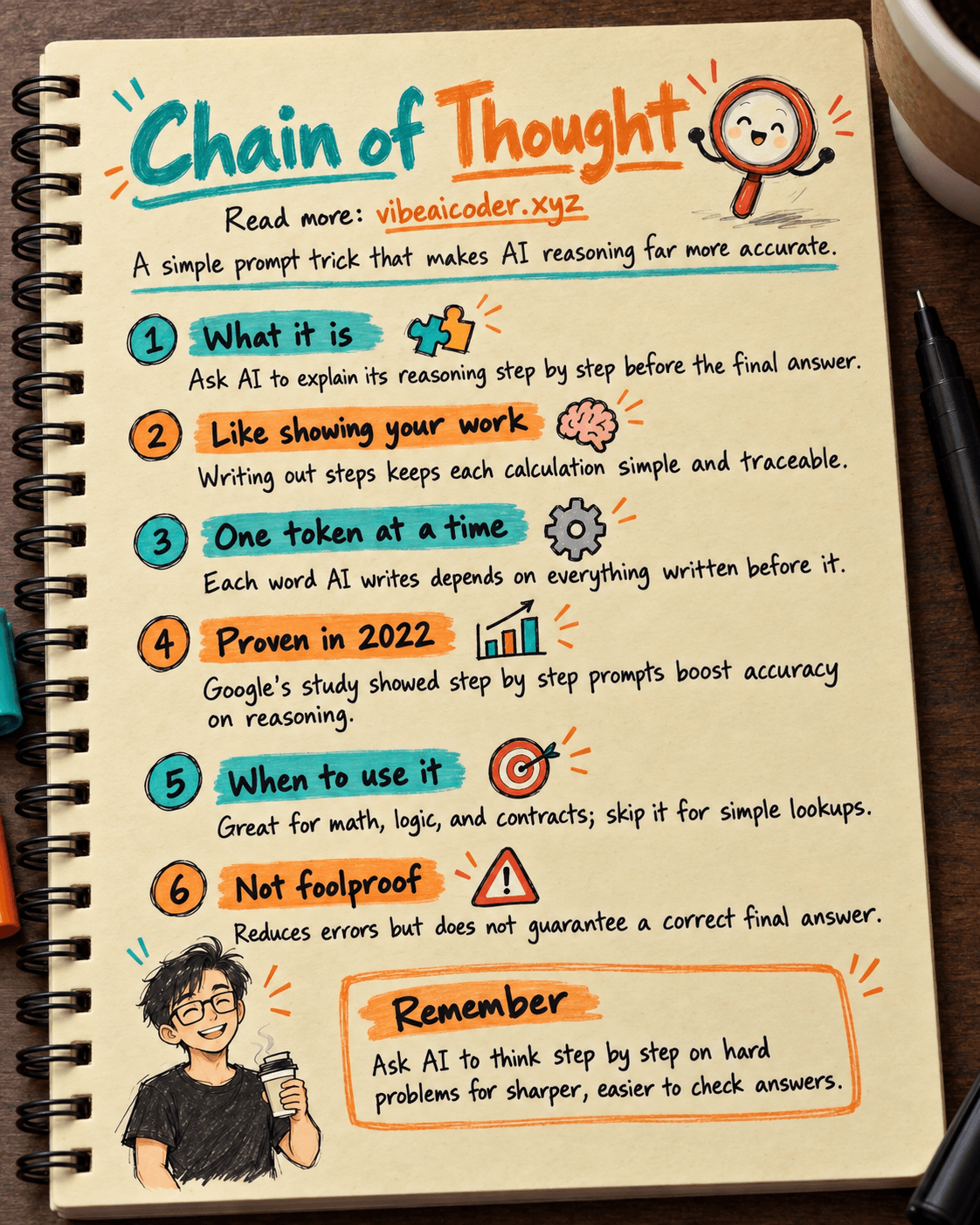
What Is Chain of Thought? Why Asking AI to Think Step by Step Works Better

Claude Sonnet 5.5 vs GPT-6.1 Sol: Which AI Model Is Worth Using?
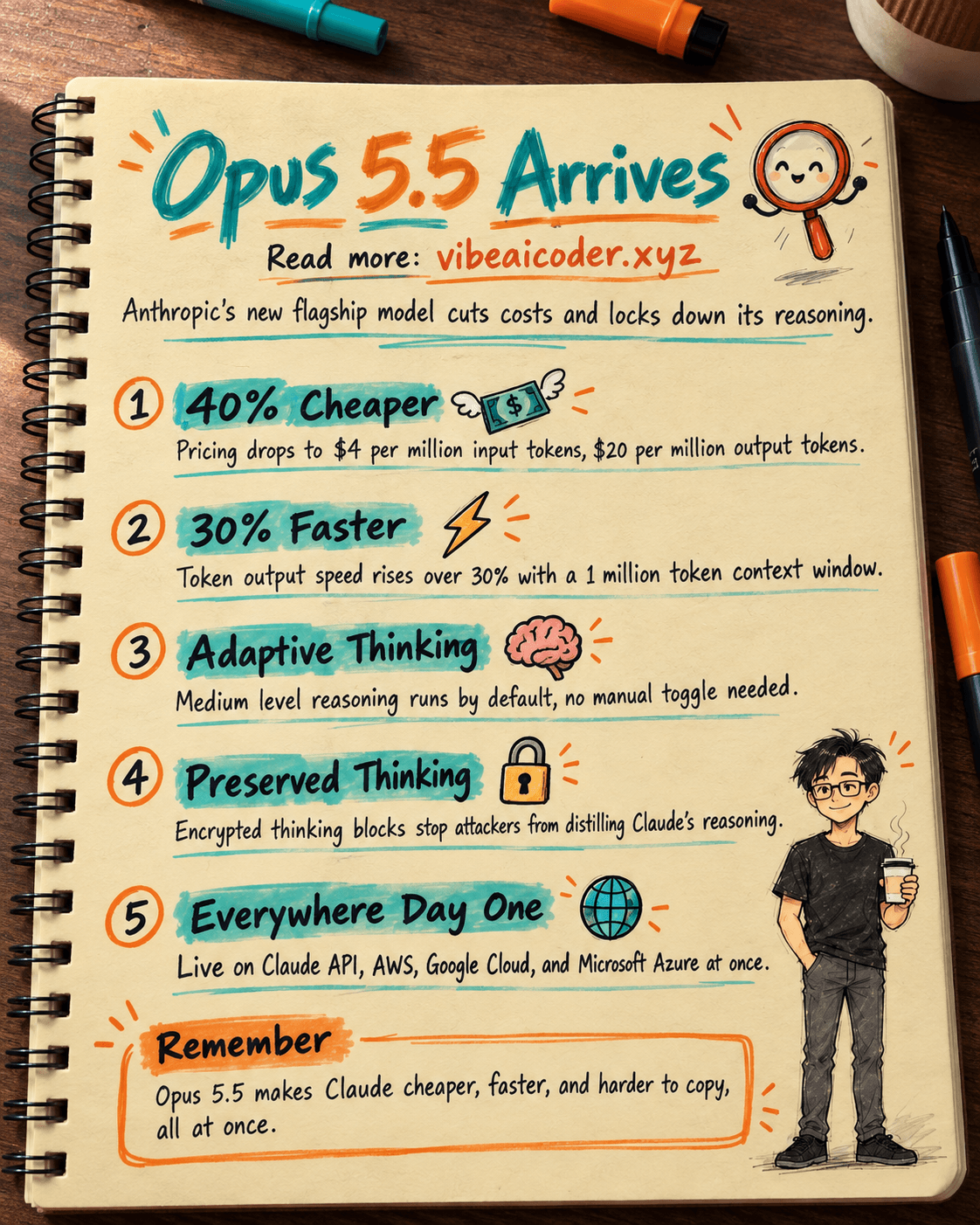
 Claude Opus 5.5 Launches: 30% Faster, 40% Cheaper, Blocks AI Brain Copying